Scan to PDF guide
How to scan documents to PDF online
Create a multipage PDF from document photographs without uploading the pages or installing a scanner application.
On this page
Create the scanned PDF
- Arrange every page and side before creating the PDF.
- Create a multipage PDF from document photographs without uploading the pages or installing a scanner application.
- Flat pages, even lighting, and steady framing improve readability.
- OCR is a separate step when the finished scan must be searchable.
Capture readable document pages
Place the document on a contrasting flat surface, avoid strong shadows and glare, and hold the camera directly above the page. Fill the frame without cutting off corners, signatures, stamps, or page numbers.
- Clean the camera lens.
- Use even light.
- Photograph each page steadily and completely.
Arrange the images as one PDF
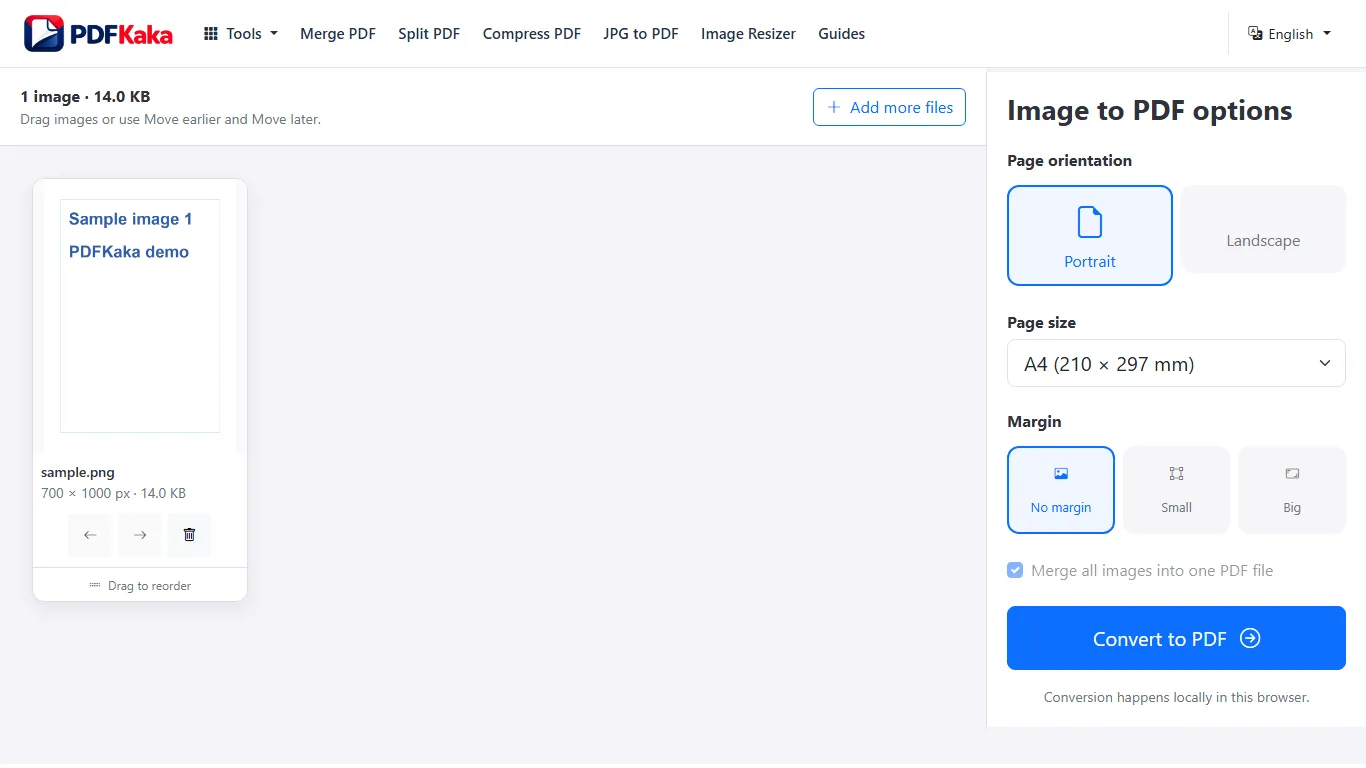
Open Scan to PDF on a phone or desktop, capture or choose JPG, PNG, HEIC, or HEIF pages, and place them in reading order. Review front and back pages before selecting the PDF layout.
- Add every page image.
- Correct the sequence.
- Choose page settings and create the PDF.
Check the scan and add OCR only when needed
The current scanner does not automatically correct perspective, crop borders, or remove shadows. Review the finished PDF visually. Run OCR afterward only when printed English text must become searchable.
- Open the finished PDF.
- Inspect readability and orientation.
- Use OCR PDF when searchability is required.
FAQ
Does Scan to PDF automatically OCR the document text?
No. Scan to PDF creates the PDF from document-page images. Use OCR PDF afterward when searchable printed-English text is needed.
What is the current input limit for Scan to PDF?
JPG, JPEG, PNG, HEIC, HEIF; 1–30 images; 25 MiB each; 100 MiB total input; 16,384 px per side; 40 MP per image; generated PDF ≤150 MiB.
What does Scan to PDF create?
Uses the JPG-to-PDF decode/embed pipeline; one source image becomes one PDF page. One PDF ≤150 MiB.