Crop PDF guide
How to crop PDF pages online
Adjust the visible boundaries of the current page or all pages to remove margins or outer clutter without uploading the source PDF.
On this page
Crop the PDF pages
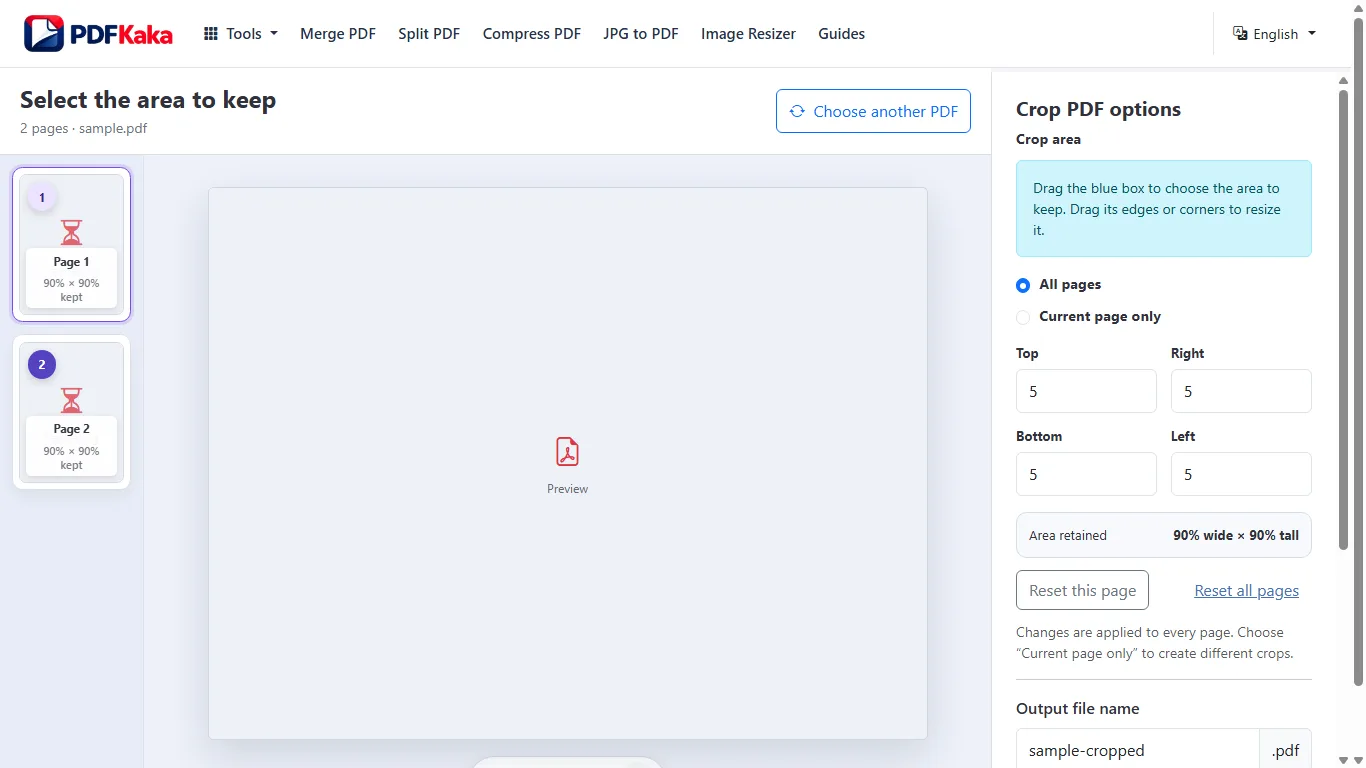
- Choose whether the crop applies to the current page only or to all pages.
- Adjust top, right, bottom, and left percentages while checking the selected page preview.
- Preview headings, page numbers, signatures, and edges before saving.
Choose a document with consistent page layouts
The All pages scope works best when pages have similar dimensions and margins. Use Current page only for an outlier, or use conservative shared values so content on an unusual page is not hidden.
- Keep an untouched original.
- Identify the unwanted outer areas.
- Check whether all pages use a similar layout.
Adjust the crop boundaries
Open Crop PDF, choose Current page only or All pages, and change the top, right, bottom, and left percentages while watching the preview. Leave extra room around signatures, page numbers, handwritten notes, and content close to the page edge.
- Select the PDF.
- Choose the page scope and set the crop percentages.
- Inspect the preview before creating the result.
Verify the cropped copy
Cropping can hide content without securely deleting it. Use Redact PDF for sensitive selectable text, and always open the downloaded copy to confirm every page remains useful.
- Check early, middle, and final pages.
- Use redaction rather than cropping for confidential information.
- Download the cropped PDF.
FAQ
Is cropping a PDF the same as redacting hidden information?
No. Cropping changes the visible page area. Do not use cropping as a substitute for secure redaction of sensitive content.
What is the current input limit for Crop PDF?
PDF; One PDF ≤50 MiB, ≤500 pages.
What does Crop PDF create?
crop boxes change visible area, source content is not rasterized by default; One PDF ≤150 MiB.