JPG, PNG & WebP Image Converter

Convert one static JPG, PNG, or WebP image to another format in your browser. Preview the result, then download without uploading.

or drop one image here

One static JPG, JPEG, PNG, or WebP up to 25 MiB

Up to 16,384px per side and 40,000,000 total pixels

Files remain in your browser No file upload No account required

How to convert an image format online

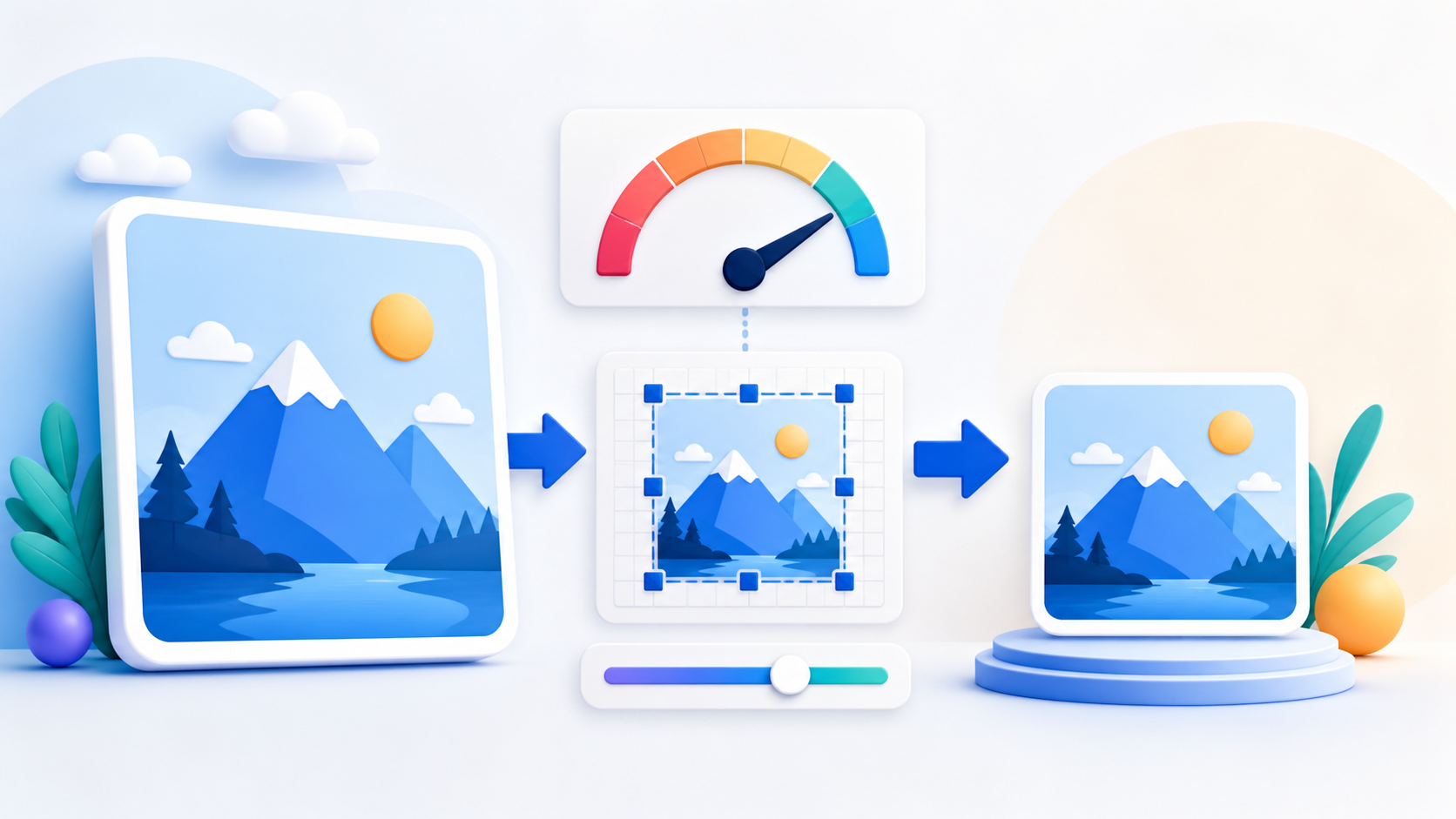
  1. Select one JPG, JPEG, PNG, or WebP image within the displayed limits.
  2. Choose JPG, PNG, or WebP output and adjust JPG or WebP quality if needed.
  3. Convert locally, compare the source and output details, then name and download the validated image.

Image format conversion questions

Can I convert PNG to JPG?

Yes. Choose JPG output and a quality setting. JPG cannot store transparency, so transparent PNG pixels are placed on white.

Can I convert JPG to PNG?

Yes. PNG output is lossless after conversion, but it cannot restore detail already removed by JPG compression and may be larger than the source.

Does PNG transparency stay transparent?

Yes. PNG output uses a transparent canvas and preserves transparent source pixels. JPG output uses a white background instead.

What happens if my browser cannot create WebP?

The tool checks the actual encoded file. If the browser falls back to another format or returns no WebP file, conversion stops with a clear message so you can choose JPG or PNG.

Does changing quality resize the image?

No. This converter keeps the decoded source width and height. Quality changes lossy JPG or WebP encoding, not pixel dimensions.

Can I convert an animated PNG or WebP?

Not with this tool. It rejects animated PNG and WebP files instead of silently saving only one frame. Use a dedicated animation converter when every frame must be preserved.

Is my image uploaded?

No. File checks, decoding, Canvas rendering, encoding, output validation, previews, and download all stay in this browser session.

Need to change width, height, or a KB limit too? Open Image Resizer.

About this tool

Choose the image format that fits the next step

Image Converter re-encodes one decoded image as JPG, PNG, or WebP while keeping its pixel dimensions. It validates the selected file and the actual encoded output before enabling download.

Useful for

  • Convert a transparent PNG to a smaller JPG with a white background.
  • Convert a JPG or WebP to PNG for a lossless next editing step.
  • Create WebP output when the current browser has a working WebP encoder.

Good to know

  • PNG output preserves transparent pixels; JPG cannot store transparency.
  • JPG and WebP quality settings trade output size for visual detail without resizing the image.
  • Changing format cannot restore detail already lost through earlier compression.
Practical guidance

Convert between JPG, PNG, and WebP image formats

Static image format conversion changes how decoded pixels are stored; it does not invent missing detail or automatically resize the picture. PDFKaka validates the file extension, reported MIME type, binary signature, dimensions, and actual encoded result while the image stays in this browser. Animated PNG and WebP inputs are rejected instead of silently losing frames.

Convert PNG to JPG with predictable transparency handling

JPG normally suits photographs and can be made smaller with the quality control. Because JPG has no alpha channel, transparent source pixels are deliberately filled with white before encoding.

Convert JPG or WebP to PNG without claiming restored quality

PNG stores the converted pixels losslessly and preserves transparency when the source contains it. Converting a previously compressed JPG or WebP to PNG cannot recover detail already discarded by that earlier encoding.

Create and verify WebP only when the browser supports it

Some Canvas implementations fall back to PNG when WebP encoding is unavailable. The converter inspects the returned MIME type and file signature, then reports an honest unsupported-browser error instead of mislabelling the download.

Keep the source pixel dimensions

The output uses the decoded source width and height. Use Image Resizer instead when a different width, height, or maximum KB value is required.

Questions people ask about this task

Which format should I choose for a photograph?

JPG is widely supported and usually compact for photographs. WebP can also be efficient when the destination accepts it and the browser can encode it.

Which format should I choose for transparency?

Choose PNG when transparent pixels must be preserved reliably. WebP can also contain transparency, but destination and browser support should be checked.

Will converting an image change its width or height?

No. This tool keeps the decoded dimensions. It changes the encoding format and, for JPG or WebP, lets you choose lossy quality.

Are images uploaded during conversion?

No. Validation, decoding, Canvas rendering, encoding, output checking, previews, and download run in the current browser session.