Crop PDF
How to crop PDF pages online
Adjust the visible boundaries of the current page or all pages to remove margins or outer clutter without uploading the source PDF.
On this page
See a visual example
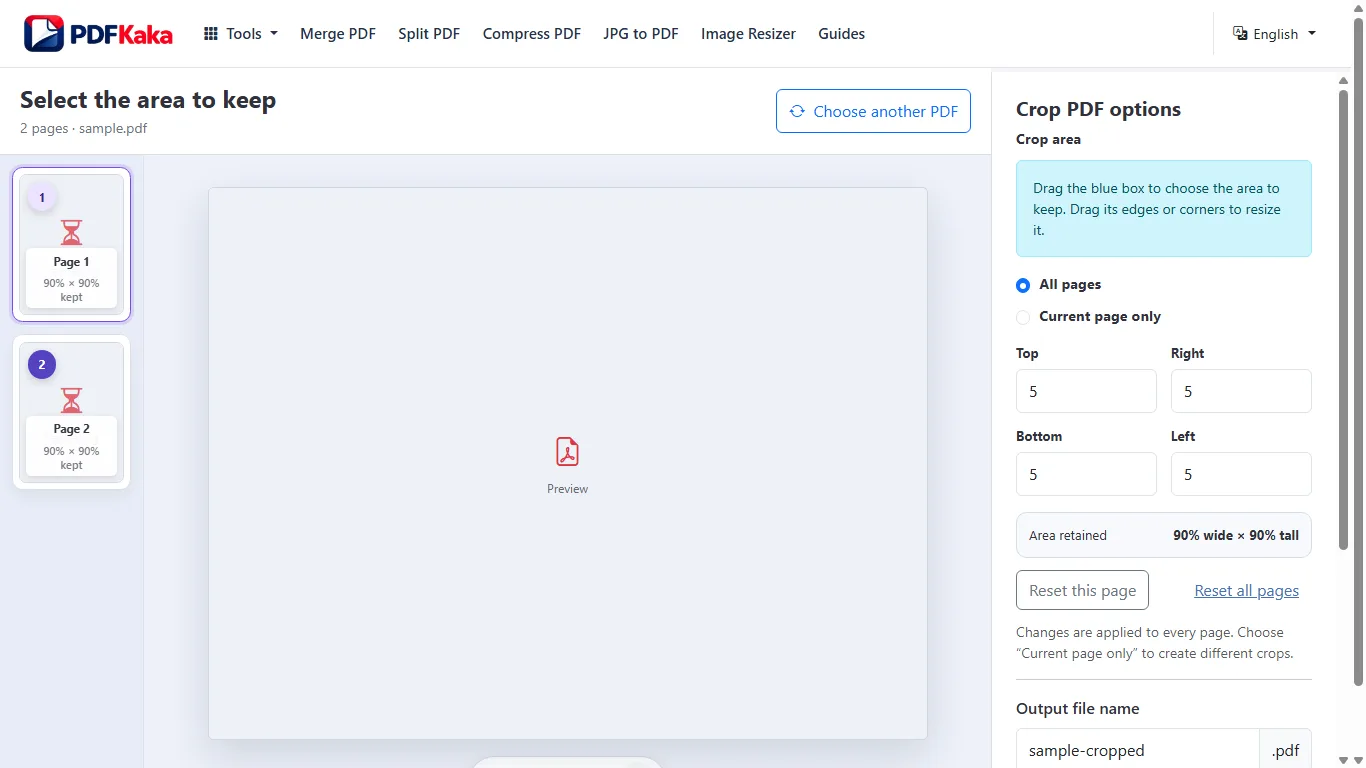
Follow the supported controls
- Keep an original and choose the PDF in Crop PDF.
- Inspect representative layouts before choosing All pages or Current page only.
- Adjust top, right, bottom and left percentages; margins start at zero.
- Create the cropped PDF and reopen it. Check early, middle, final and unusually sized pages.
Use a conservative boundary
A blank area on the first page can contain a table note or signature later. Shared percentages work best for similar page layouts; use page-specific values for outliers. Crop PDF retains underlying text and image objects without recompressing every page, but content outside the CropBox can remain recoverable. Use a separate redaction workflow for sensitive details.
crop different PDF pages to different areas
Use page-specific crop areas when mixed scans or page sizes cannot share one safe boundary.
Choose Current page only before adjusting an outlier. Set its four crop percentages, move to the next page and store a separate crop where needed. Untouched pages begin with zero margins.
Follow the supported controls
- Choose the PDF and inspect the first page and any unusual page sizes.
- Select Current page only before changing the crop on an individual page.
- Set top, right, bottom and left percentages while checking the preview; navigate and repeat for other outliers.
- Create the PDF and inspect every changed page plus pages that should remain unchanged.
FAQ
Can pages have different crop areas?
Yes. Choose Current page only and store the appropriate values for each page.
Does cropping reduce image resolution?
The operation changes page boxes without intentionally recompressing page images.
Is cropping sensitive information enough?
No. Hidden objects can remain in the PDF; cropping is not secure redaction.
Will changing one page crop the others?
Choose Current page only before adjusting it; other untouched pages retain their original boxes.
Can I use a shared crop and then fix an outlier?
Yes. Apply a conservative shared crop, then select Current page only and adjust the outlier separately.
Does the cropped-away content disappear from the file?
No. CropBox changes visibility, not secure content removal.