Gå til hovedinnhold

Scan to PDF Online

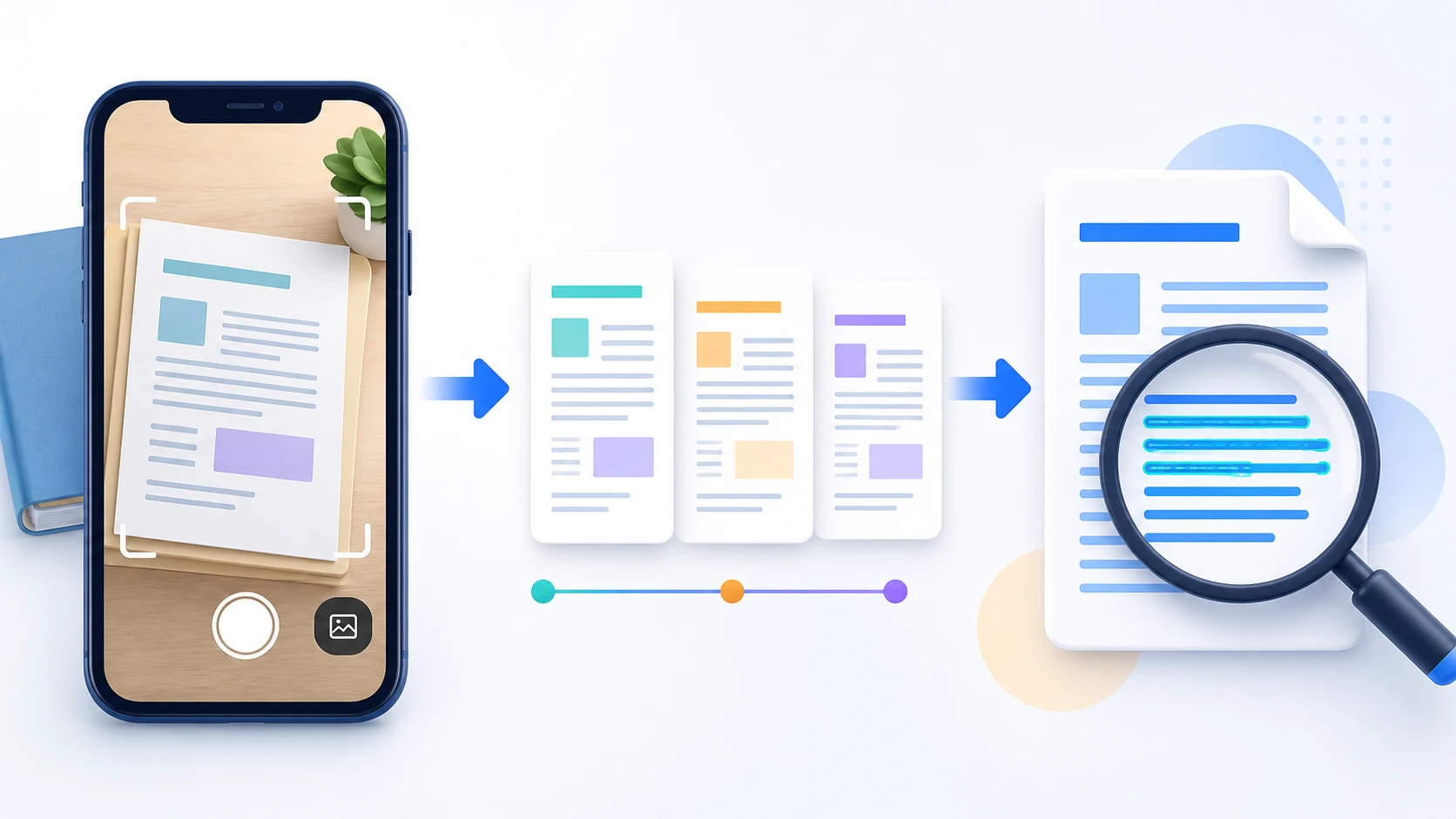
Capture document pages with your phone camera where the browser supports camera input, or add existing page images, arrange them in reading order, and create one PDF. Review each page carefully before downloading.

or drop captured JPG, PNG, HEIC, or HEIF pages here

Up to 30 images, 25 MiB each, and 100 MiB total

Maximum 16384 px per side and 40 000 000 pixels per image

Filene forblir i nettleseren Ingen filopplasting Ingen konto kreves

How to Scan Documents to PDF

  1. Capture a document page with your phone camera where supported, or choose an existing supported page image.
  2. Add the remaining pages and arrange them in reading order.
  3. Review orientation, framing, shadows, and readability.
  4. Choose the available PDF page settings.
  5. Create the PDF, then download and reopen it to verify the final page order.
Scan to PDF questions

Can I use my phone camera with Scan to PDF?

Where the device and browser expose camera capture through the file picker, you can capture page images and add them to the PDF workflow.

Does Scan to PDF automatically crop or straighten documents?

No. Review the photographed page before conversion; the current tool does not automatically correct perspective or crop document edges.

Does Scan to PDF recognize text?

No. Scan to PDF packages page images into a PDF. Use OCR PDF afterward when you need supported scanned text to become searchable.

Can I scan several pages into one PDF?

Yes. Add supported page images within the displayed job limits, arrange them, and create one multipage PDF.

Which image formats can I use?

JPG/JPEG, PNG, HEIC, and compatible HEIF still images using supported HEVC encoding.

Are my scan images uploaded to PDFKaka?

No. Selected image contents are validated and converted locally in this browser during the normal workflow.

Trenger du en annen dokumentoppgave? Slå sammen PDF.

Om dette verktøyet

Turn document-page images into one organized PDF

Scan to PDF is designed for document-page captures rather than general photo collections. Add pages in sequence, review each capture, choose the available PDF settings, and create the final document.

Nyttig for

  • Capture receipts, forms, notes, identification-document copies, or paper attachments.
  • Add another page after each camera capture or file selection.
  • Arrange front and back pages before creating the PDF.

Greit å vite

  • Scan to PDF accepts JPG/JPEG, PNG, HEIC, and compatible HEIF still images within the job limits shown in the uploader.
  • The tool does not automatically crop edges, correct perspective, remove shadows, apply scan filters, or recognize text.
  • Selected image contents are validated and converted locally in this browser.
Practical guidance

Create one PDF from document photos and camera captures

Scan to PDF turns JPG or PNG page images into an ordered document. Capture pages with a phone or choose existing images, place them in reading order, select the page layout, and download one PDF without uploading the photographs.

Scan multiple pages to one PDF

Add each photographed page to the same workspace and arrange front pages, back pages, receipts, or attachments before conversion.

Use Scan to PDF on a phone

The file picker can use a supported mobile browser's camera capture option. Clear lighting, a flat page, and steady framing produce a more readable result.

Review scans before creating the PDF

Check page order and orientation carefully. The current tool does not automatically correct perspective, remove shadows, or crop document edges.

Questions people ask about this task

Can I scan to PDF online for free?

Yes. Capture or choose supported page images, arrange them, and create one PDF without registration.

Can I scan several document pages into one PDF?

Yes. Add all page images to the workspace and confirm their order before conversion.

Does PDFKaka upload my document photos?

No. The current scan workflow converts the selected page images locally in this browser.

Selected images Drag images or use Move earlier and Move later.

Your images have been converted to PDF

The .pdf extension is added automatically. Invalid filename characters are adjusted only when the file is downloaded.

Download PDF

The generated PDF remains only in this browser session.