Scan to PDF
How to scan documents to PDF online
Create a multipage PDF from document photographs without uploading the pages or installing a scanner application.
On this page
See a visual example
Prepare a readable capture
- Place the document flat in even light and capture all required edges.
- Choose the images through the camera or file picker where available.
- Arrange them in reading order and rotate sideways captures.
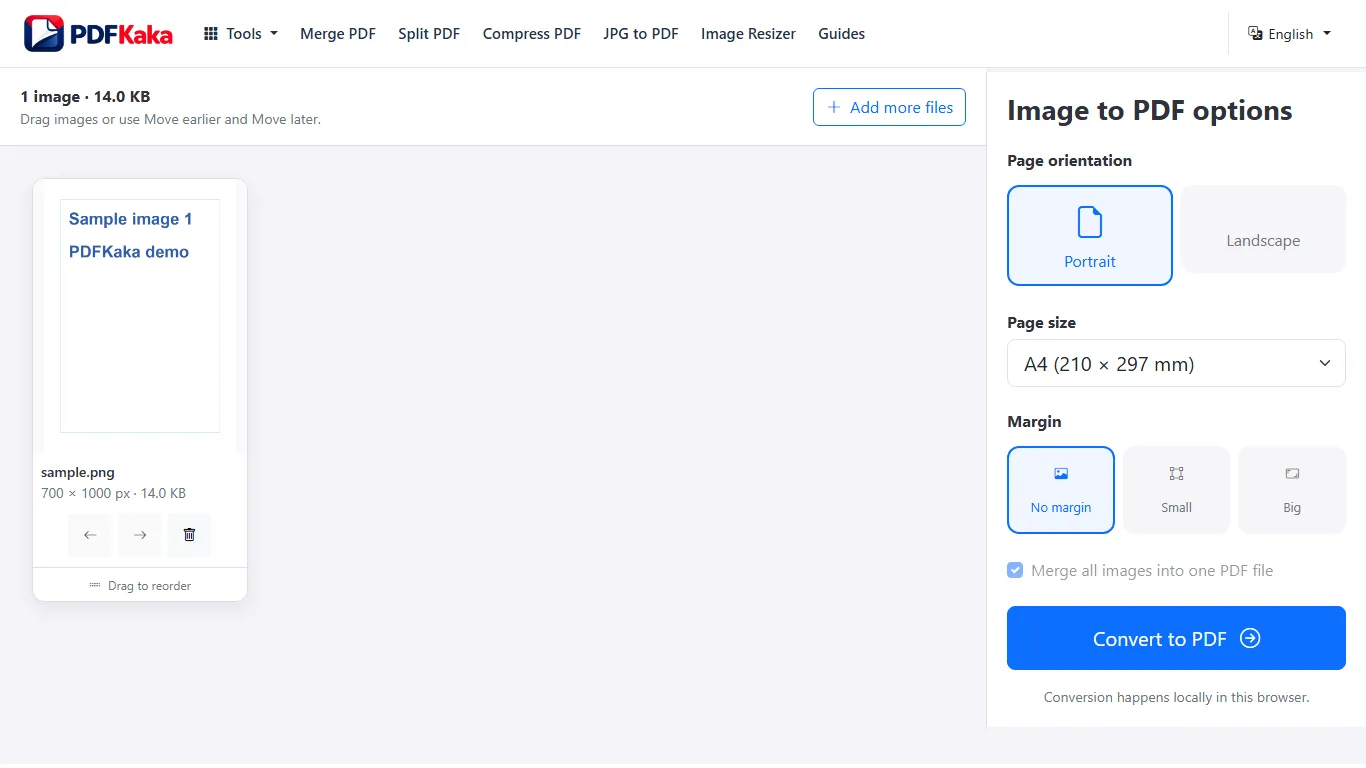
- Choose the PDF page size, orientation and margins.
- Create and download the PDF, then inspect every page.
The device controls the camera experience
The input can request the environment-facing camera where supported, but there is no in-app camera preview. Browser and device picker choices vary. Existing JPG, JPEG, PNG and supported HEIC/HEIF still images can also be selected.
Improve the source rather than expect automatic cleanup
Perspective, shadows, background clutter and blur remain part of the image. Recapture a poor page or crop it in a suitable separate image workflow. Use OCR PDF afterward only when searchable printed-English text is needed.
Scan Multiple Pages into One PDF
To create one PDF from several scanned pages, capture or select each page, arrange the images in the correct order, and convert the complete set into one PDF file.
Choose all required page images, arrange them in reading order, rotate or remove entries and convert the complete set. Check that the saved PDF contains each required front, back and attachment exactly once.
Build the complete scan before converting
- Capture or choose all required fronts, backs and attachments.
- Add them to one Scan to PDF workspace within its 30-image limit.
- Arrange reading order with dragging or Move earlier and Move later.
- Rotate sideways pages and remove only accidental duplicates.
- Choose the PDF page settings and create the document.
- Reopen the download and compare page count and sequence with your checklist.
Use an explicit front/back example
For two double-sided sheets, the expected order is sheet 1 front, sheet 1 back, sheet 2 front, sheet 2 back. Capture order alone may not produce that reading order. A nearly blank back can still contain a stamp or note, so inspect it before omission.
Search is a separate requirement
The result contains images rather than newly recognized text. If search is required, run the checked PDF through the supported printed-English OCR workflow and review important recognized values. The scan creator itself has no automatic perspective correction, cleanup filters or OCR.
FAQ
Will this create editable text from my photograph?
No. The PDF contains page images. OCR is a separate recognition step.
Can I remove a shadow with a scan filter here?
No automatic shadow removal, perspective correction or scan filters are provided.
Will multiple images become separate PDFs?
No. One job creates one PDF with one page per source image.
What if the full set is too heavy for my phone?
Keep the originals and retry a smaller supported batch, but split the submission only when the recipient permits separate files.