Merge PDF guide
How to Combine PDF, JPG and PNG Files Into One PDF
PDFKaka Merge PDF accepts complete PDF documents together with JPG, JPEG, and PNG images. Add the files to one job, arrange the source order, rotate pages where needed, and create one combined PDF in your browser.

On this page
Supported files and limits
Merge PDF accepts PDF, JPG, JPEG, and PNG files.
One job may contain up to 20 files. Each file may be up to 25 MiB, the combined input may be up to 100 MiB, and the final PDF may contain up to 500 pages.
Images may be up to 16,384 px on either side and 40 million pixels total. Password-protected PDFs must be unlocked before they can be added.
How to combine PDFs and images
- Open Merge PDF and choose the PDF and image files you want in the final document.
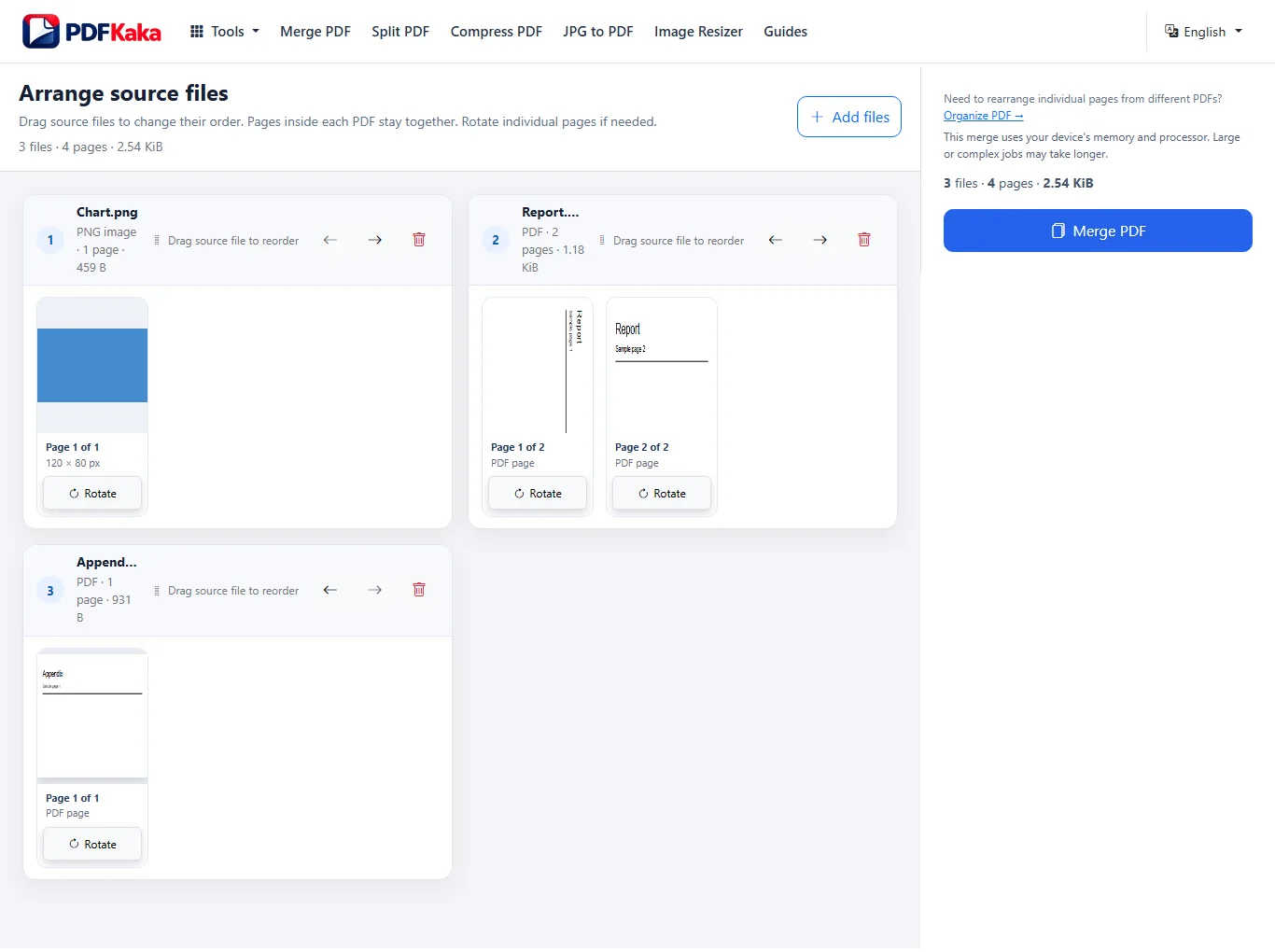
- Arrange the source files in the order they should appear.
- Confirm the total file and page count.
- Select Merge PDF and download the completed document.
- Review the page previews and rotate any sideways page.
Screenshot
How file order works
Merge PDF reorders complete source files. Pages that already belong to one PDF remain together and keep their internal order.
For example, if Report.pdf contains five pages and Photo.jpg is placed after it, the five Report.pdf pages appear first and the image becomes the following PDF page.
If you need to move individual pages between different PDFs, use Organize PDF instead.
Organize PDF →
Context links
What happens to JPG, JPEG and PNG images
Each supported image becomes one PDF page at 96 PPI while keeping its aspect ratio.
This is different from an existing PDF page. Existing PDF pages are copied into the rebuilt output PDF rather than rasterized into screenshots.
Very large images must remain within Merge PDF's image limits.
Rotate pages before merging
Individual output pages can be rotated in 90-degree steps before the merge is created. Use the page preview to correct sideways scans, photos, or PDF pages before downloading the final file.
Common problems
The image is too large
Resize the image so it stays within 16,384 px on each side and 40 million pixels total, then add it again.
Image Resizer →
The PDF is password-protected
Merge PDF cannot process a password-protected PDF. Unlock the document first, then return to the merge job.
I need to move one page out of a PDF
Merge PDF keeps pages from the same source PDF together. Use Organize PDF when you need page-level rearranging.
Organize PDF →
Context links
FAQ
Can I combine JPG and PDF files without converting the JPG first?
Yes. Merge PDF accepts JPG, JPEG, PNG, and PDF files in the same job.
Can I choose where an image appears?
Yes. Change the order of the source files before merging. If you need an image inserted between individual pages of one PDF, use Organize PDF after preparing the files.
Will an image become one PDF page?
Yes. Each JPG, JPEG, or PNG input becomes one PDF page.
Are my source files uploaded?
Selected file contents are processed locally in the browser during the normal Merge workflow and are not uploaded to PDFKaka.