Merge PDF guide
How to Merge PDF Files Without Unnecessary Quality Loss
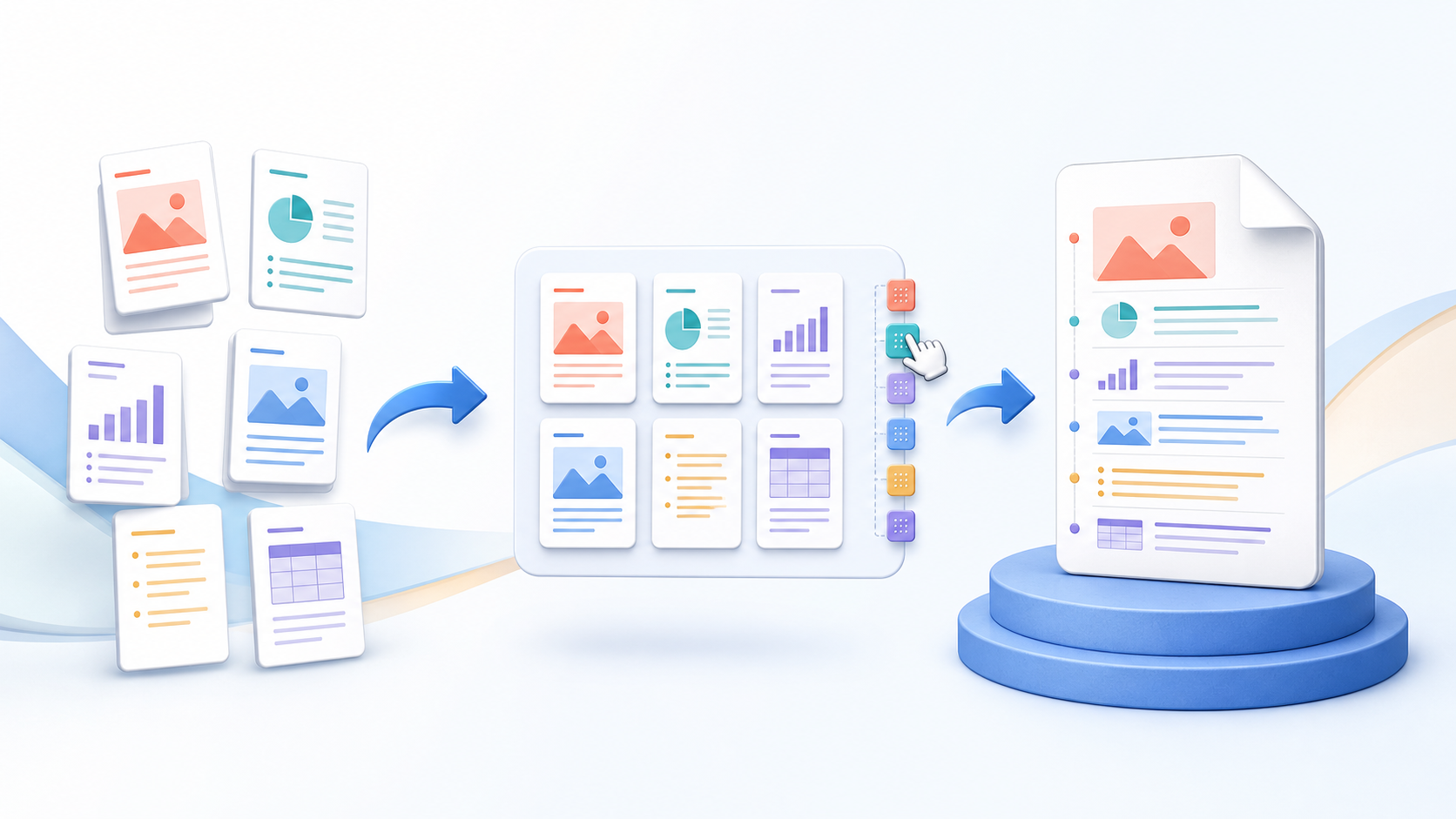
Merging PDFs should not require turning every source page into a screenshot. PDFKaka copies existing PDF pages into a rebuilt output PDF, while JPG, JPEG, and PNG inputs become image-based PDF pages.
On this page
What happens to existing PDF pages
When PDFKaka merges existing PDF documents, their pages are copied into a rebuilt output PDF rather than rendered into page screenshots.
This helps preserve the visible characteristics of normal PDF text, vector graphics, and existing page content.
However, the output file itself is rebuilt. For that reason, PDFKaka should not promise byte-for-byte identity or make an absolute "zero recompression" claim.
What happens to JPG, JPEG and PNG images
Images behave differently from existing PDF pages.
Each supported image is converted into a PDF page at 96 PPI while keeping its aspect ratio.
The visible result therefore depends on the source image resolution, dimensions, and quality.
Different page sizes are normal
Existing PDF pages keep their page dimensions.
Image-based pages are created from the image input.
A merged document may therefore contain pages with different sizes or orientations. This is not automatically a quality problem.
How to check the merged result
- Zoom into small text, line art, signatures, stamps, and fine image detail.
- Compare representative pages with the original source documents.
- Check image-based pages separately from existing PDF pages.
- Open the downloaded PDF in a separate viewer.
- Keep the original files until the final output has been reviewed.
Why a file may look different
Apparent changes can come from the PDF viewer, page scaling, source-image quality, different page sizes, or the way a printer handles the merged file.
If a particular page looks wrong, compare it with the source before repeatedly processing the output.
FAQ
Does Merge PDF turn PDF pages into images?
No. Existing PDF pages are not rasterized into screenshots during the Merge workflow.
Does PDFKaka guarantee zero recompression?
No absolute zero-recompression promise should be made because the output PDF is rebuilt.
What quality are JPG or PNG pages?
Supported images become PDF pages at 96 PPI while keeping their aspect ratio.
Should I delete the original PDFs after merging?
Keep the original files until you have opened and checked the merged result.