Merge PDF
How to Combine PDF, JPG and PNG Files Into One PDF
Build one ordered PDF from complete PDF files, page images or a mixture of both. Images are optional: a PDF-only job uses the same file-order workflow. Use the page organizer instead when pages inside a source need a different order.
On this page
- Combine PDF files without adding images
- Check the joins between source documents
- Supported files and limits
- How to combine PDFs and images
- How file order works
- What happens to JPG, JPEG and PNG images
- Rotate pages before merging
- Common problems
- Place a photo between two pages
- Merge PDF Files in the Correct Order
- Understand what can be reordered
- How to arrange files before merging
- Check document boundaries
- When Merge PDF is not enough
- Verify the merged result
- Merge PDF Files on Android or iPhone
- Choose files on a phone
- Arrange files with touch controls
- Add photos or images
- Watch device memory
- Save and verify the result
- Merge PDFs Without Uploading File Contents or Creating an Account
- What local processing means
- What local processing does not mean
- No account required
- What happens after download
- Practical privacy checks
See a visual example

Combine PDF files without adding images
For a cover, a report and an appendix already saved as PDFs, add those three files and arrange the complete-file list as cover → report → appendix. Do not create unnecessary JPG copies first. The merger accepts a PDF-only selection.
If page 4 of the report belongs before page 2, changing the complete-file order cannot fix it. Use Organize PDF for page-level changes, then inspect the resulting sequence.
Check the joins between source documents
- Keep a source-file checklist and expected total page count.
- Inspect the last page of one source and first page of the next.
- Check forms, bookmarks and page labels that matter to the recipient; do not infer compatibility from a successful download alone.
Supported files and limits
Merge PDF accepts PDF, JPG, JPEG, and PNG files.
One job may contain up to 20 files. Each file may be up to 25 MiB, the combined input may be up to 100 MiB, and the final PDF may contain up to 500 pages.
Images may be up to 16,384 px on either side and 40 million pixels total. Password-protected PDFs must be unlocked before they can be added.
How to combine PDFs and images
- Open Merge PDF and choose the PDF and image files you want in the final document.
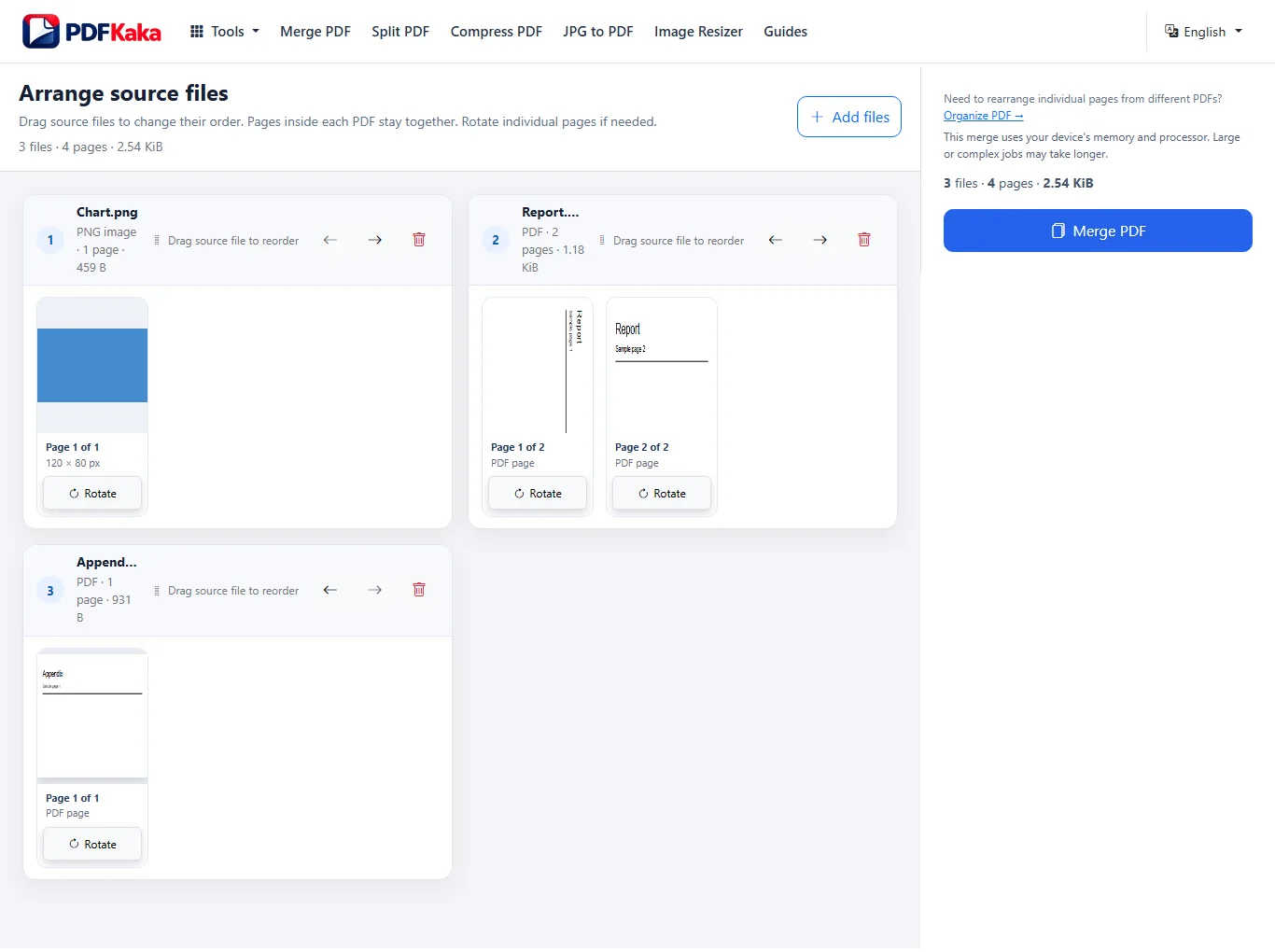
- Arrange the source files in reading order. Pages inside each PDF stay together.
- Review the page previews and rotate any sideways page before processing.
- Confirm the total file and page count, then select Merge PDF.
- Download and reopen the combined PDF. Check page order, orientation and the joins between source files.
Screenshot
How file order works
Merge PDF reorders complete source files. Pages that already belong to one PDF remain together and keep their internal order.
For example, if Report.pdf contains five pages and Photo.jpg is placed after it, the five Report.pdf pages appear first and the image becomes the following PDF page.
If you need to move individual pages between different PDFs, use Organize PDF instead.
Organize PDF →
Context links
What happens to JPG, JPEG and PNG images
Each supported image becomes one PDF page at 96 PPI while keeping its aspect ratio.
This is different from an existing PDF page. Existing PDF pages are copied into the rebuilt output PDF rather than rasterized into screenshots.
Very large images must remain within Merge PDF's image limits.
Rotate pages before merging
Individual output pages can be rotated in 90-degree steps before the merge is created. Use the page preview to correct sideways scans, photos, or PDF pages before downloading the final file.
Common problems
The image is too large
Resize the image so it stays within 16,384 px on each side and 40 million pixels total, then add it again.
Image Resizer →
The PDF is password-protected
Merge PDF cannot process a password-protected PDF. Unlock the document first, then return to the merge job.
I need to move one page out of a PDF
Merge PDF keeps pages from the same source PDF together. Use Organize PDF when you need page-level rearranging.
Organize PDF →
Context links
Place a photo between two pages
Merge PDF keeps each PDF’s internal pages together. To insert a photo inside a multi-page source, first turn the photo into a PDF with JPG to PDF, then add both PDFs directly to Organize PDF and move the photo page to the required position. Use Move earlier and Move later when dragging is inconvenient.
Merge PDF Files in the Correct Order
When several PDFs belong in one document, the most important step is deciding the source-file order before processing. Merge PDF keeps the pages inside each source PDF together, so review the file sequence and page transitions before creating the final document.
Add the source files, arrange complete groups with dragging or Move earlier and Move later, then merge. Pages inside each source PDF remain together; use Organize PDF for individual-page changes.
Understand what can be reordered
Merge PDF reorders source files.
It does not move individual PDF pages freely between source documents.
If File A contains pages 1–4 and File B contains pages 5–7, moving File B ahead of File A moves the complete File B document before File A.
For individual page-level rearranging, use Organize PDF.
How to arrange files before merging
- Add all required PDFs and supported images.
- Check filenames and previews for missing or duplicated inputs.
- Arrange complete groups by dragging or Move earlier and Move later.
- Check the first and last page of each source and rotate sideways pages.
- Merge and download the new PDF.
- Reopen it and inspect every source-to-source transition.
Check document boundaries
Most merge-order mistakes happen where one source document ends and the next begins.
Before processing, check:
- the last page of each source document;
- the first page of the next document;
- duplicate files;
- missing source files;
- page orientation;
- whether a cover page belongs at the beginning.
When Merge PDF is not enough
Use Merge PDF when complete documents are already correct internally.
Use Organize PDF when you need to:
- move one page from the middle of a PDF;
- delete selected pages;
- interleave pages from different PDFs;
- change page-level order across document boundaries.
Open Organize PDF →
Verify the merged result
After downloading the result, reopen it in a separate PDF viewer.
Confirm:
- the expected page count;
- the first and last page of each source;
- important page transitions;
- page orientation;
- any image pages added during the merge.
Merge PDF Files on Android or iPhone
PDFKaka Merge PDF works in a modern mobile browser without requiring a separate desktop program. Mobile file pickers, touch controls, browser memory, and download handling make the workflow slightly different from desktop.
Open Merge PDF in your phone browser, choose files from Files, Downloads, Photos, or another available source, arrange the source files, merge them, and reopen the downloaded PDF before sharing it.
Choose files on a phone
The available file-picker options depend on your device and browser.
You may see:
- Files;
- Downloads;
- Photos;
- cloud-provider shortcuts;
- camera or image sources.
Choose only the files required for the job and return to the browser after selection.
Arrange files with touch controls
Merge PDF changes the order of complete source files.
Use Move earlier and Move later to arrange complete source groups precisely without relying on touch dragging. Review both the last page of one group and the first page of the next.
On a touch screen, move complete source groups into the required order and check the page previews before processing.
Pages inside each source PDF remain together.
Add photos or images
JPG, JPEG, and PNG images may be added to the same merge job as PDFs.
Each image becomes one PDF page at 96 PPI.
Large phone photos may consume significant device memory, so resize extremely large images before merging if necessary.
Watch device memory
Browser-side document processing uses the phone or tablet's memory and processor.
Large PDFs, many pages, or high-resolution images may take longer and can exceed the resources available to the browser.
If a browser tab reloads or becomes unresponsive:
- keep the original files;
- close unnecessary tabs/apps;
- retry with a smaller supported batch;
- reduce oversized images before trying again.
Save and verify the result
After the merge finishes, download the PDF and reopen it from Files or Downloads.
Check the page order, orientation, and final page count before emailing, uploading, or sharing the document.
Merge PDFs Without Uploading File Contents or Creating an Account
PDFKaka Merge PDF performs document validation and merging locally in the browser. The selected document contents are not uploaded to PDFKaka as part of the normal Merge workflow, and no account is required.
Your selected PDF and image contents are processed in the current browser during normal Merge use. The website itself may still make ordinary requests for assets and analytics, so "local processing" does not mean the browser makes no network requests at all.
What local processing means
The document-validation and merge work happens on the device running your browser.
The selected file contents are not sent to PDFKaka's server as part of the normal Merge workflow.
This is different from a server-based merger that uploads the documents before processing them remotely.
What local processing does not mean
Local document processing does not mean that every network connection disappears.
Normal website activity may still include:
- loading site assets;
- analytics requests;
- browser services;
- operating-system synchronization;
- extensions;
- cloud storage selected through the device file picker.
Those services are outside the document-merging operation itself.
No account required
Merge PDF currently works without registration or sign-in.
The merge result is created in the browser and downloaded directly when processing finishes.
What happens after download
The local-processing boundary ends when you move the result somewhere else.
If the finished PDF is:
- emailed;
- uploaded to cloud storage;
- synchronized by the operating system;
- shared through another website;
- opened by another application;
that external service has its own privacy and security behavior.
Practical privacy checks
- Use a browser and device profile you trust.
- Verify the files selected for the merge.
- Create and download the result.
- Check the download location and review the final PDF.
- Handle or share confidential results only through services appropriate for the document.
FAQ
Can I combine JPG and PDF files without converting the JPG first?
Yes. Merge PDF accepts JPG, JPEG, PNG, and PDF files in the same job.
Can I choose where an image appears?
Yes. Change the order of the source files before merging. If you need an image inserted between individual pages of one PDF, use Organize PDF after preparing the files.
Will an image become one PDF page?
Yes. Each JPG, JPEG, or PNG input becomes one PDF page.
Are my source files uploaded?
Selected file contents are processed locally in the browser during the normal Merge workflow and are not uploaded to PDFKaka.
Can I drag individual PDF pages into a different order in Merge PDF?
No. Merge PDF changes source-file order while pages inside each PDF stay together.
Can I rotate an individual page?
Yes. Pages may be rotated in 90-degree steps before merging.
Should I use Merge PDF or Organize PDF?
Use Merge PDF for complete source documents. Use Organize PDF for individual page-level changes.
Do I need an app to merge PDFs on my phone?
No. Merge PDF runs in a supported browser.
Can I add photos from my phone?
Yes. Supported JPG, JPEG, and PNG images may be added with PDFs.
Why does a large merge fail on my phone?
Browser-side processing depends on available device memory and processing resources.
Are the selected file contents uploaded to PDFKaka?
Browser-local file processing; selected document/image contents are not uploaded.
Does local file processing mean the browser makes no network requests?
No. The document operation can remain local while the website, browser, extensions, cloud file picker, analytics, or operating system make separate network requests.
Do I need an account to use Merge PDF?
No account is required for the current public tool workflow.