Split PDF guide
Split, extract, or remove PDF pages: which tool should you use?
These three tasks sound similar, but they produce different results. Choose the tool based on what should remain in the output.
On this page
How these workflows differ
- Split PDF creates several documents from one source.
- Extract Pages creates one focused document from selected pages.
- Remove Pages creates one copy containing everything except the marked pages.
Use Split PDF for several output files
Split a report into chapters, divide a packet at known boundaries, or create smaller documents for separate recipients.
- Open Split PDF.
- Choose the page boundaries or ranges.
- Create and review every output part.
Use Extract Pages for one selected subset
Extract a chapter, appendix, form, or evidence pages into one new PDF. The selected pages keep their original source order.
- Mark the pages needed in the new file.
- Open Extract Pages.
- Create and review the extracted PDF.
Use Remove Pages when most pages should remain
Remove blank scans, duplicates, expired attachments, or unwanted pages while retaining everything else.
- Mark only the pages to delete.
- Open Remove Pages.
- Confirm that the downloaded PDF still contains every required page.
FAQ
Split, extract, or remove PDF pages: which tool should you use?
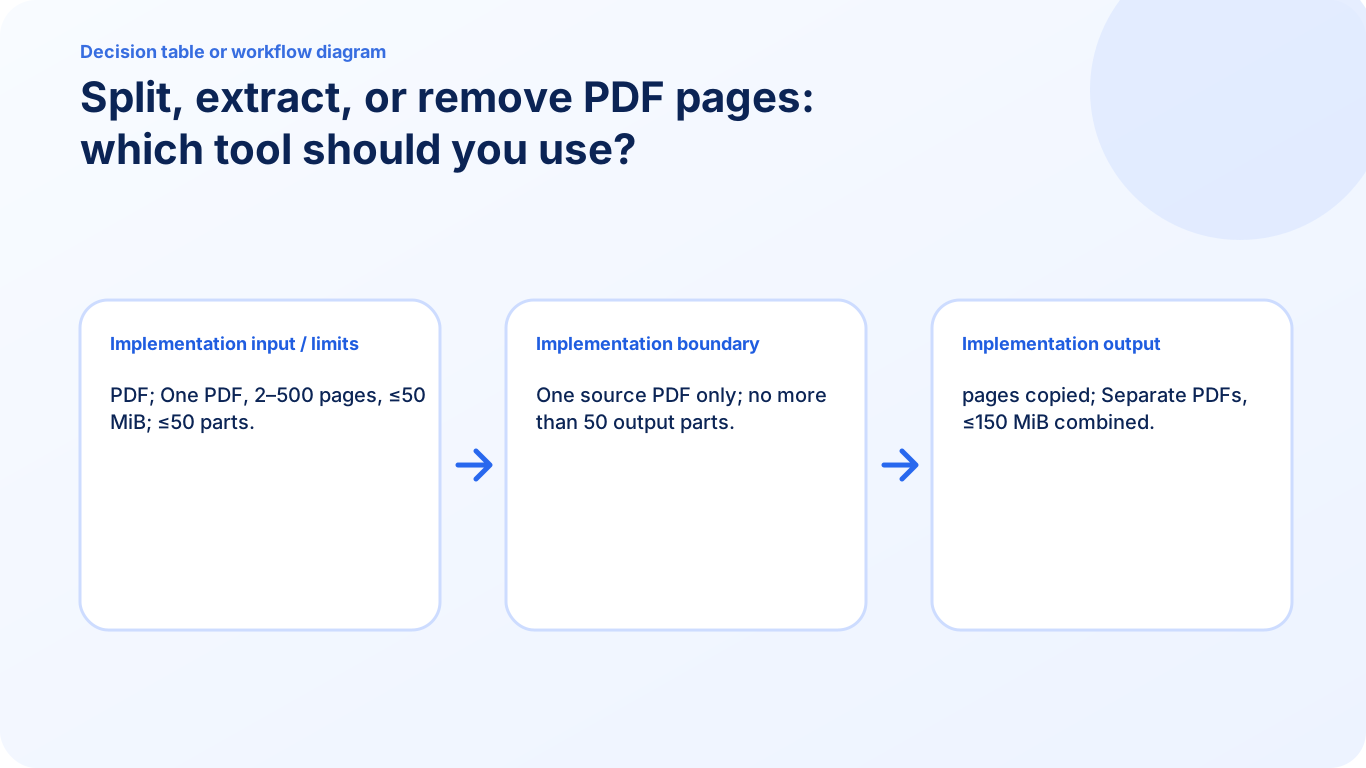
These three tasks sound similar, but they produce different results. Choose the tool based on what should remain in the output. One source PDF only; no more than 50 output parts.
Should I use Split PDF or Extract Pages?
Use Split PDF when the complete source should be divided into several outputs. Use Extract Pages when only selected pages should become a focused PDF.
What is the current input limit for Split PDF?
PDF; One PDF, 2–500 pages, ≤50 MiB; ≤50 parts.