Split PDF guide
How to split PDF pages online
Create smaller PDFs for chapters, forms, recipients, or upload limits without turning source pages into images.
On this page
Split the PDF
- Create smaller PDFs for chapters, forms, recipients, or upload limits without turning source pages into images.
- Every source page that matters must appear in a range.
- Use Extract Pages when only one selected subset is needed.
Write down the required page ranges
Open the source and identify logical sections such as chapters, invoices, forms, appendices, or recipient-specific pages. Account for cover pages and page numbering that may differ from PDF page positions.
- Keep the source PDF unchanged.
- Record the first and last PDF page of each section.
- Confirm that ranges do not accidentally omit a page.
Create the split plan
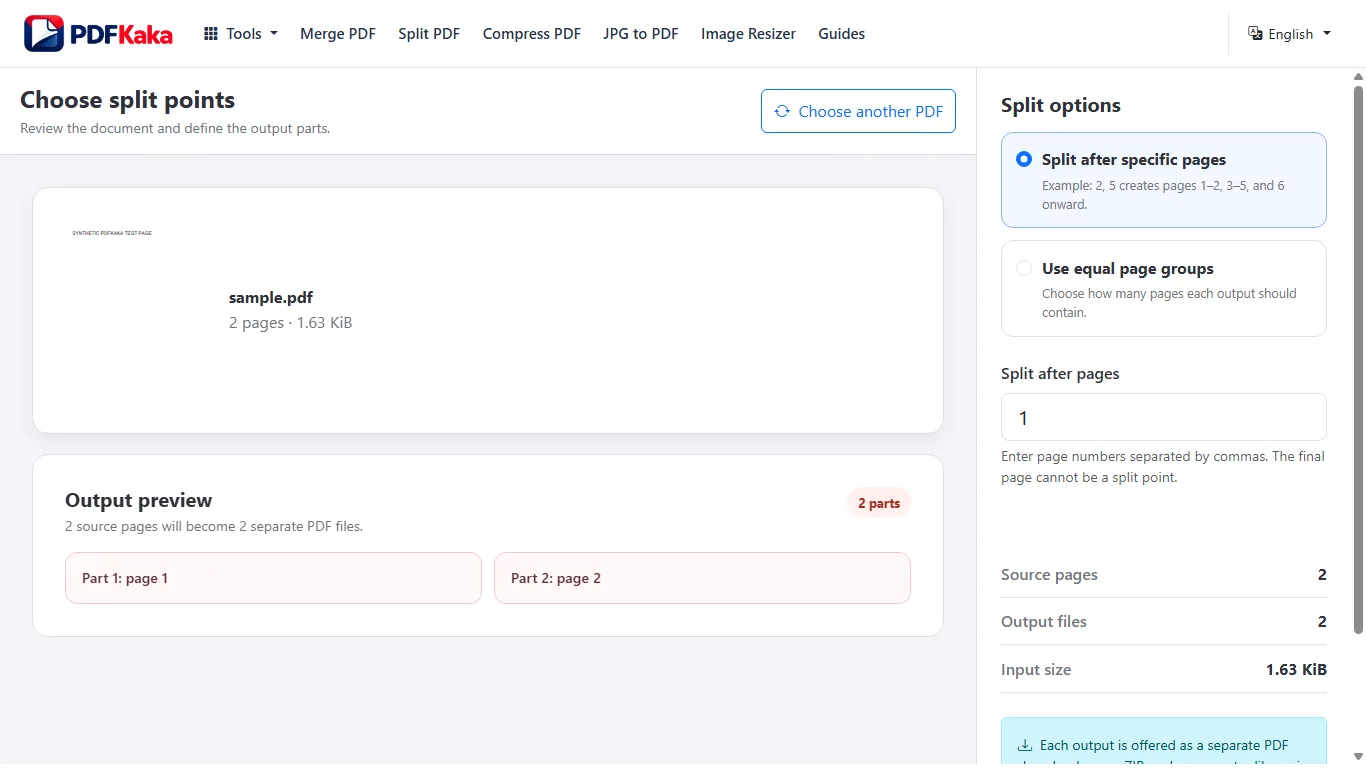
Select the PDF, enter the boundaries or ranges, and review the planned outputs. Clear non-overlapping ranges are easiest to check, though the required workflow determines the final grouping.
- Open Split PDF.
- Add each required page range.
- Generate the smaller documents.
Review every downloaded part
Open the beginning and end of every result, confirm its page count, and use descriptive filenames before sharing. Keep the complete source until all outputs have been accepted.
- Check every output file.
- Rename files for their purpose.
- Return to the source if a boundary was incorrect.
FAQ
Should I use Split PDF or Extract Pages?
Use Split PDF when the complete source should be divided into several outputs. Use Extract Pages when only selected pages should become a focused PDF.
What is the current input limit for Split PDF?
PDF; One PDF, 2–500 pages, ≤50 MiB; ≤50 parts.
What does Split PDF create?
pages copied; Separate PDFs, ≤150 MiB combined.