Split PDF
How to split PDF pages online
Create smaller PDFs for chapters, forms, recipients, or upload limits without turning source pages into images.
On this page
- Plan contiguous parts using PDF positions
- Example: a six-page packet
- Choose Extract for a single subset
- split every PDF page into a separate file
- Create and check one-page parts
- A long source needs a different plan
- split a PDF into files by page range
- Translate your ranges into boundaries
- Avoid gaps and overlapping assumptions
- Check front matter and labels
- split a PDF on iPhone or Android
- Keep the mobile split plan simple
- Send the intended part, not the entire archive by accident
- Does Splitting a PDF Change Page Quality?
- Check the features the recipient uses
- A different page count is expected
See a visual example
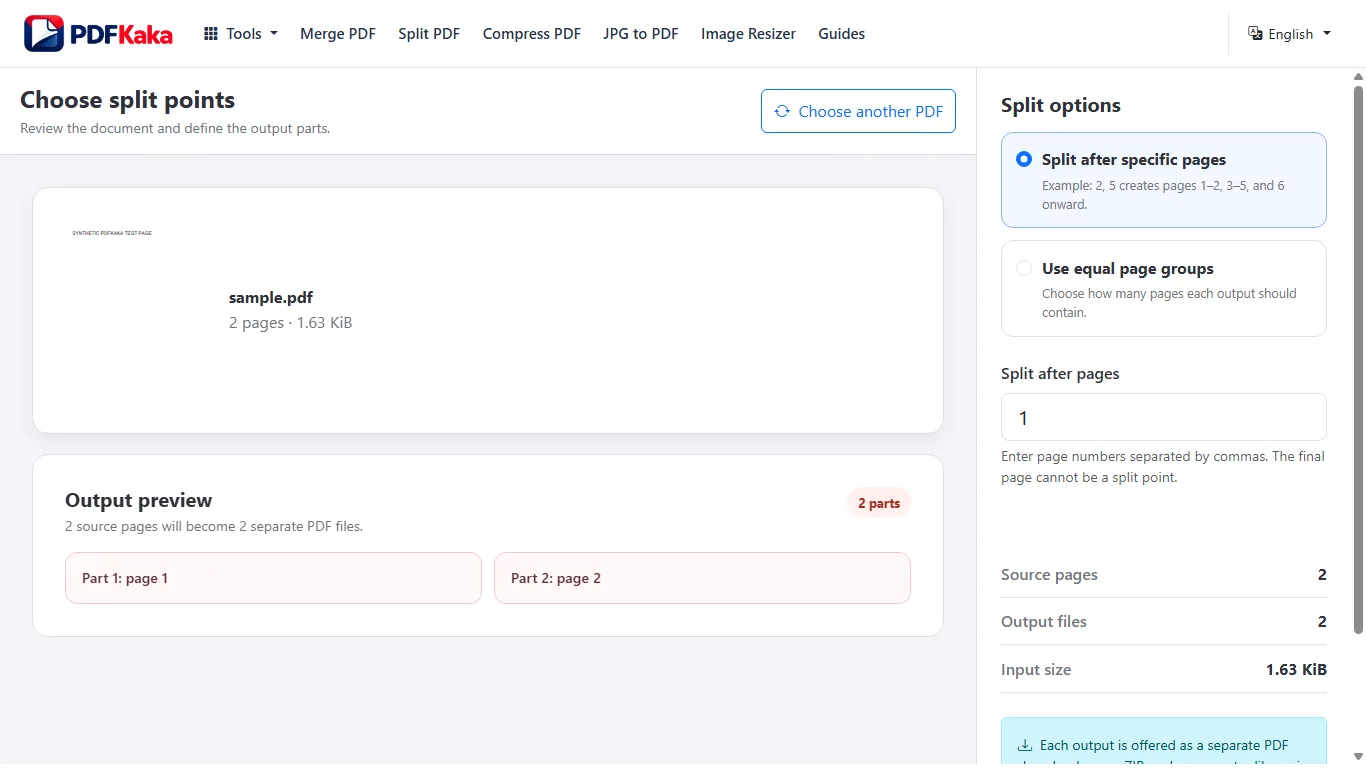
Plan contiguous parts using PDF positions
Record where each chapter or packet ends. A printed chapter number may differ from its PDF position. The interface accepts split-after page numbers rather than arbitrary overlapping range definitions.
- Choose one PDF containing 2–500 pages within the 50 MiB limit.
- Choose Split after specific pages or Use equal page groups.
- For split points, enter each section’s final PDF position except the document’s final page.
- For equal groups, enter the number of pages per part.
- Create the parts, then download individually or use Download all ZIP.
- Open each result and verify its first/last pages and count.
Example: a six-page packet
Split after 2 and 5 to produce pages 1–2, 3–5 and 6. A split point after page 6 would create an empty part and is not valid. Keep the entire source until every part has been accepted.
Choose Extract for a single subset
Split divides the complete source into contiguous parts and supports at most 50 parts. Extract Pages is better when only one selected subset should be saved. Splitting copies PDF pages rather than rendering screenshots; still check required fields and navigation in each rebuilt result.
split every PDF page into a separate file
Set equal page groups to one to create a PDF for each source page. A single job supports at most 50 output parts, so longer sources need a different plan.
Choose Use equal page groups and set Pages per part to 1. This creates one PDF per source page when the job stays within the 50-output-part limit.
Create and check one-page parts
- Choose the source PDF and check its page count.
- Choose Use equal page groups.
- Set Pages per part to 1.
- Create the output parts and download them individually or as a ZIP.
- Extract the ZIP if used and confirm one file per source page.
- Open beginning, middle and final outputs and verify each contains exactly one intended page.
A long source needs a different plan
A 100-page source would require 100 parts and exceeds the 50-part limit for one job. Use meaningful larger groups, or prepare smaller supported source subsets with Extract Pages before separate one-page jobs. Do not assume every allowed 500-page input can become 500 outputs in one operation.
split a PDF into files by page range
Translate each desired contiguous section end into a split-after page position. The interface divides the complete source at those points rather than accepting arbitrary overlapping ranges.
Translate each desired contiguous range end into a split point. For parts 1–4, 5–7 and 8–10, enter 4,7 in Split after specific pages; the last source page is not a split point.
Translate your ranges into boundaries
- Write the required contiguous ranges using PDF positions.
- Choose the source PDF in Split PDF.
- Choose Split after specific pages.
- Enter each part’s final page except the document’s last page.
- Create and download the parts individually or as a ZIP.
- Verify each result’s first page, last page and page count.
Avoid gaps and overlapping assumptions
The tool divides the entire source at the boundaries. It does not accept a list of arbitrary overlapping or omitted ranges. If only pages 5–7 should become one new document, use Extract Pages and select those pages instead.
Check front matter and labels
A chapter beginning at printed page 1 may begin at PDF position 5 after a cover and contents. Resolve positions from visible content before choosing a boundary. At most 50 parts can be created in one job.
split a PDF on iPhone or Android
Choose the PDF from phone storage, enter split points or equal page groups, then download individual parts or a ZIP and inspect the extracted files.
Choose the PDF from phone storage, set split-after positions or pages per part and create the results. Download individual PDFs or the ZIP, then reopen each needed part from Files or Downloads.
Keep the mobile split plan simple
- Choose the source PDF and identify section-ending PDF positions.
- Select split points or equal page groups.
- Enter boundaries such as 2,5, or set the number of pages per part.
- Create the parts and check their count.
- Download individual files or Download all ZIP.
- If using ZIP, extract it in Files or a supported app and inspect each document before sending.
Send the intended part, not the entire archive by accident
A recipient may need one PDF rather than a ZIP containing every section. Confirm the filename and visible pages in the actual attachment. Keep the complete original and do not exceed 50 output parts in one job.
Does Splitting a PDF Change Page Quality?
Copy source PDF pages into smaller files without rendering them as screenshots or changing their page dimensions.
Split PDF copies source pages into rebuilt PDF parts instead of rendering screenshots. Check page appearance and necessary document features independently; the new parts are not the unchanged signed original.
Check the features the recipient uses
Ordinary text, vectors and images stay PDF page content rather than becoming newly rasterized page pictures. A rebuilt subset can still differ in document-level structures, so inspect required form values, bookmarks, labels and links instead of assuming byte identity.
- Keep the original and split using the required boundaries.
- Download and open representative parts in another viewer.
- Compare fine text, vector lines and image detail with the corresponding source pages.
- Test required interactive or navigation features.
- Retain the signed or archival source separately.
A different page count is expected
Each part contains fewer pages, while its retained page dimensions and reading order should match the source section. Check both ends of each part for a boundary mistake before judging a missing page as a quality problem.
FAQ
Can I enter overlapping ranges such as 1–3 and 2–4?
This interface uses split points or equal groups, not arbitrary overlapping range jobs. Use a separate extraction for each required subset.
Does splitting guarantee a smaller upload size for every part?
No exact byte size is promised. Measure each saved part and follow the recipient’s page/content rules.
Why does a large every-page job fail?
The maximum is 50 output parts, even though supported input documents can contain more pages.
Can I get JPGs instead?
Use PDF to JPG when the destination wants images. This workflow creates separate PDF files.
Should I include the final page as a split point?
No. A split after the final page would make an empty trailing part.
Can I omit a middle section through split points?
Split retains the complete source across its parts. Use Extract or Remove for a selected subset or omitted section.
Why can I not select the ZIP in a PDF-only upload?
Extract the ZIP and choose the intended PDF, or download that part individually.
Are the split points printed page numbers?
They are PDF positions. Covers and contents can shift them relative to printed labels.
Does splitting make page screenshots?
No. This workflow copies PDF pages into the result parts.
Does a copied page guarantee the original digital signature remains valid?
No. Preserve the original cryptographically signed file separately.