跳到主要内容

Split PDF Online

Divide one PDF into multiple files using the split options available in PDFKaka. Review the planned page boundaries before processing, then download the separate PDFs. Use Extract Pages when you only need selected pages from the source.

or drop one PDF here

Up to 50 MiB, 500 pages, and 50 output files

文件保留在您的浏览器中 不上传文件 无需账户

How to Split a PDF

  1. Choose the PDF you want to divide.
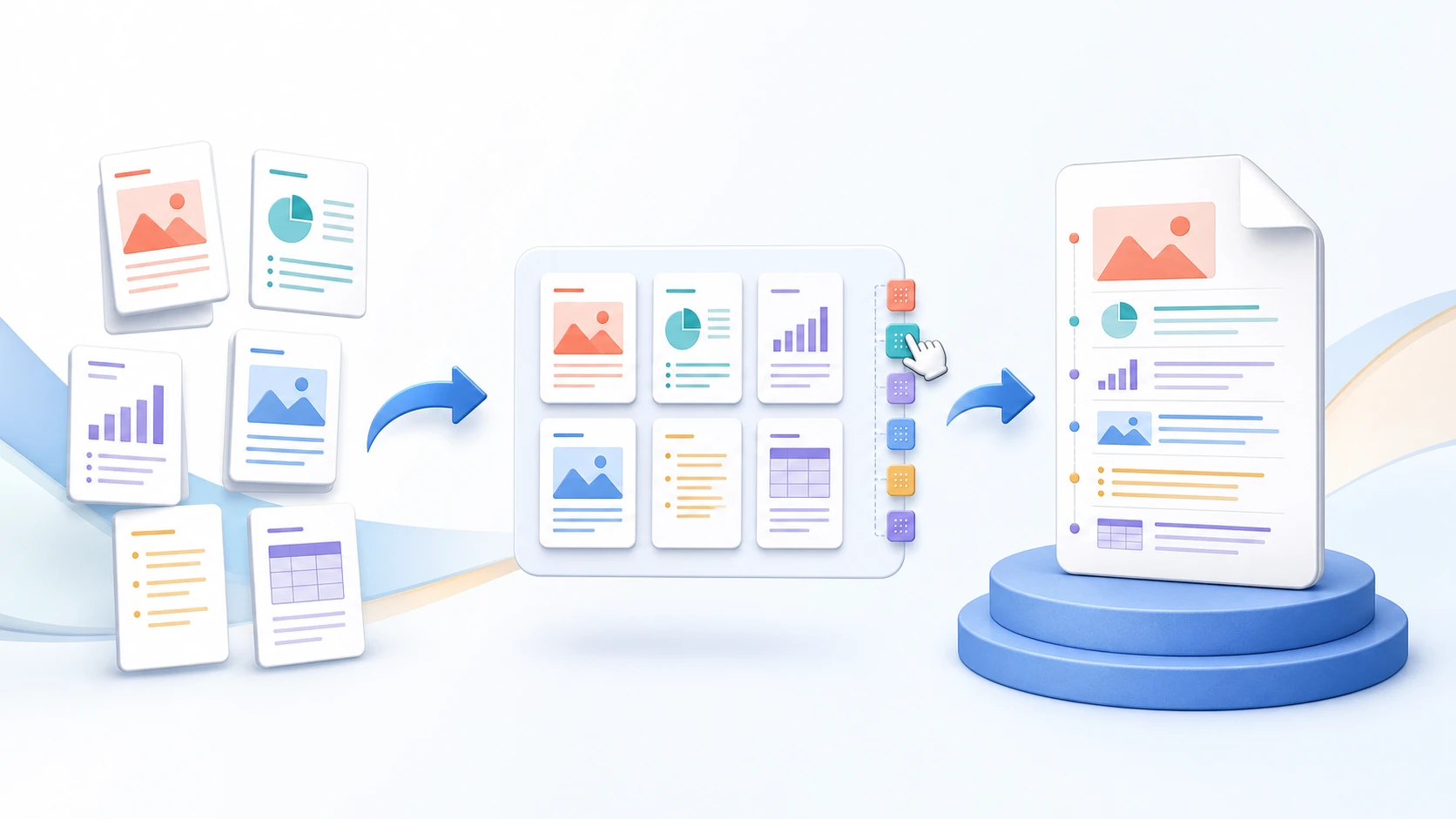
  2. Select the split method supported by the tool, such as a fixed page count or explicit split points.
  3. Review the planned page ranges for every output file.
  4. Start the split process.
  5. Download the separate PDFs and verify their page boundaries.
Split PDF questions

What is the difference between Split PDF and Extract Pages?

Split PDF divides the complete source into multiple output files according to the tool's split rules. Extract Pages creates one focused PDF from only the pages you select.

Can I split every page into a separate PDF?

Yes, when the PDF has no more than 50 pages. Choose one page per output file.

Can I choose exactly where each new PDF begins?

Yes. Enter the page numbers after which each split should occur; the next output begins on the following page.

Does splitting change the original PDF?

No. Split PDF creates separate output files and does not overwrite the source PDF.

How many output PDFs can I create?

You can create up to 50 output PDFs in one job.

我的文件会上传到 PDFKaka 吗?

No. Selected file contents are processed locally in this browser during the normal workflow.

还需要处理其他文档任务? 合并 PDF.

关于此工具

Divide the complete document instead of selecting a subset

Split PDF is for turning one source PDF into several outputs. It is different from Extract Pages, which creates a focused PDF from only the pages you choose.

适用于

  • Separate reports, chapters, statements, or document bundles into smaller PDFs.
  • Create regularly sized output files when a fixed page count is supported.
  • Use explicit split boundaries when different sections end on different pages.

使用须知

  • Split PDF works on the full source document; use Extract Pages when only selected pages are needed.
  • Split PDF supports fixed pages per output or explicit split points, requires at least two source pages, and creates up to 50 output files.
  • Compatible AcroForm fields, bookmarks, named destinations and page labels are remapped to retained pages. XFA page selection or reordering and duplicate copies of interactive form pages are rejected when their structure cannot be preserved.
Practical guidance

Split a PDF into separate files by page range

A split PDF workflow creates several documents from one source. Choose the page boundaries or ranges that belong together, check the plan, and generate the smaller PDFs locally. This is useful for dividing reports, assignments, invoices, evidence bundles, or scanned packets.

Split PDF pages into useful sections

Create page ranges that match real sections such as chapters, forms, appendices, or recipients. Meaningful ranges make the downloaded files easier to identify and share.

Keep the original PDF unchanged

Splitting produces new documents. It does not delete pages from or overwrite the selected source PDF, so the complete original remains available for comparison.

Separate pages without turning them into images

Source pages are copied into the split files rather than rendered as pictures. This preserves their page dimensions and avoids an unnecessary visual-quality conversion.

Questions people ask about this task

Can I split PDF pages online for free?

Yes. Select a PDF, define the required page ranges, and download the resulting files without registering.

Can I split every PDF page into a separate file?

Create one-page ranges for the pages that need individual documents. Review every range before processing so no page is omitted.

What is the difference between splitting and extracting PDF pages?

Splitting creates several outputs from one source. Extract Pages creates one new PDF containing only the pages you select.