Split PDF
Split, extract, or remove PDF pages: which tool should you use?
These three tasks sound similar, but they produce different results. Choose the tool based on what should remain in the output.
On this page
See a visual example
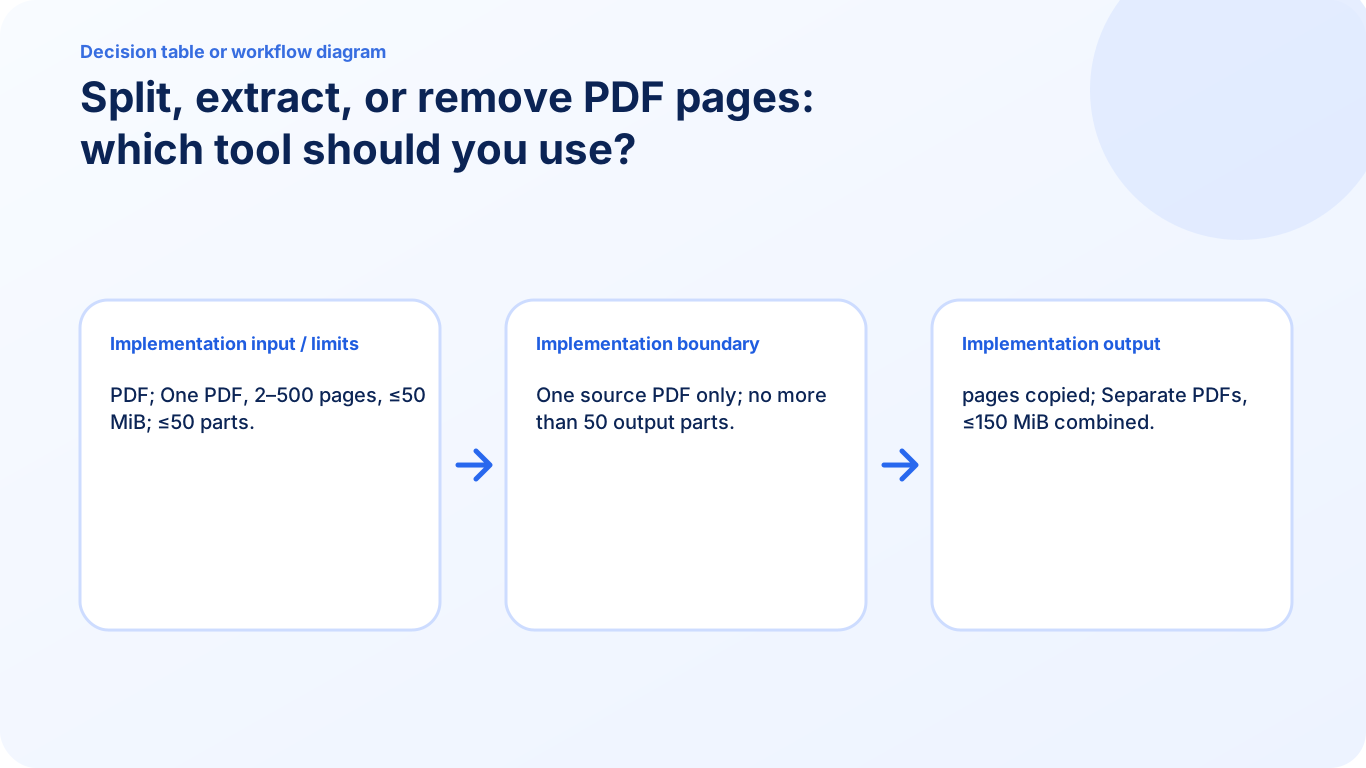
Split: every source page belongs to a part
Choose the source in Split PDF, enter split-after positions or equal pages per part, create and inspect every output. For a six-page file, points 2,5 create 1–2, 3–5 and 6. The job supports at most 50 parts.
Extract: keep a focused selection
Choose the source in Extract Pages, mark the required thumbnails, create one PDF and inspect it. Selecting pages 2 and 5 makes one two-page result in source order; it does not create separate files for those pages.
Remove: preserve most pages
Choose the source in Remove Pages, mark only unwanted pages and create the retained remainder. For a ten-page file, removing positions 4 and 9 should leave eight pages. At least one page must remain.
Use Organize when order changes too
None of these choices is a substitute for freely rearranging individual pages. Use Organize PDF when pages must move across the sequence. Keep the original and check printed labels versus PDF positions in every resulting file.
FAQ
I need just an appendix in one file. Which tool fits?
Extract Pages: mark the appendix and create one focused result.
I need one document per recipient from consecutive sections. Which fits?
Split PDF: enter each section end as a split point and inspect every output before sharing.