PDF Forms guide
How to fill, visually sign, and flatten a PDF form
Complete and review interactive fields before flattening them. Add a visual signature only when that type of mark is appropriate for the document.
On this page
Fill the PDF form
- Sign PDF adds visible artwork and does not create a certificate-backed digital signature.
- Flattening supported fields makes their current values fixed and no longer interactive.
- Complete and review interactive fields before flattening them. Add a visual signature only when that type of mark is appropriate for the document.
Fill compatible form fields
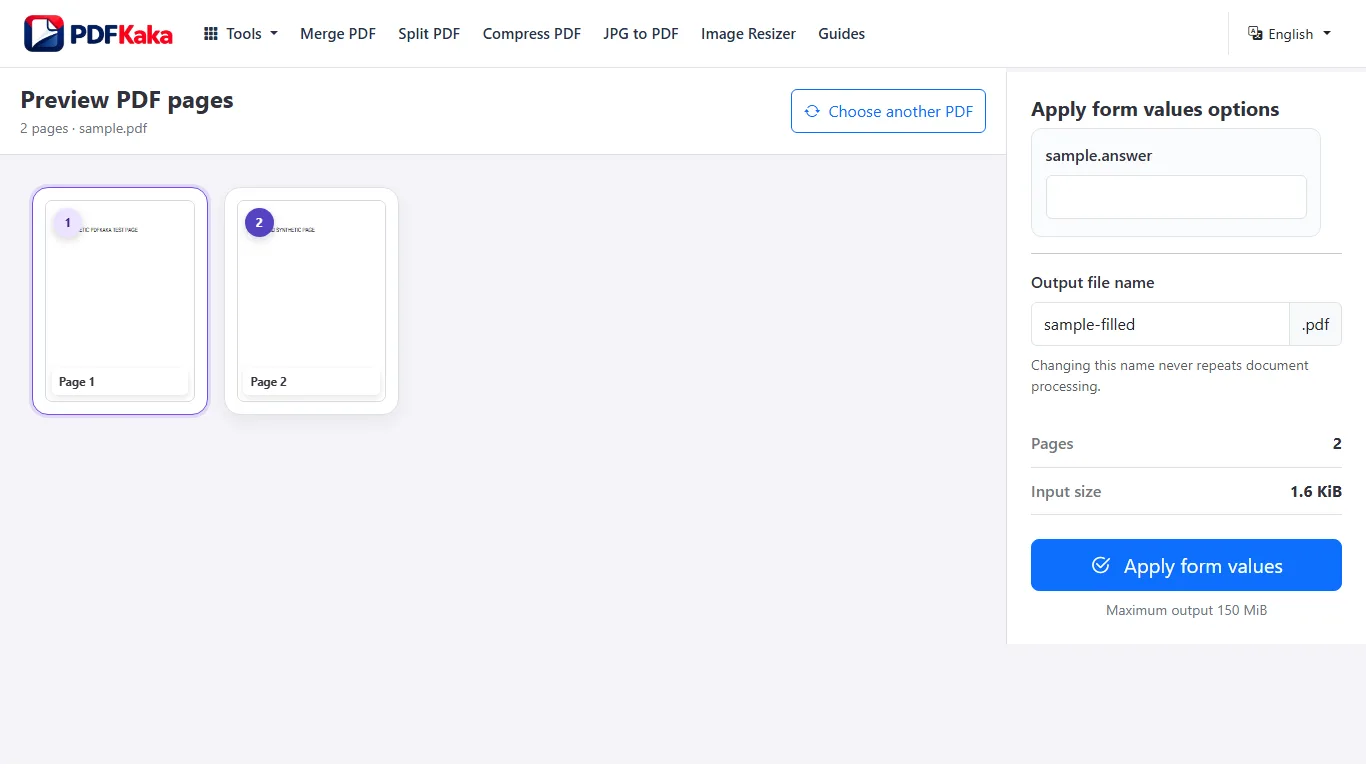
Open PDF Forms and review the detected text, checkbox, choice, and radio fields. A scan without interactive fields must use a different editing workflow.
- Choose the form PDF.
- Complete every supported field.
- Download and review the filled copy.
Add a visible signature when appropriate
Draw, type, upload, or receive a signature image from your phone, then place and resize the visual mark on the required pages.
- Create and position the signature artwork.
- Open the filled PDF in Sign PDF.
- Confirm whether the recipient accepts a visual signature.
Flatten only after reviewing the form
Flatten PDF fixes supported interactive field values into page content. Keep the editable original because the flattened supported fields cannot be changed in the same way afterward.
- Flatten the supported fields.
- Keep both editable and flattened versions when appropriate.
- Review the completed form carefully.
FAQ
Can every PDF be filled as a form?
Only PDFs with supported form fields can be filled as forms. A visually blank line on a page is not automatically an interactive field.
What is the current input limit for PDF Forms?
PDF; One PDF ≤50 MiB, ≤500 pages, ≤200 form fields.
What does PDF Forms create?
Writes supported AcroForm field values into a new PDF; source pages are not rasterized by default. One PDF ≤150 MiB with filled values.