PDF Forms
How to fill, visually sign, and flatten a PDF form
Complete and review interactive fields before flattening them. Add a visual signature only when that type of mark is appropriate for the document.
See a visual example
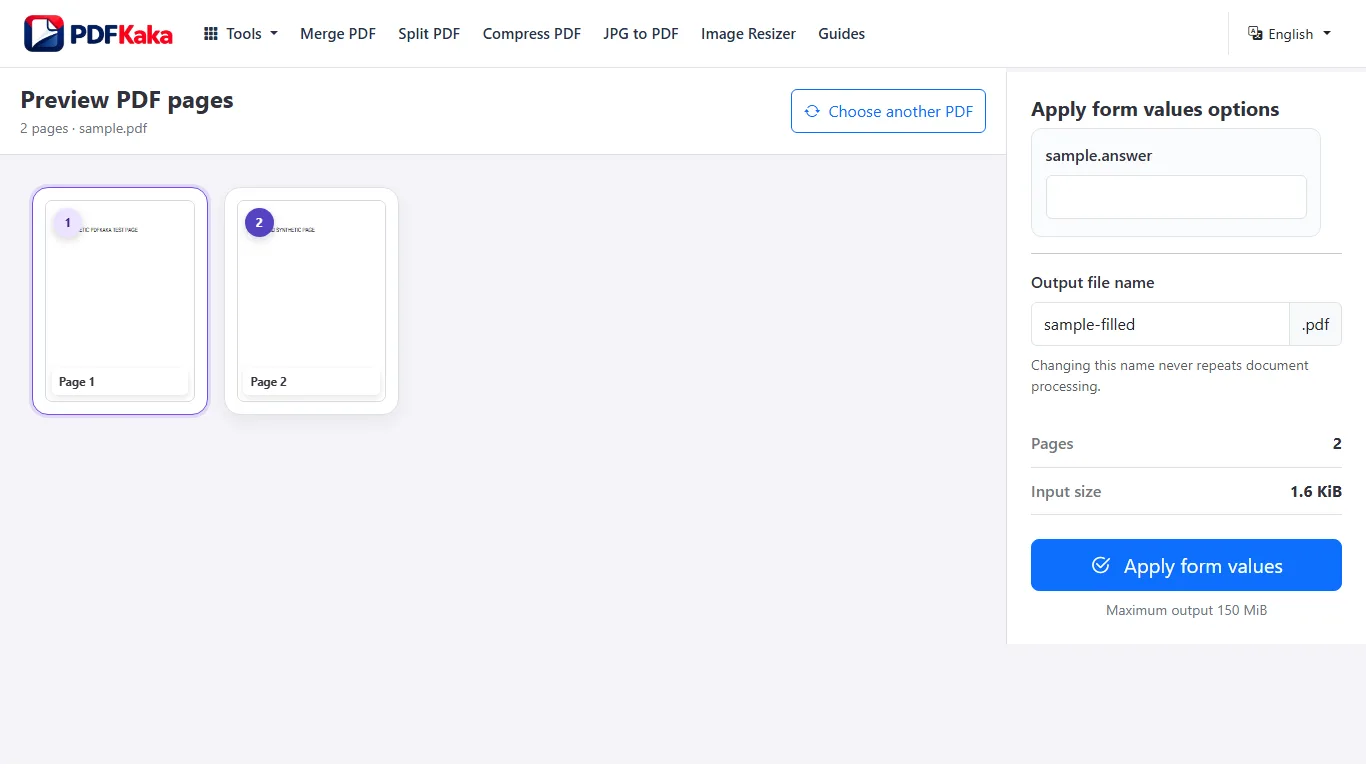
Follow the supported controls
- Open the source in PDF Forms, complete the detected fields, and download and inspect the filled copy.
- If a visible signature is appropriate, open that filled copy in Sign PDF and create, position and resize the mark.
- Download and inspect the visibly signed copy. This is artwork, not certificate-backed signing.
- Open the reviewed copy in Flatten PDF when fixed field appearances are required; download it and check every value and signature mark.
Keep each intermediate file identifiable
Use filenames that distinguish the editable filled form, visibly signed copy and flattened output. Flattening targets compatible AcroForm fields and does not flatten every annotation or security feature. A cryptographically signed document is a different workflow: changing its bytes can invalidate the existing signature, and adding artwork does not restore that validation.
FAQ
Does Sign PDF create a certificate-backed signature?
No. It adds visible signature artwork and does not verify signer identity.
Why keep the editable filled form?
It provides the reliable correction path if a value needs changing after flattening.
Does flattening protect confidential values?
No. Fixed appearances are still visible page content; flattening is not secure redaction or encryption.