PDF Forms guides
Why a PDF form cannot be filled in
Distinguish a scanned paper image, flattened form, unsupported field type, damaged file, and password-protected document from a compatible interactive form.
Open PDF FormsReviewed by PDFKaka ·
What this workflow helps you do
When PDF Forms does not produce the expected result, first distinguish an unsupported input or document structure from a settings problem. The source file, page type, and browser resources determine the safest next step.
Distinguish a scanned paper image, flattened form, unsupported field type, damaged file, and password-protected document from a compatible interactive form.
Plan the task in PDF Forms
Detect and complete compatible interactive PDF form fields locally. Scanned paper forms are images unless they contain real interactive fields.
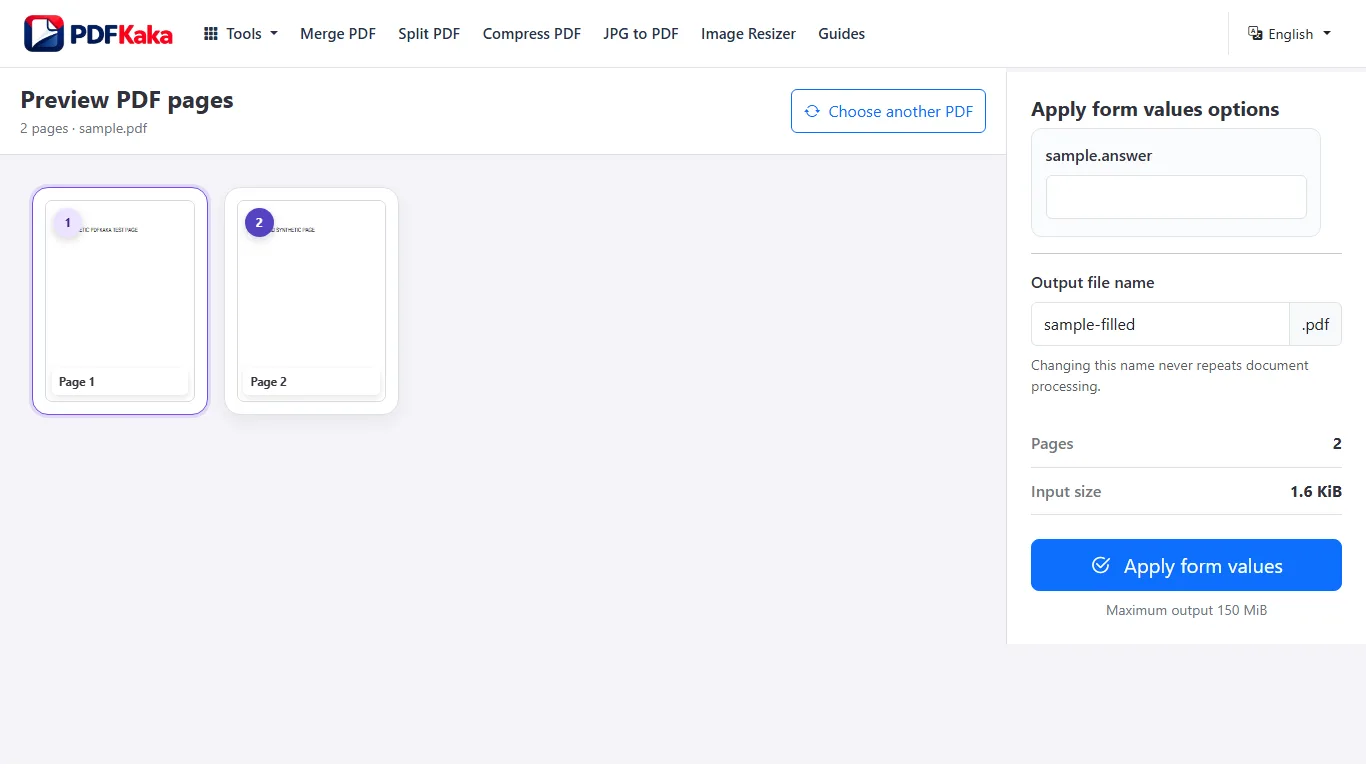
PDF Forms detects compatible AcroForm text, checkbox, radio, and choice fields. Enter values in one accessible workspace, create a completed copy, and keep the original form available in case information must be corrected later.
- Fill real PDF form fields. Supported interactive controls are listed for completion instead of requiring approximate text placement over the page.
- Keep a separate completed PDF copy. The selected source form remains unchanged. Review the downloaded copy in another viewer before submission.
- Recognize unsupported scanned and XFA forms. A photograph of a paper form does not contain interactive fields. Dynamic XFA documents and custom controls may also require a different application.
Find the cause before repeating the same attempt
A PDF Forms failure can come from the input file, an unsupported feature, a configured limit, device memory, or a result that cannot meet the requested condition. Repeating identical settings rarely changes that cause.
Test the source in a separate trusted viewer, read the tool's visible limits, and try a small representative file when possible. Never overwrite the only original while investigating.
- Confirm the file opens and contains the expected format.
- Check password, page-count, byte-size, and device-memory limits.
- Choose a different supported workflow when the requested feature is unavailable.
Settings and limitations to check
Can I fill a PDF form online for free with no sign-up? Yes, when the document contains supported interactive fields. No registration is required.
Why were no form fields detected? The PDF may be a scan, use dynamic XFA, or contain unsupported controls rather than standard AcroForm fields.
Should I flatten the completed form? Flatten a reviewed copy when supported values should become fixed page content. Keep the editable original separately.
- Use only the settings needed for the required result.
- Keep the source file available for comparison.
- Do not rely on an unsupported exact-size, fidelity, or security promise.
Review the completed file
Keep the original and choose an additive text workflow only when the recipient accepts it.
Open the downloaded result in a separate viewer, inspect important pages or details, and repeat the workflow with adjusted settings if the output is not suitable.
- Confirm the expected file type and page count.
- Check important text, images, order, and orientation.
- Share or submit only the reviewed copy.
Tools used in this workflow
Frequently asked questions
What should I prepare before following this workflow?
Distinguish a scanned paper image, flattened form, unsupported field type, damaged file, and password-protected document from a compatible interactive form.
How should I verify the result?
Keep the original and choose an additive text workflow only when the recipient accepts it.
Can I fill a PDF form online for free with no sign-up?
Yes, when the document contains supported interactive fields. No registration is required.
Why were no form fields detected?
The PDF may be a scan, use dynamic XFA, or contain unsupported controls rather than standard AcroForm fields.
Should I flatten the completed form?
Flatten a reviewed copy when supported values should become fixed page content. Keep the editable original separately.
Do I need an account to use PDF Forms?
No. Current PDFKaka tools work without registration or sign-in.
Are my files uploaded while I use PDF Forms?
No. This working tool processes the selected files locally in the current browser session.