PDF Forms
Why a PDF form cannot be filled in
Distinguish a scanned paper image, flattened form, unsupported field type, damaged file, and password-protected document from a compatible interactive form.
See a visual example
Follow the supported controls
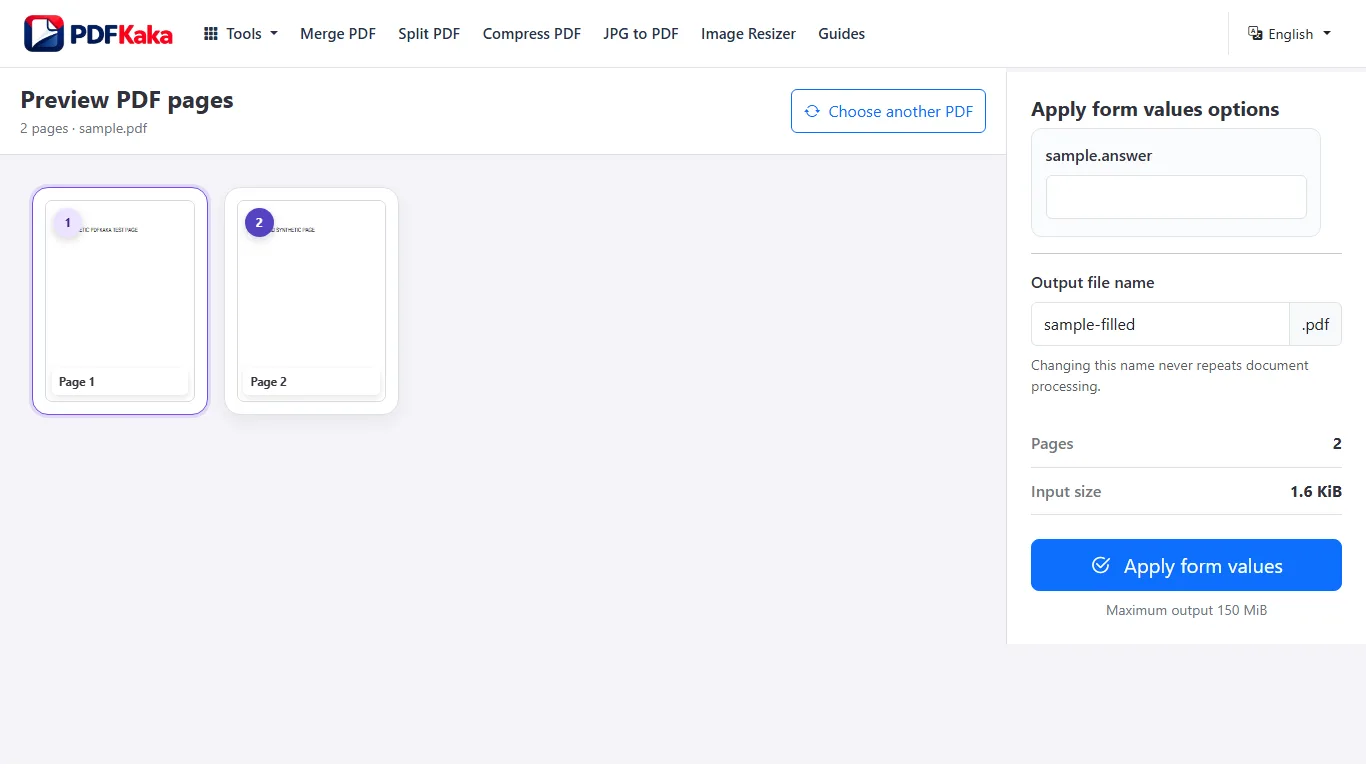
- Open the file in PDF Forms and inspect whether compatible fields are detected.
- If no fields appear, check whether the page is a scan or a previously flattened copy.
- If the form uses dynamic XFA, unsupported controls, custom fonts or protection, use a compatible application or request another form version.
- Keep the original. Add visible text with Edit PDF only if that output is suitable for the intended submission.
Distinguish a field problem from an appearance problem
A field can exist while its saved value is clipped or uses an unsupported font. In that case, repeating the upload does not repair the form design. Verify the complete downloaded appearance, and ask for an alternative AcroForm or a supported document version when the receiving system requires specific interactive controls.
FAQ
Why can I see a blank answer line but no field?
It may be drawn page content or part of a scanned image rather than an interactive control.
Can PDF Forms create fields on a scan?
No. It fills existing compatible fields; it is not a form-authoring tool.
Does a successful field entry prove the saved appearance is correct?
No. Reopen the completed PDF and inspect long text, checkbox states and selections.