How to Crop PDF Pages Online
- Choose a supported PDF.
- Adjust the available crop boundary or margin controls.
- Preview representative pages to make sure important content remains visible.
- Apply the crop.
- Download and reopen the cropped PDF.
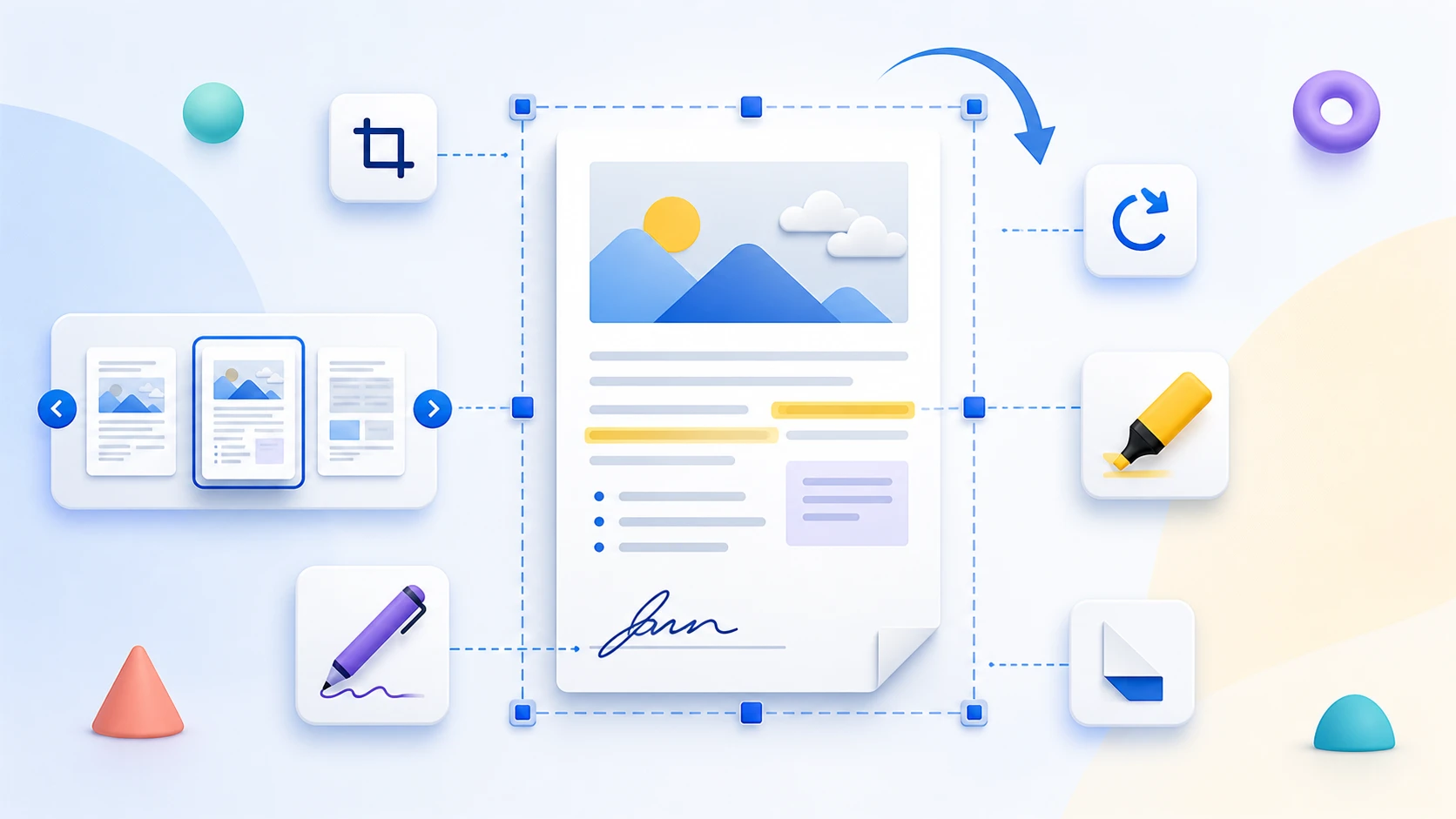
Choose the visible area to keep, preview the page boundaries, and apply the supported crop settings to the PDF. Cropping changes page boundaries; it should not be treated as secure redaction.
or drop one PDF here
Up to 50 MiB and 500 pages
Processing stays in this browser
Yes. Use the live page preview and crop box before applying the crop.
Yes. Choose Current page only for a per-page crop, or apply the current crop to all pages.
Yes. Enter top, right, bottom, and left percentages from 0% to 90% in 0.1% steps, or adjust the crop box visually.
No image recompression is applied. The tool changes PDF CropBox values and keeps the underlying page content.
No. Cropping changes visible page boundaries but leaves underlying page objects in the PDF. Use Redact PDF for sensitive information.
No. Selected PDF contents are processed locally in this browser.
還需要處理其他文件工作? 整理 PDF.
Crop PDF changes page boundaries so unwanted outer areas are no longer shown in normal viewing. It is intended for page presentation, not removal of sensitive page content.
Crop PDF changes the visible page area to remove scanner borders, excess white space, or unwanted content near the edges. Choose percentage-based crop boundaries, inspect the preview, and apply the same crop settings across the document.
Adjust top, right, bottom, and left boundaries while checking that headings, page numbers, signatures, and other important content remain visible.
Apply shared percentages to all pages or choose Current page only for a per-page crop. Margins start at zero; untouched pages retain their original boxes.
Cropping changes the visible page boxes and may not securely remove hidden content. Use Redact PDF for sensitive selectable text and verify the sharing copy.
Yes. Set the visible boundaries and download a cropped copy without registration.
Yes. Choose Current page only to store a separate crop for each page, or apply the current percentages to all pages.
Do not rely on cropping for redaction. Hidden or recoverable content can remain; use an appropriate redaction workflow instead.