JPG to PDF guide
How to Convert Multiple JPG Images Into One PDF
PDFKaka can turn several supported images into one multipage PDF in a single browser workflow. Arrange the images in the required reading order, choose one page-layout setting for the job, and create the final document.
On this page
How image order becomes PDF page order
JPG to PDF creates one PDF page for every selected image.
The page order follows the image order shown in the workspace before conversion. Drag images into position or use Move earlier and Move later when a precise order is easier to control with buttons.
For example, if three images are arranged as:
Cover.jpg
Receipt.jpg
Signature.png
the generated PDF contains those three pages in that same sequence.
Changing page size or margins does not change the image order.
How to convert multiple images into one PDF
- Open JPG to PDF and choose the images required for the document.
- Arrange the images in the required page order.
- Rotate any sideways image if needed.
- Check the thumbnails and remove any image that does not belong.
- Choose Portrait or Landscape when using A4, Letter, or Legal pages.
- Choose the page size and margin setting.
- Select Convert to PDF.
- Download the finished PDF and reopen it to confirm the page order.
Screenshot
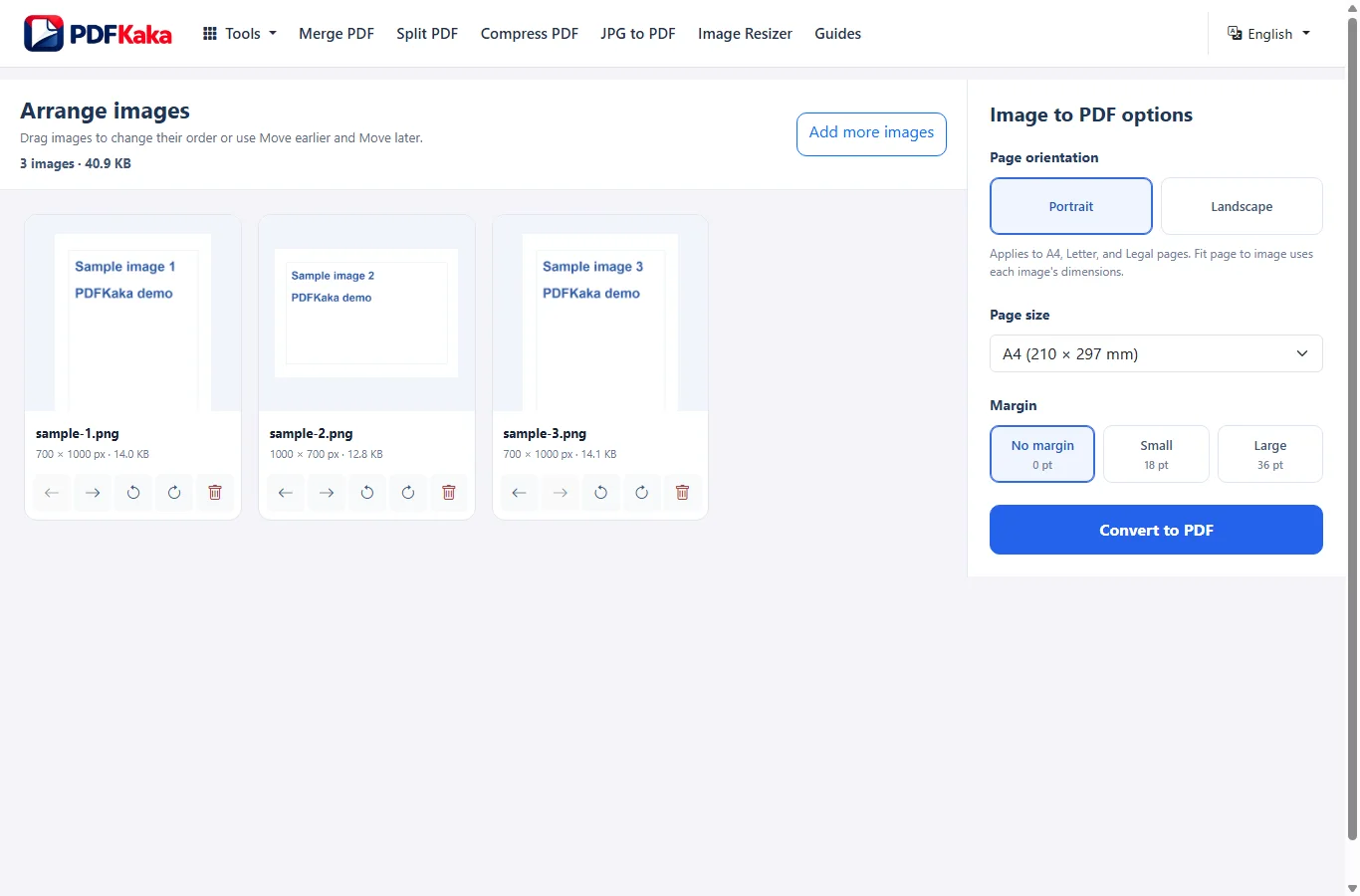
Choose the page layout before converting
Page settings apply to the complete conversion job.
A4, US Letter, and US Legal use fixed PDF page dimensions. The complete image is scaled to fit within the available page area while preserving its aspect ratio.
Portrait or Landscape controls the orientation of those fixed PDF pages.
Margins apply to the fixed page layout:
No margin = 0 pt
Small = 18 pt
Large = 36 pt
Fit page to image behaves differently. It creates each PDF page from the source image dimensions at 96 pixels per inch.
Because Fit uses each image's dimensions, pages inside the same PDF may have different physical sizes.
Use JPG, PNG, HEIC, and HEIF in one job
One JPG-to-PDF job may contain a mixture of supported JPG, JPEG, PNG, HEIC, and compatible HEIF still images.
The formats do not all use the same internal conversion path.
JPEG files are usually embedded directly unless orientation correction or another transformation requires re-encoding.
PNG files use PNG embedding.
Supported HEIC or HEIF images are decoded in the browser before they are placed in the PDF.
The visual result should therefore be reviewed instead of assuming every source format is handled identically.
Check the limits before adding a large batch
One job can contain up to 30 images and therefore create up to 30 PDF pages.
Each image may be up to 25 MiB, while the complete input batch may be up to 100 MiB.
An individual image may be no larger than 16,384 pixels on either side or 40 million pixels total.
The generated PDF may be up to 150 MiB.
Large batches and high-resolution phone photos use browser memory. If a device struggles with the complete batch, keep the originals and retry with fewer or smaller images.
Verify the finished multipage PDF
After downloading the PDF, reopen it in a separate viewer.
Check:
- the PDF page count matches the intended image count;
- the first and last image are correct;
- every image appears in the expected order;
- sideways images are corrected;
- margins and page sizes look appropriate;
- important small text or image detail remains readable.
Keep the source images until the final PDF has been checked.
FAQ
Can several JPG files be combined into one PDF?
Yes. Add up to 30 supported images, arrange them, and convert them in one job. Each image becomes one PDF page.
Can JPG and PNG files be mixed in the same PDF?
Yes. JPG, JPEG, PNG, HEIC, and supported HEIF still images may be used together in one conversion job.
Can every page have a different A4 or Letter setting?
No. Page size, orientation, and margin are global settings for the job. Fit page to image naturally produces different page dimensions when source images have different dimensions.
Can I change the image order after conversion?
Arrange the images before converting. If the finished PDF later needs page-level rearranging, use Organize PDF.