JPG to PDF
How to Convert Multiple JPG Images Into One PDF
Turn ordered page images into one PDF while controlling page layout and readability. The useful result is a complete document in the right sequence, with no clipped writing or accidental blank-looking pages.
On this page
- Prepare an ordered packet
- Reopen the actual PDF
- How image order becomes PDF page order
- How to convert multiple images into one PDF
- Choose the page layout before converting
- Use JPG, PNG, HEIC, and HEIF in one job
- Check the limits before adding a large batch
- Verify the finished multipage PDF
- convert JPG to PDF on iPhone or Android
- Choose images from your phone
- Arrange image order on a touch screen
- Choose page settings on mobile
- iPhone HEIC and HEIF images
- Watch mobile browser memory
- Download and verify the PDF
- JPG to PDF online without login or upload
- What browser-side conversion means
- What may still use the network
- No account is required
- HEIC and HEIF decoding still happens locally
- What happens after the PDF is downloaded
- Practical privacy checks
- convert JPG to PDF without losing image quality
- What happens to an ordinary JPEG
- What happens when JPEG orientation must be corrected
- What happens to PNG images
- What happens to HEIC and HEIF images
- How page size can affect apparent quality
- Avoid repeated lossy conversions
- How to check the generated PDF
See a visual example
Prepare an ordered packet
For three photographed form pages, give the images a clear sequence before adding them. Check the thumbnails after selection: camera orientation and alphabetical file order may differ from reading order.
Choose Fit page to image to size each PDF page to its image. With A4, Letter or Legal, the complete image is scaled to fit the available page area without cropping; different proportions can leave blank space. Use a consistent paper size when the recipient needs a printable document.
Reopen the actual PDF
- Confirm one intended page for every selected image.
- Inspect handwriting, stamps and edges for clipping.
- Check both portrait and landscape sources.
- Use a downstream PDF compression step only after the document itself is correct.
How image order becomes PDF page order
JPG to PDF creates one PDF page for every selected image.
The page order follows the image order shown in the workspace before conversion. Drag images into position or use Move earlier and Move later when a precise order is easier to control with buttons.
For example, if three images are arranged as:
Cover.jpg
Receipt.jpg
Signature.png
the generated PDF contains those three pages in that same sequence.
Changing page size or margins does not change the image order.
How to convert multiple images into one PDF
- Open JPG to PDF and choose the images required for the document.
- Arrange them with dragging or Move earlier and Move later.
- Rotate sideways images and remove unwanted entries.
- Choose the page size; for A4, Letter or Legal choose Portrait or Landscape.
- Choose the margin setting and check the thumbnails.
- Select Convert to PDF.
- Download and reopen the result to confirm page count, sequence and readability.
Screenshot
Choose the page layout before converting
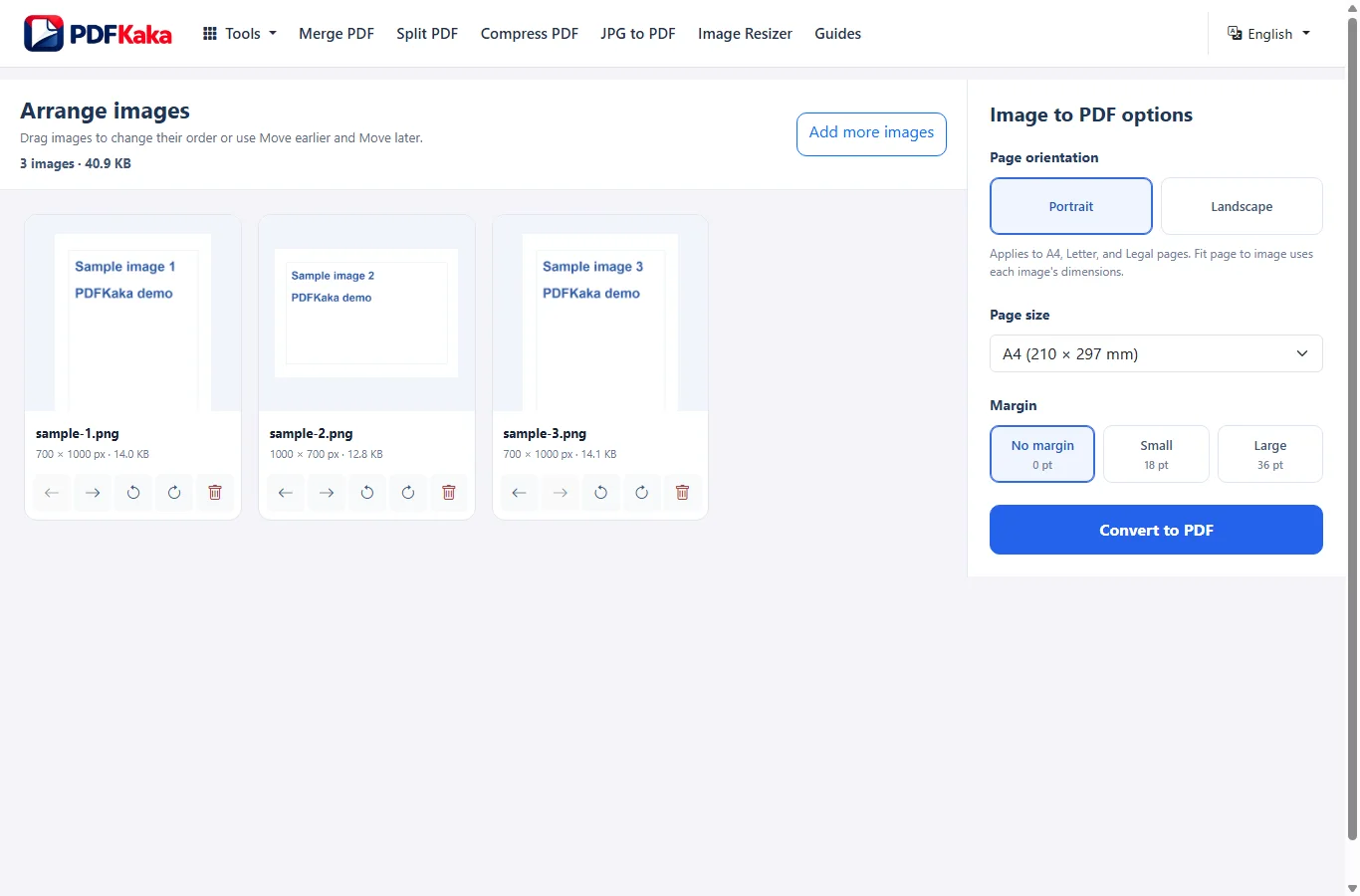
Page settings apply to the complete conversion job.
A4, US Letter, and US Legal use fixed PDF page dimensions. The complete image is scaled to fit within the available page area while preserving its aspect ratio.
Portrait or Landscape controls the orientation of those fixed PDF pages.
Margins apply to the fixed page layout:
No margin = 0 pt
Small = 18 pt
Large = 36 pt
Fit page to image behaves differently. It creates each PDF page from the source image dimensions at 96 pixels per inch.
Because Fit uses each image's dimensions, pages inside the same PDF may have different physical sizes.
Use JPG, PNG, HEIC, and HEIF in one job
One JPG-to-PDF job may contain a mixture of supported JPG, JPEG, PNG, HEIC, and compatible HEIF still images.
The formats do not all use the same internal conversion path.
JPEG files are usually embedded directly unless orientation correction or another transformation requires re-encoding.
PNG files use PNG embedding.
Supported HEIC or HEIF images are decoded in the browser before they are placed in the PDF.
The visual result should therefore be reviewed instead of assuming every source format is handled identically.
Check the limits before adding a large batch
One job can contain up to 30 images and therefore create up to 30 PDF pages.
Each image may be up to 25 MiB, while the complete input batch may be up to 100 MiB.
An individual image may be no larger than 16,384 pixels on either side or 40 million pixels total.
The generated PDF may be up to 150 MiB.
Large batches and high-resolution phone photos use browser memory. If a device struggles with the complete batch, keep the originals and retry with fewer or smaller images.
Verify the finished multipage PDF
After downloading the PDF, reopen it in a separate viewer.
Check:
- the PDF page count matches the intended image count;
- the first and last image are correct;
- every image appears in the expected order;
- sideways images are corrected;
- margins and page sizes look appropriate;
- important small text or image detail remains readable.
Keep the source images until the final PDF has been checked.
convert JPG to PDF on iPhone or Android
JPG to PDF works in a supported mobile browser, so you can choose photos or files, arrange them, set the PDF page layout, and download the result without installing a separate desktop program.
Open JPG to PDF in your phone browser, choose images from Photos, Files, Downloads, or another available source, arrange them, choose the page settings, convert the images, and reopen the downloaded PDF before sharing it.
Choose images from your phone
The file picker depends on the phone, browser, and installed apps.
You may see sources such as:
- Photos;
- Files;
- Downloads;
- camera storage;
- cloud-provider shortcuts.
JPG to PDF accepts JPG, JPEG, PNG, HEIC, and compatible HEIF still images.
Select only the images required for the document and return to the browser after the picker closes.
Arrange image order on a touch screen
The image order becomes the PDF page order.
Drag images when touch dragging works comfortably, or use Move earlier and Move later for more precise control.
Check the first and last image before converting a large batch.
Use the Rotate controls for a sideways image instead of changing the global PDF page orientation solely to correct one photograph.
Choose page settings on mobile
A4, US Letter, and US Legal create standard fixed PDF page sizes.
Choose Portrait or Landscape for those page sizes.
Margins may be:
- No margin;
- Small;
- Large.
Fit page to image creates each PDF page from the image dimensions rather than using one standard paper size.
These settings apply to the whole job.
iPhone HEIC and HEIF images
Modern phones may store photos as HEIC or HEIF instead of JPEG.
PDFKaka can decode supported HEVC-based HEIC and HEIF still images in the browser.
Not every possible HEIF codec is supported.
The HEIC or HEIF conversion path decodes the image and converts it before embedding it into the PDF, so it should not be described as a lossless passthrough.
Watch mobile browser memory
High-resolution phone photos can use much more working memory than their compressed file size suggests.
A job may contain up to 30 images, but a device with limited available memory may struggle before reaching that maximum.
If the browser reloads, freezes, or cannot finish the conversion:
- Keep the original images.
- Close unnecessary tabs or apps.
- Retry with fewer images.
- Resize extremely large photos only on a separate copy when appropriate.
- Create smaller PDFs only if the recipient accepts separate documents.
The conversion also has a processing time limit, so unusually heavy jobs may need to be reduced before retrying.
Download and verify the PDF
When conversion finishes, download the PDF and reopen it from Files, Downloads, or the browser's download list.
- page order;
- orientation;
- margins;
- page size;
- readability;
- final file size.
Do this before emailing or uploading the file somewhere else.
JPG to PDF online without login or upload
PDFKaka JPG to PDF validates supported images, decodes formats when required, and creates the PDF in the browser. Selected image contents are not uploaded to PDFKaka as part of the normal conversion workflow.
The image-conversion work happens in the current browser and does not require registration. The website may still make ordinary requests for resources and analytics, so browser-side processing does not mean that every network connection disappears.
What browser-side conversion means
The selected image contents are processed on the device running the browser.
JPG-to-PDF validation, supported HEIC or HEIF decoding, image preparation, and PDF generation happen in the browser during the normal workflow.
The conversion code does not upload the selected image contents to PDFKaka for remote conversion.
What may still use the network
Local image conversion does not mean that the browser makes no network requests.
Normal website activity may still include:
- site assets;
- analytics;
- browser services;
- operating-system services;
- cloud storage selected through a file picker;
- browser extensions.
Those requests are separate from uploading the selected image contents for JPG-to-PDF conversion.
No account is required
JPG to PDF currently works without registration or sign-in.
Choose the images, configure the PDF page layout, create the result, and download the PDF directly from the browser workflow.
HEIC and HEIF decoding still happens locally
Supported HEIC and HEIF still images require decoding before they can be placed into the PDF.
PDFKaka uses a bundled browser-side decoder running in a worker for that task.
The selected HEIC or HEIF image contents are decoded on the device as part of the conversion workflow rather than being sent to PDFKaka for server-side image conversion.
What happens after the PDF is downloaded
PDFKaka's browser-processing boundary does not control what happens after the result leaves the tool.
If the PDF is:
- emailed;
- uploaded to a portal;
- saved to cloud storage;
- synchronized by the operating system;
- opened by another application;
that external service or application has its own privacy and security behavior.
Review where the file is being sent before moving confidential material.
Practical privacy checks
- Use a browser and device profile you trust.
- Confirm the selected images before conversion.
- Remove temporary working copies when your own document-handling rules require it.
- Check the download location.
- Review the finished PDF.
- Review the privacy behavior of any third-party service used after download.
convert JPG to PDF without losing image quality
Image-to-PDF conversion is not identical for every source format. Ordinary JPEG files can often be embedded without JPEG re-encoding, while orientation correction and HEIC or HEIF conversion require additional image processing.
Avoid unnecessary quality loss by starting with the original image, avoiding needless repeated conversions, choosing a page layout that does not force excessive enlargement, and checking the finished PDF against the source image.
What happens to an ordinary JPEG
An ordinary JPG or JPEG that does not require orientation correction can usually be embedded into the PDF without JPEG re-encoding.
That means JPG to PDF does not automatically resize every JPEG or convert every JPEG through a screenshot.
The PDF page may still scale how large the image appears because A4, Letter, and Legal have fixed page dimensions.
Embedding behavior and page layout are therefore separate questions.
What happens when JPEG orientation must be corrected
Many camera images contain EXIF orientation metadata.
JPG to PDF recognizes JPEG orientation values that require the image to be displayed differently from its raw pixel order.
When orientation correction is necessary, the image is decoded, corrected through a browser canvas, and re-encoded as JPEG before it is embedded into the PDF.
That operation is not lossless.
The converter uses a high internal JPEG quality setting, but an absolute "no quality loss" promise would still be inaccurate.
Manual rotation added by JPG to PDF may also require image transformation rather than direct passthrough.
What happens to PNG images
PNG images use PDFKaka's PNG embedding path rather than being automatically converted to JPEG.
The PNG path supports alpha transparency.
This makes PNG useful when transparency or sharp UI-style graphics matter.
The PDF page layout can still scale the visible image to fit the selected page dimensions.
What happens to HEIC and HEIF images
Supported HEIC and HEIF still images use a different conversion path.
The browser decodes the source image, draws the result to a full-size canvas, uses a white background in that path, and converts the decoded image to JPEG before embedding it into the PDF.
Therefore HEIC and HEIF conversion should not be described as lossless.
A HEIF file using an unsupported codec may fail to decode.
How page size can affect apparent quality
A4, Letter, and Legal pages use fixed physical page sizes.
The source image is scaled so the complete image fits inside the available page area while preserving its aspect ratio.
If a small image is displayed very large, the image can appear soft even when the underlying conversion did not unnecessarily recompress it.
Fit page to image avoids a fixed paper size. The PDF page is created from the source image dimensions at 96 pixels per inch.
The best choice depends on whether the PDF is meant for printing on standard paper or simply preserving the natural image proportions.
Avoid repeated lossy conversions
Keep the original source image.
If a JPEG has already been repeatedly edited, exported, resized, or compressed, another conversion cannot restore detail that was previously lost.
A better workflow is:
- Keep the original images.
- Choose the originals and set the required PDF page layout.
- Create and download the PDF.
- Open the saved PDF in a separate viewer.
- Compare fine text, faces, stamps and image detail with the corresponding originals at a useful zoom.
- If the result is unsuitable, return to the originals rather than repeatedly converting the output.
Do not repeatedly process an already degraded output when the source is still available.
How to check the generated PDF
Open the downloaded PDF and compare representative pages with the source images.
Inspect:
- small text;
- fine lines;
- signatures;
- receipts;
- screenshots;
- photographs;
- high-contrast edges.
Check the PDF at the size at which it will actually be viewed or printed.
A file-size number alone does not establish image quality.
FAQ
Can several JPG files be combined into one PDF?
Yes. Add up to 30 supported images, arrange them, and convert them in one job. Each image becomes one PDF page.
Can JPG and PNG files be mixed in the same PDF?
Yes. JPG, JPEG, PNG, HEIC, and supported HEIF still images may be used together in one conversion job.
Can every page have a different A4 or Letter setting?
No. Page size, orientation, and margin are global settings for the job. Fit page to image naturally produces different page dimensions when source images have different dimensions.
Can I change the image order after conversion?
Arrange the images before converting. If the finished PDF later needs page-level rearranging, use Organize PDF.
Do I need an app to convert photos to PDF?
No. JPG to PDF runs in a supported mobile browser.
Can I use iPhone HEIC photos?
Supported HEIC and compatible HEIF still images can be decoded in the browser. Some HEIF files using other codecs may not be supported.
Why can a large batch fail on my phone?
Image decoding, canvas work, and PDF creation use device memory. High-resolution photos can exceed the resources available to the browser even when the compressed input files appear relatively small.
Can I rearrange photos before creating the PDF?
Yes. Change the image order before conversion. That order becomes the PDF page order.
Are my selected images uploaded for JPG-to-PDF conversion?
The selected image contents are processed locally during the normal JPG-to-PDF workflow and are not uploaded to PDFKaka for remote conversion.
Does browser processing mean the site makes no network requests?
No. Normal site resources, analytics, browser services, or other integrations may still use the network. Browser processing refers to where the selected image conversion happens.
Do I need an account?
No. JPG to PDF currently works without registration or sign-in.
Are HEIC images uploaded for decoding?
The supported HEIC and HEIF decoding used by JPG to PDF runs in the browser as part of the local conversion workflow.
Does JPG to PDF always recompress JPEG images?
No. Ordinary JPEG files can usually be embedded without JPEG re-encoding. JPEGs that require orientation correction or image transformation may be re-encoded.
Is PNG converted to JPEG?
Not by the normal PNG path. PNG uses PNG embedding and can retain alpha transparency.
Is HEIC conversion lossless?
No. Supported HEIC and HEIF images are decoded and converted before PDF embedding, so the process should not be described as lossless.
Does choosing A4 reduce the original image resolution?
A4 controls the PDF page dimensions. The complete image is scaled to fit within the page while preserving aspect ratio. The visible result depends on the source pixel dimensions and how large the PDF is viewed or printed.