Image Resizer guides
How to resize an image by KB, width, and height
Apply required pixel dimensions before reducing JPEG quality toward the KB limit so the upload meets both constraints.
Open Image ResizerReviewed by PDFKaka ·
What this workflow helps you do
Formatting is affected by the difference between fixed PDF pages and the destination format. Use Image Resizer for its documented output, then review line breaks, positions, fonts, and page structure before reuse.
Apply required pixel dimensions before reducing JPEG quality toward the KB limit so the upload meets both constraints.
Plan the task in Image Resizer
Reduce an image to a required file-size limit, set exact pixel dimensions, or balance both requirements before downloading a JPEG result.
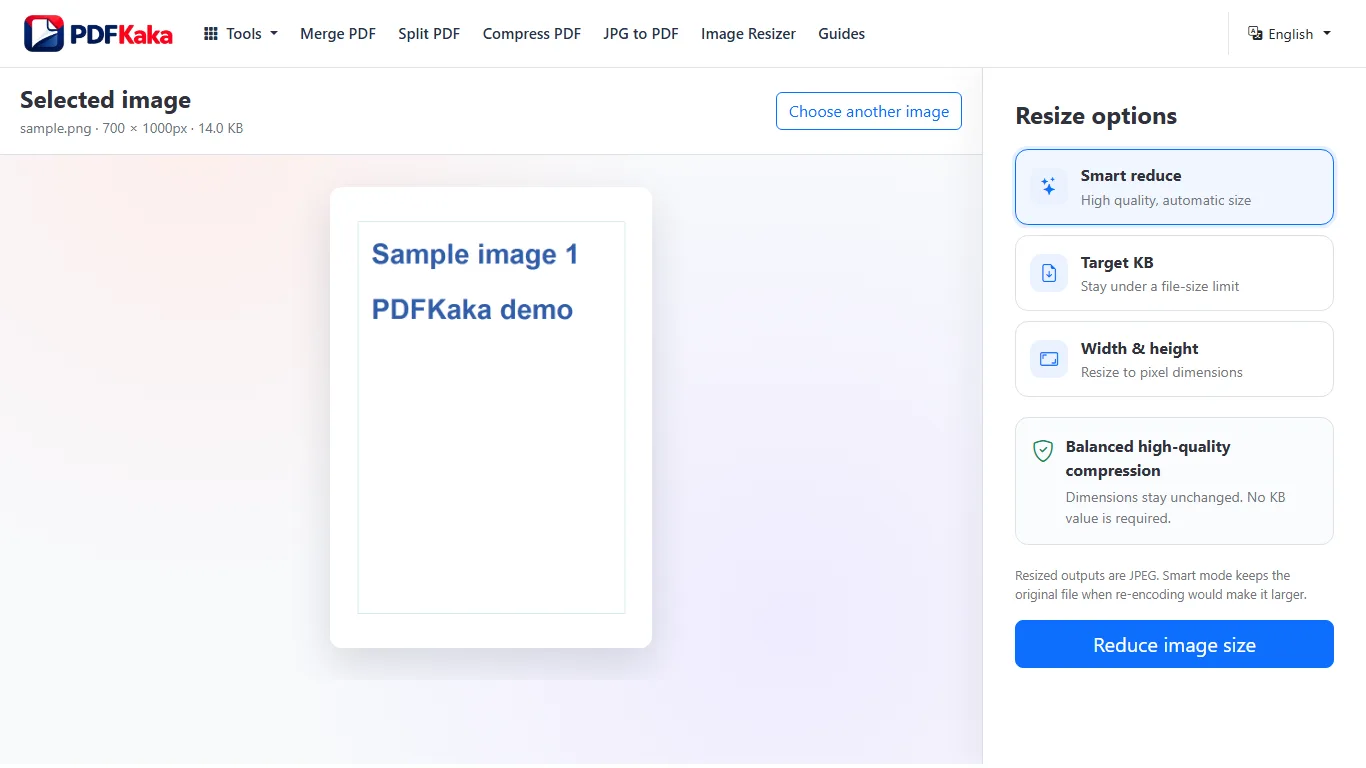
An image resizer in KB solves a different problem from changing width and height. PDFKaka supports both: choose a maximum file size for an upload portal, or set pixel dimensions for a form, website, profile, or document. The output is generated locally as a JPEG.
- Resize an image to 20KB, 50KB, 100KB, 200KB, or 500KB. Choose a common preset or enter another maximum. The tool searches for the best practical JPEG quality and reduces dimensions only when the original image cannot meet the target through quality adjustment alone.
- Set image width and height in pixels. Use dimension mode when a portal specifies width, height, or aspect ratio. Keeping the aspect ratio prevents accidental stretching, while the no-enlarge option protects smaller originals.
- Check photo quality after KB reduction. Very small targets can blur faces, document text, signatures, and fine edges. Review the downloaded image at full size and use a larger limit when essential detail becomes unclear.
Review structure and formatting separately
Image Resizer handles the documented conversion or placement, but fixed PDF geometry, flowing text, page breaks, fonts, and image dimensions do not always map one-to-one.
Prioritize the structure the destination actually needs. A visually similar page may not contain editable objects, while editable text may need manual layout repair.
- Check headings, paragraphs, lists, tables, and page boundaries.
- Compare fonts, line breaks, positions, and dimensions.
- Correct the destination file before publishing or submitting it.
Settings and limitations to check
Will the resized image be exactly the requested KB size? The result is kept at or below the maximum, not padded to an exact byte count. Browser JPEG encoders can produce slightly different sizes.
Can I resize a PNG image in KB? Yes, but the output is JPEG. JPEG does not support transparency, so transparent PNG areas are flattened.
Can I increase image size in KB? The current tool is designed to reduce file size or change dimensions. Artificially increasing bytes does not improve image detail and is not offered as a target workflow.
- Use only the settings needed for the required result.
- Keep the source file available for comparison.
- Do not rely on an unsupported exact-size, fidelity, or security promise.
Review the completed file
Check the final width, height, aspect ratio, format, and byte size against every portal requirement.
Open the downloaded result in a separate viewer, inspect important pages or details, and repeat the workflow with adjusted settings if the output is not suitable.
- Confirm the expected file type and page count.
- Check important text, images, order, and orientation.
- Share or submit only the reviewed copy.
Tools used in this workflow
Frequently asked questions
What should I prepare before following this workflow?
Apply required pixel dimensions before reducing JPEG quality toward the KB limit so the upload meets both constraints.
How should I verify the result?
Check the final width, height, aspect ratio, format, and byte size against every portal requirement.
Will the resized image be exactly the requested KB size?
The result is kept at or below the maximum, not padded to an exact byte count. Browser JPEG encoders can produce slightly different sizes.
Can I resize a PNG image in KB?
Yes, but the output is JPEG. JPEG does not support transparency, so transparent PNG areas are flattened.
Can I increase image size in KB?
The current tool is designed to reduce file size or change dimensions. Artificially increasing bytes does not improve image detail and is not offered as a target workflow.
Do I need an account to use Image Resizer?
No. Current PDFKaka tools work without registration or sign-in.
Are my files uploaded while I use Image Resizer?
No. This working tool processes the selected files locally in the current browser session.