Image Resizer guide
How to Increase Image Size in KB: What PDFKaka Can and Cannot Do
PDFKaka does not provide a minimum-KB or exact-KB target. Target KB sets a maximum and reduces file size. If a portal requires larger pixel dimensions, Width & height can enlarge the image after you turn off 'Do not enlarge smaller images'; the JPEG file size may change, but it is not guaranteed to increase or reach a requested minimum.
On this page
What the resize controls change
- Confirm whether the requirement is minimum KB, maximum KB, pixel dimensions, or image clarity.
- Use Target KB only for a maximum from 5 KB to 5,000 KB.
- Use Width & height for a real pixel-dimension requirement and keep the aspect ratio locked unless the destination specifies otherwise.
- Expect a JPEG output; a transparent PNG is flattened onto white.
Identify the real image requirement first
A minimum file size, minimum pixel dimensions, and a request for a clearer image are different requirements. Adding bytes does not restore image detail that is missing from the source.
PDFKaka's Target KB mode sets a maximum and reduces an image to stay at or below that limit. It is not a minimum-KB or exact-KB control.
- Write down the accepted format, minimum or maximum KB, and required width and height.
- Check whether the destination rejects a small file because of bytes, dimensions, or visible quality.
- Return to the original image before making a new output.
Know the current Image Resizer limits
The tool accepts one JPG or PNG up to 25 MiB. Target KB accepts a maximum from 5 KB to 5,000 KB, and Width & height accepts dimensions up to 16,384 pixels per side and 40,000,000 total pixels.
Resized outputs are JPEG. PNG transparency is placed on white, and browser JPEG encoding can make the result smaller or larger than the source even when the pixel dimensions increase.
- Use Target KB only when the destination gives a maximum file size.
- Use Width & height when the destination gives pixel dimensions.
- Use another workflow if the destination requires PNG transparency or a guaranteed minimum number of bytes.
Enlarge only for a required width and height
Select Width & height, keep Maintain aspect ratio enabled unless both dimensions are mandatory, and turn off 'Do not enlarge smaller images' before entering dimensions larger than the source.
Enlargement interpolates existing pixels. It can satisfy a dimension check, but it does not create new camera detail and does not guarantee that the output reaches a minimum KB value.
- Open Width & height and enter the required pixel dimensions.
- Select one original JPG or PNG and note its starting dimensions and size.
- Turn off 'Do not enlarge smaller images' only when enlargement is required.
- Resize, download the JPEG, and inspect it at full size.
Do not confuse maximum KB with minimum KB
Entering 100 KB in Target KB asks PDFKaka to produce a JPEG at or below 100 KB. It cannot be used to make a 40 KB image at least 100 KB or exactly 100 KB.
The Image Resizer does not expose a manual JPEG-quality control or add padding bytes. If a portal genuinely requires a minimum file size, confirm its accepted remedy instead of repeatedly re-encoding the image.
- Do not enter a larger Target KB value expecting the output to grow.
- Do not claim that a larger file contains more real detail.
- Keep the original if the supported controls do not match the requirement.
Verify the downloaded image
Check the output outside the active workspace before submission. Compare dimensions, file size, format, aspect ratio, and the smallest important details with the stated requirement and the original image.
- Confirm that the file is a JPEG accepted by the destination.
- Check the exact pixel dimensions and byte size in file properties.
- Inspect faces, document text, signatures, and sharp edges at full size.
FAQ
Can every image be reduced to an exact KB value without changing appearance?
No. File size depends on pixel dimensions, format, and encoding. Reaching a strict size target can require reducing dimensions or quality.
What is the current input limit for Image Resizer?
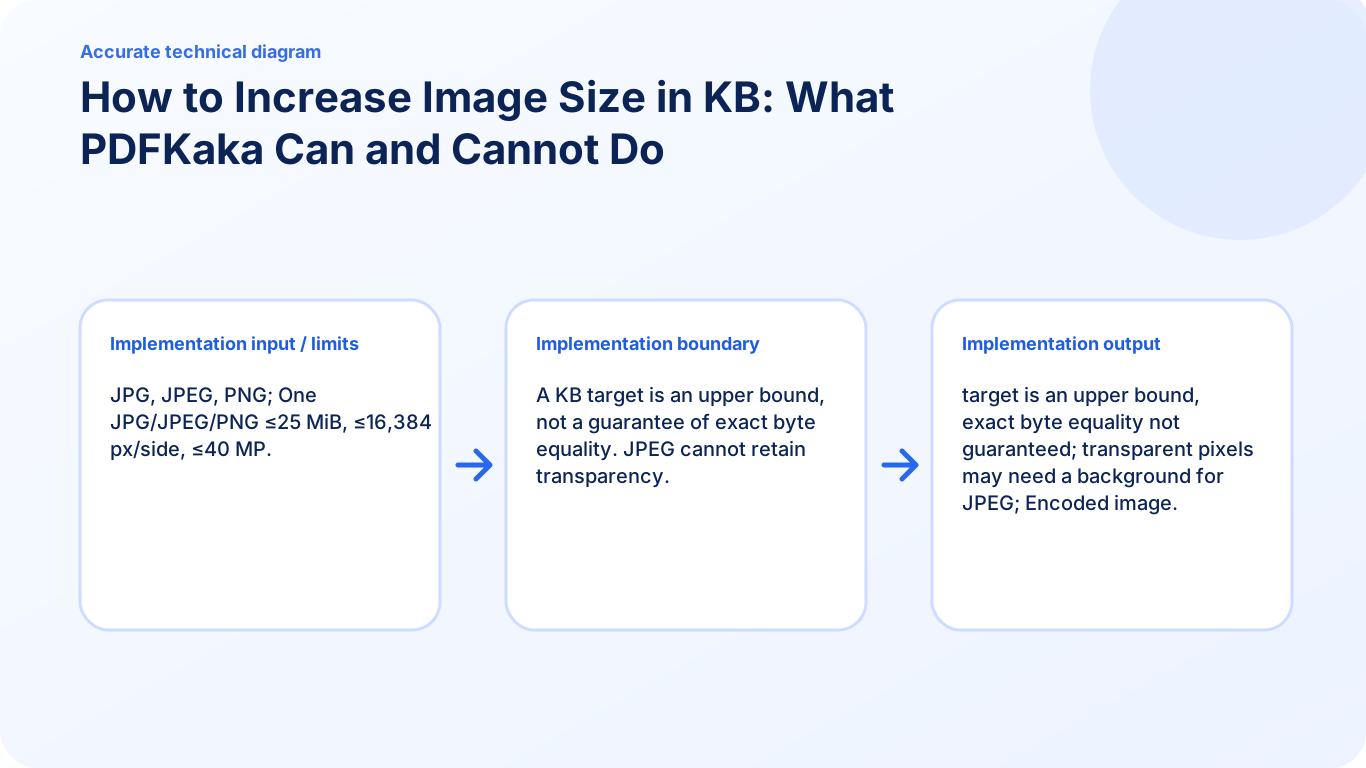
JPG, JPEG, PNG; One JPG/JPEG/PNG ≤25 MiB, ≤16,384 px/side, ≤40 MP.
What does Image Resizer create?
target is an upper bound, exact byte equality not guaranteed; transparent pixels may need a background for JPEG; Encoded image.