Image Resizer
Can You Increase an Image’s KB Size with PDFKaka?
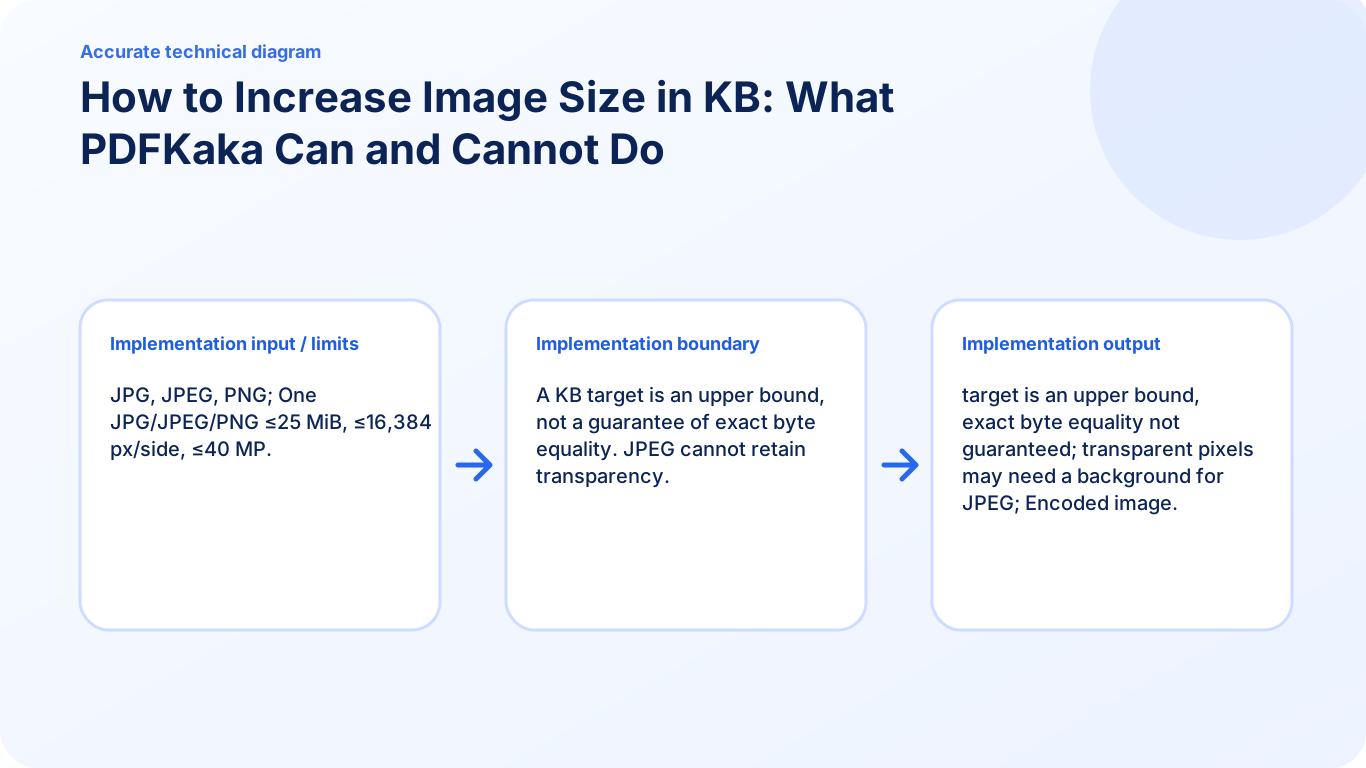
First distinguish a maximum upload size from a minimum required size. PDFKaka’s Target KB mode is an upper-limit tool. It does not pad a file, guarantee a minimum byte count or recreate detail lost in the original image.
On this page
See a visual example
Read the exact rejection message
“No more than 50 KB” means the image must fit below an upper bound. “At least 50 KB” is a different requirement and is not what Target KB promises. Also check the accepted file format and pixel dimensions; a small file can still fail because its width or height is wrong.
Start with useful source detail
If you still have the camera original or a higher-quality scan, work from that copy. Avoid repeatedly re-saving a compressed thumbnail. Adding empty bytes or enlarging a blurred image does not make its contents more readable.
Here KB is decimal:50 KB is 50,000 bytes. Inspect the saved file’s actual bytes and verify the receiving portal’s rule rather than assuming KB and KiB mean the same thing.
Identify why the upload was rejected
Read the exact error. “At least 600 × 400 pixels” concerns dimensions; “between 50 and 100 KB” includes a minimum encoded size; “unclear image” concerns visible detail. Adding bytes alone does not repair blur, missing text or an inadequate photograph.
Enlarge dimensions only when the destination requires it
- Choose the original JPG, JPEG or PNG and note its current dimensions.
- Select Width & height and enter the required pixel size.
- Keep Maintain aspect ratio enabled unless both dimensions are mandatory. Crop to the required ratio first when necessary.
- Turn off Do not enlarge smaller images only if enlargement is required.
- Resize and inspect the downloaded JPEG at full size. Confirm both its dimensions and actual file size.
Enlargement interpolates the pixels already present. It can satisfy a dimension check, but it creates no new camera detail and can make blur more obvious. JPEG output may be smaller or larger than the original, regardless of the change in pixel dimensions.
A minimum KB requirement needs a different decision
Target KB supports maximum sizes from 5 to 5,000 KB. It is not a minimum-size control, a manual JPEG-quality control or a byte-padding tool. If the portal genuinely requires a minimum file size, use the original higher-quality capture when available and confirm the accepted remedy with the destination. Do not repeatedly compress the same small file expecting it to gain detail.
Keep the correct output format
The current resizer accepts one JPG, JPEG or PNG up to 25 MiB, at most 16,384 pixels per side and 40 million total pixels. Its output is JPEG, with transparent pixels placed on white. Keep the original when PNG transparency or the original encoding is required.
FAQ
Will entering 100 KB make my 40 KB image at least 100 KB?
No. It sets an upper limit of 100 KB and does not request a minimum.
Will increasing dimensions improve a blurry face or document?
It creates more interpolated pixels, not new source detail. A clearer original photograph or scan is the better starting point.
Can PDFKaka add empty bytes to reach a minimum?
No. The current resizer does not add padding bytes or promise an exact file size.