Image Resizer
How to Resize an Image to Required Pixels and a Maximum KB Size
Upload forms can check file bytes, pixel dimensions, aspect ratio and format independently. Set the requirements together and inspect the saved JPEG rather than assuming a green success message means every portal condition is satisfied.
On this page
- Example: 300 × 200 pixels and at most 20 KB
- Check format and readability together
- Write down every upload rule
- Apply both limits in one resize
- Check the result rather than only the preview
- When all requirements cannot be met
- Resize an Image to a Required KB Limit
- Decide whether “exactly” really means “at most”
- Leave the original available
- Reduce Image Size Without Excess Blur
- Choose the least restrictive operation
- Avoid confusing pixels with detail
See a visual example
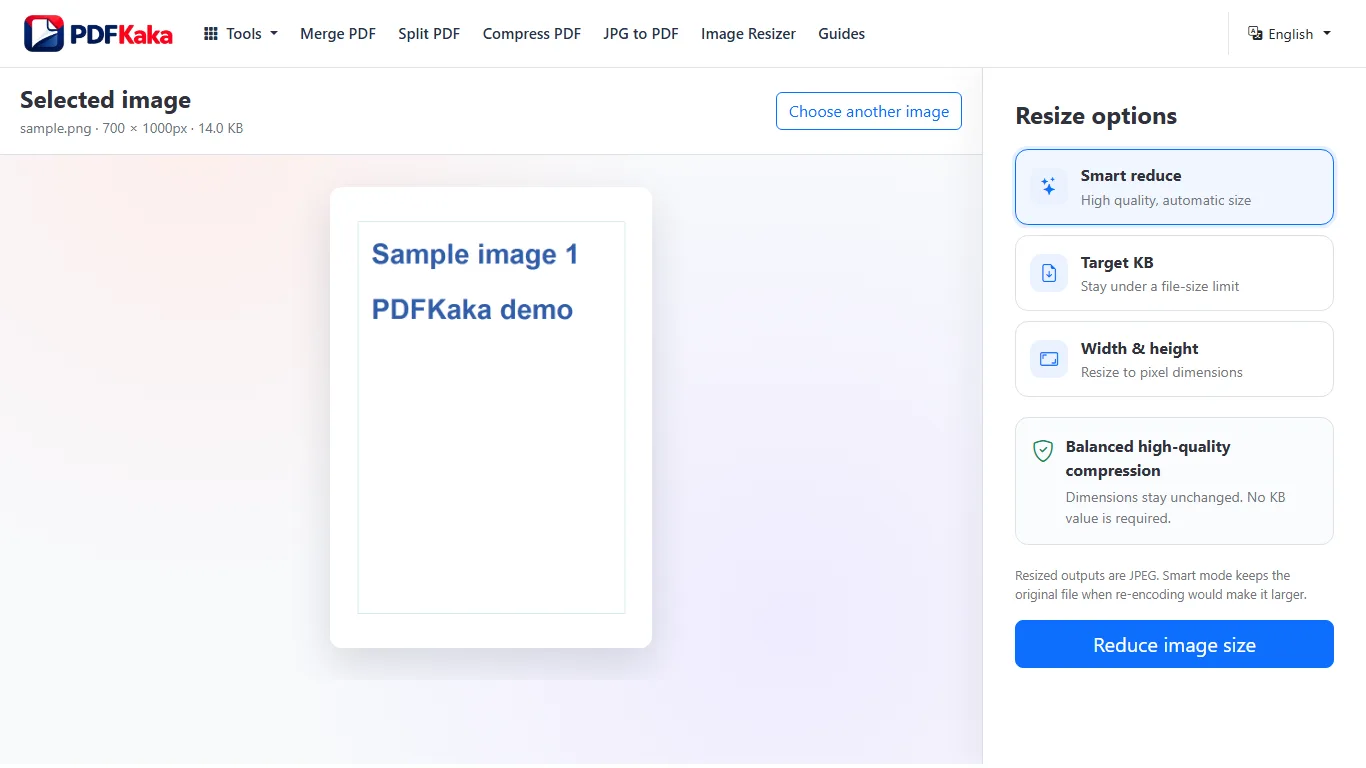
Example: 300 × 200 pixels and at most 20 KB
Enter 20 in Target KB, enable width and height, and use 300 × 200 when that is the actual requirement. Keep the correct aspect ratio; crop to the required shape first if needed. Check that the downloaded image is 300 × 200 and no larger than 20,000 bytes.
A measured synthetic scan example produced a 9,729-byte JPEG at 300 × 200. That is a tested example, not a promised size for every photo. Image content and browser encoding affect the result.
Check format and readability together
- Resized output is JPEG; PNG transparency becomes white.
- Check faces, signatures and the smallest text at a readable zoom.
- Do not turn off the no-enlargement safeguard unless the destination really requires more pixels.
- Try a larger byte limit or smaller allowed dimensions if the combination cannot be reached.
Write down every upload rule
Check the accepted format, maximum file size, required width and height, and whether the image must keep its original proportions. The resizer produces JPEG; transparent PNG areas become white. It does not set a requested print DPI value.
PDFKaka uses decimal KB: 1 KB is 1,000 bytes, so 50 KB means at most 50,000 bytes. KiB is different: 1 KiB is 1,024 bytes. Check the destination’s exact byte limit when its label is unclear, then measure the downloaded file.
Apply both limits in one resize
- Choose the original JPG, JPEG or PNG in Image Resizer and note its starting size and dimensions.
- Select Target KB and enter a maximum from 5 to 5,000 KB.
- Enable the optional dimension settings and enter the required width and height.
- Keep Maintain aspect ratio enabled for proportional resizing. If both exact dimensions are mandatory and have a different ratio, crop the source to that ratio first rather than stretching a face or logo.
- Leave Do not enlarge smaller images enabled unless the destination actually requires more pixels than the source contains.
- Resize, download the JPEG and check it outside the workspace before submitting it.
Check the result rather than only the preview
Compare the saved width, height and byte size with the destination’s requirements. Inspect faces, signatures and small text at full size. The resizer automatically searches JPEG encoding settings; there is no manual JPEG-quality slider in this tool.
For a requirement of 300 × 200 pixels and at most 20 KB, enter those dimensions and a 20 KB ceiling. The saved image must remain 300 × 200 pixels and contain no more than 20,000 bytes. Its actual size depends on the image; a successful size check does not replace a readability check.
When all requirements cannot be met
Strict dimensions leave less flexibility for reducing file size. A detailed image may need visibly stronger compression, and an extremely small target can fail rather than silently claim success. Use a better source or ask the destination about its requirements if the result becomes unreadable. Enlarging pixels cannot restore lost camera detail.
Resize an Image to a Required KB Limit
Check whether an upload rule means a maximum, a minimum or exact bytes. Target KB enforces an upper bound; it does not pad a file to an exact size.
Target KB sets a maximum, not an exact or minimum file size. Enter the portal’s maximum, resize and inspect the actual bytes. PDFKaka uses 1 KB = 1,000 bytes; 100 KB means no more than 100,000 bytes.
Decide whether “exactly” really means “at most”
Many upload instructions use “100 KB image” to describe a maximum. Confirm whether the destination accepts any smaller file, requires a minimum as well, or specifies exact pixel dimensions. A maximum-KB encoder does not add padding bytes.
- Choose the original JPG or PNG.
- Select Target KB and enter the required maximum from 5 to 5,000 KB.
- If the portal also specifies width and height, enable the optional dimension settings.
- Resize and download the JPEG.
- Check its actual bytes, required dimensions and readability before uploading.
Leave the original available
The output can be well below the maximum. If the destination really requires a minimum or exact byte count, this tool cannot guarantee it. Do not repeatedly re-encode a small file expecting extra detail or a precise number of bytes. PNG transparency becomes white in JPEG output.
Reduce Image Size Without Excess Blur
Choose Smart reduce, fixed dimensions or a maximum-KB encoding according to the actual requirement. Compare the saved image with the original; smaller size and unchanged detail are not guaranteed together.
Try Smart reduce when the dimensions should stay unchanged and no exact byte ceiling is needed. For a strict maximum use Target KB, then inspect the output. No lossy JPEG workflow can guarantee that every image becomes smaller with no visible change.
Choose the least restrictive operation
Smart reduce uses a high-quality encoding while keeping dimensions. It keeps the original file when re-encoding would make it larger. Width & height changes pixels; Target KB searches for an encoding under a maximum and may need stronger compromises.
- Choose the best original JPG or PNG.
- Try Smart reduce if there is no strict upload maximum.
- Use Target KB only for an actual ceiling; add optional fixed dimensions when required.
- Download and compare the result with the original at full size.
- Reject an output whose face, text or signature is no longer clear.
Avoid confusing pixels with detail
Smaller dimensions discard pixels, while enlargement interpolates existing pixels. Neither creates information missing from a blurred source. Target KB uses decimal KB, produces JPEG and places transparent PNG areas on white; use a different format workflow when transparency is required.
FAQ
Can I get exactly 50 KB?
No exact byte count is promised. Target KB aims to stay at or below the ceiling, subject to a usable encoding being possible.
Can I keep a transparent PNG?
The current resizer exports JPEG and places transparency on white. Use Image Converter when format or transparency is the main requirement.
Should I change DPI for an online form?
Use the pixel dimensions requested by the form. The resizer has no dedicated DPI metadata control; DPI and file size are separate requirements.
Why is my file 72 KB after I requested 100 KB?
The request is a ceiling. A smaller encoded result can satisfy that maximum; exact byte equality is not the goal.
What if the portal requires 50–100 KB?
This tool can enforce the upper bound but does not guarantee the lower bound. Check the actual saved bytes and use an accepted higher-quality original or another supported remedy for the minimum.
Can I keep the original dimensions and meet every KB target?
Not every combination is possible. A very low ceiling at fixed dimensions can fail or introduce unacceptable compression.
Is there a manual JPEG-quality slider in Image Resizer?
No. This tool chooses encoding settings automatically. Crop Image and other image-format workflows have their own controls.