Crop Image
How to crop an image to a specific aspect ratio
Select 4:3, 3:2, 16:9, 9:16, the original ratio, or enter a custom ratio before adjusting the crop area.
On this page
- Choose proportions before placement
- Ratio is different from exact size
- Check what was removed
- crop a JPG image online
- Crop the JPEG once from the original
- Choose JPG or PNG for the actual use
- Keep the whole subject in the frame
- How Cropping Affects Photo Quality
- Preserve detail that actually exists
- Check difficult features, not only the whole picture
See a visual example
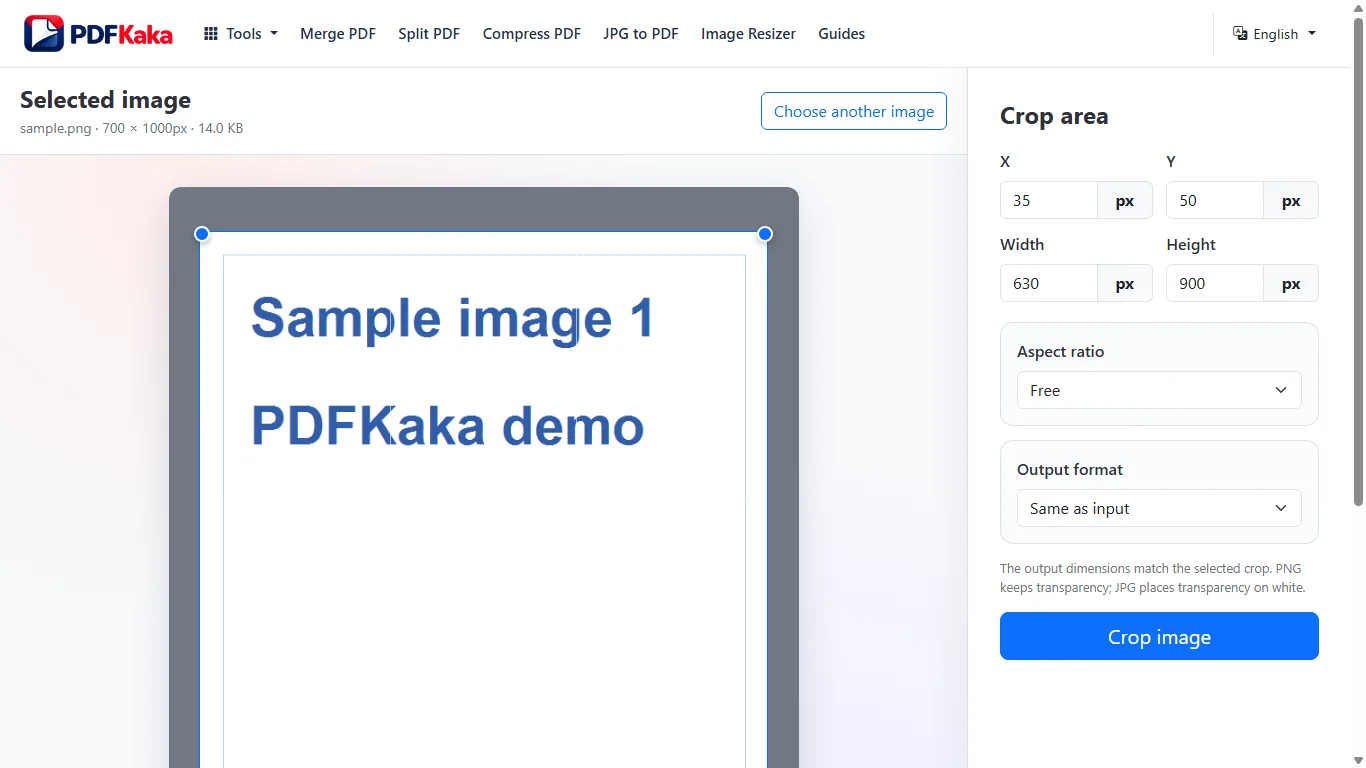
Choose proportions before placement
- Choose the original JPG or PNG.
- Select a preset such as 1:1, 4:3 or 16:9, or enter the custom ratio.
- Move the crop frame to retain the face, text or subject that matters.
- Check the width and height fields for a usable pixel count.
- Choose JPG or PNG, create the crop and reopen the output.
Ratio is different from exact size
A 3:2 crop could be 600 × 400 or 1,200 × 800 pixels. If the destination requires one exact size, inspect both numbers. Crop Image selects an existing rectangle; use Image Resizer afterward when the cropped image also needs different dimensions or a KB ceiling.
Check what was removed
The export is rectangular, including a 1:1 square; it is not a circular mask. Keep eyes, signatures and required text inside the crop. JPG is lossy, while PNG can retain transparent pixels.
crop a JPG image online
Select one valid JPG, adjust the rectangular crop visually or with exact pixel fields, and download the result as JPG or PNG.
Choose the original JPG, position the crop rectangle and select the output format. If keeping JPG, choose an appropriate JPG quality and inspect fine detail after downloading; cropping a JPEG normally creates a newly encoded file.
Crop the JPEG once from the original
- Choose the original JPG or JPEG rather than a repeatedly edited copy.
- Position the rectangle visually or enter X, Y, width and height.
- Choose JPG output when the destination wants a photograph in JPEG format.
- Use the JPG quality control to balance detail and file size.
- Create the crop and inspect faces, text and edges in the saved image.
Choose JPG or PNG for the actual use
JPEG encoding is lossy. PNG can avoid another JPEG encoding step for the crop, but converting an already compressed JPEG to PNG cannot restore detail that was lost earlier and can create a larger file. Neither format choice guarantees a maximum KB size.
Keep the whole subject in the frame
Leave room around a face, signature or item that the destination must recognize. If both a fixed ratio and exact pixel size are required, check them independently before using Image Resizer for any final dimensions or byte limit.
How Cropping Affects Photo Quality
Crop from the original photo, avoid repeated re-encoding, and use PNG or a high JPG quality when small file size is not the main requirement.
Begin with the best original, crop once and inspect the exported image at full size. A smaller crop contains fewer pixels; JPEG output can introduce encoding loss even when the retained subject looks similar.
Preserve detail that actually exists
Cropping changes framing by removing outer pixels. Enlarging the remaining area later makes those pixels appear larger but does not recover new camera detail. Keep enough source pixels for the final display or print use.
- Keep an untouched original photograph.
- Choose only the crop needed for the intended framing.
- Use PNG when avoiding an additional lossy JPEG encode is useful and the destination accepts it.
- For JPG output, start with a high JPG quality setting.
- Compare the saved crop with the same area of the original at full size.
Check difficult features, not only the whole picture
Inspect fine hair, lettering, facial detail, sharp edges and compression blocks. A phone’s small preview can hide damage that becomes obvious when the file is opened or printed larger. Work from the original again if the first export is unsuitable.
FAQ
Does selecting 1:1 make a round profile picture?
It creates a square crop. A destination may display that square inside a circle, but this tool does not export a circular image.
Can the ratio setting guarantee a file size?
No. File size depends on pixels, output format and encoding. Use a maximum-KB resize as a separate step if required.
Will saving a JPEG crop be perfectly lossless?
Do not assume that. The crop is re-encoded; inspect the result and avoid unnecessary repeated passes.
Should every JPEG crop become PNG?
No. Use the format accepted by the destination. PNG cannot restore earlier JPEG detail and may be much larger.
Can PNG restore a blurry JPEG?
No. It can avoid another lossy JPEG encode for the crop but cannot reconstruct detail already missing from the source.
Does a smaller file prove the crop quality is good?
No. Judge the retained subject at the size it will actually be used, alongside the source.