Compress PDF guide
How to compress a PDF and keep it readable
Good PDF compression is a balance between a smaller file and pages that remain clear enough for their real purpose.
On this page
What each compression approach changes
- Image-heavy and scanned PDFs usually offer the largest size reductions.
- Start with a moderate quality setting and inspect small text before reducing it further.
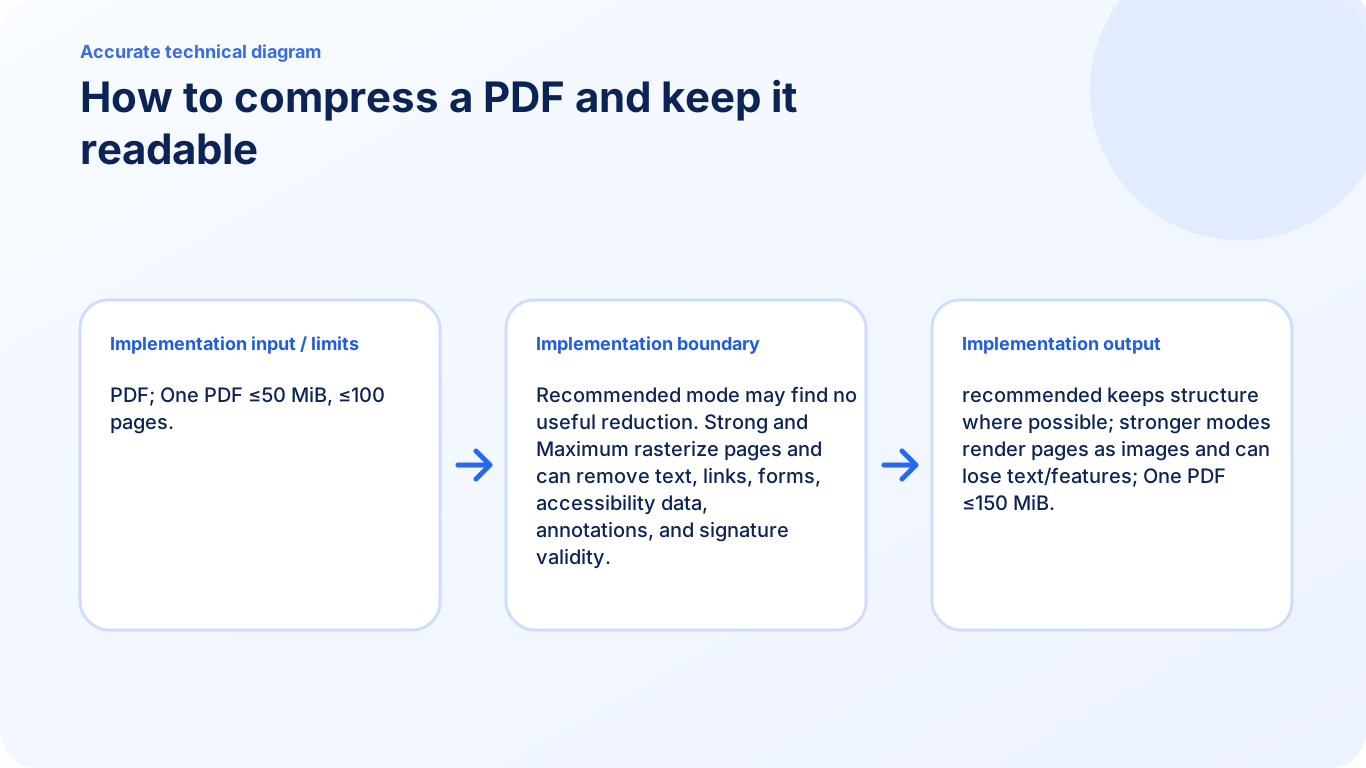
- Recommended mode preserves PDF structure where possible. Strong and Maximum modes rasterize pages, so selectable text, links, forms, accessibility data, annotations, and signature validity can be lost.
Choose a sensible quality level
Use a higher setting for contracts, forms, diagrams, and small print. Lower quality may be suitable for quick previews or photo-heavy reference copies.
- Open Compress PDF and select the document.
- Choose a moderate quality level first.
- Create the compressed copy and compare its size.
Review the pages that matter most
Zoom into fine print, signatures, charts, and screenshots. A file that meets an upload limit is not useful if essential information becomes unreadable.
- Open the result in PDF Reader.
- Inspect the smallest text and detailed images.
- Repeat with a higher setting if clarity is insufficient.
Keep the original document
Compression creates a new file. Keep the original when selectable text, links, form fields, signatures, or maximum image detail may be needed later.
- Save the compressed copy with a clear filename.
- Retain the original separately.
- Share only the version suitable for the recipient.
FAQ
Can stronger compression remove searchable or interactive PDF features?
Yes. Stronger modes can rasterize pages, which may remove searchable text, links, forms, accessibility information, annotations, and signature validity.
What is the current input limit for Compress PDF?
PDF; One PDF ≤50 MiB, ≤100 pages.
What does Compress PDF create?
recommended keeps structure where possible; stronger modes render pages as images and can lose text/features; One PDF ≤150 MiB.