Compress PDF
How to compress a PDF and keep it readable
A useful compressed PDF must satisfy both the upload limit and the document’s purpose. Choose between preserving PDF features and rebuilding pages as images, then compare the actual saved file with the original.
On this page
- Choose the features you must retain
- Compare the saved copy, not just the progress message
- Choose by what the recipient needs
- Inspect difficult details
- Keep an editable or verifiable original
- The current compression controls
- Reduce a PDF to a File-Size Limit
- Check the entire upload rule
- A strict maximum can be unrealistic
- Avoid repeated lossy passes
See a visual example
Choose the features you must retain
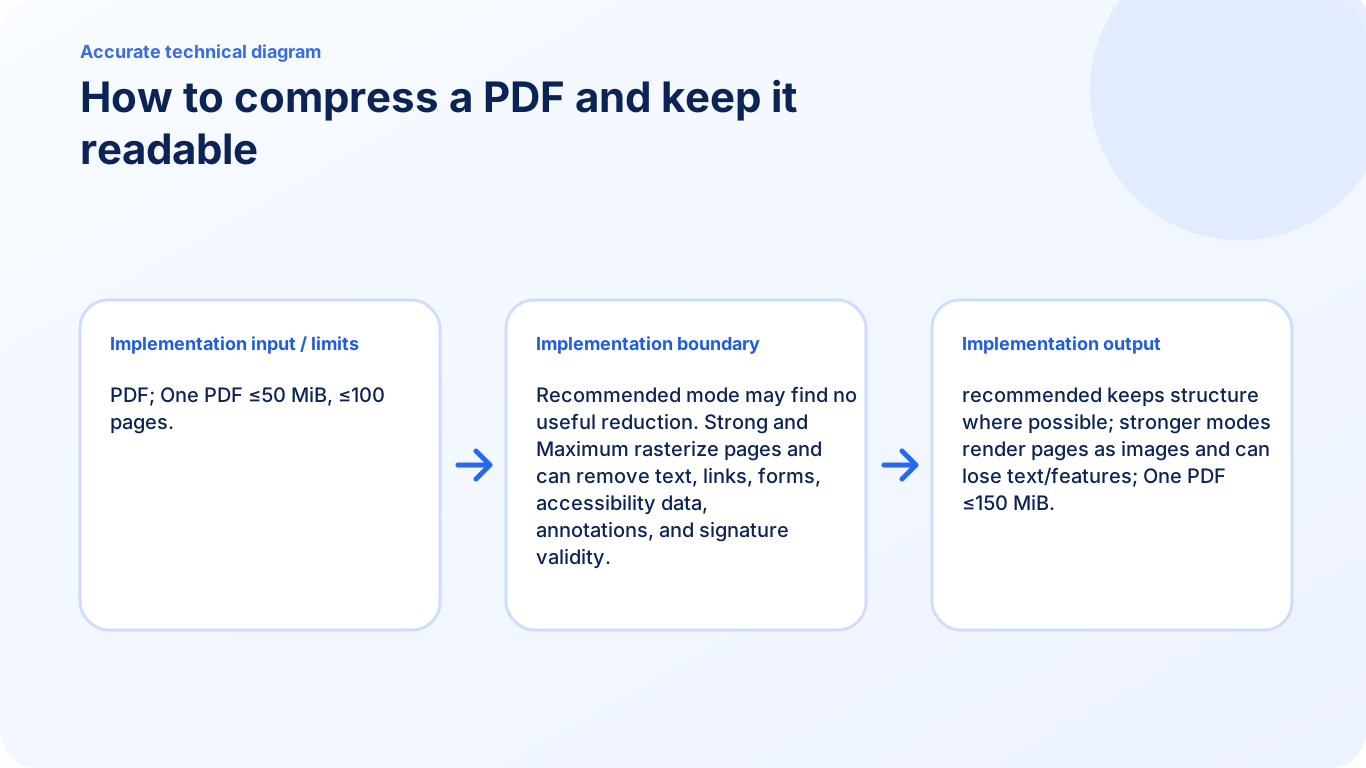
For a form that still needs to be filled, smaller bytes are not enough: the downloaded file must keep working fields. For a scan submitted only as a visual copy, a raster mode may be acceptable if small text remains legible. Keep the original in either case.
Recommended can remove redundant structural data without guaranteeing a reduction for every input. Strong and Maximum exchange document features and image detail for a possible size saving.
Compare the saved copy, not just the progress message
- Record the actual original and output byte counts.
- Inspect fine print, signatures, charts and a detailed scan page.
- Search or fill a sample field when those features are required.
- Choose a less aggressive mode or retain the source when the result is unsuitable.
Choose by what the recipient needs
Image-heavy and scanned PDFs usually offer more room for reduction than compact digital text. Start with Recommended when text selection, links or form behavior matter. A mode name is not a promise that a particular source will become smaller.
- Open the original in Compress PDF.
- Start with Recommended and inspect its result.
- With the intended mode selected, choose Compress PDF and wait for the result before comparing its size.
- Choose Strong or Maximum only if the destination accepts an image-based copy.
- Measure the saved size rather than the original or a rounded estimate.
Inspect difficult details
Check the smallest text, thin graph lines, stamps, screenshots and signatures at the actual reading or printing size. Review pages from the beginning, middle and end, plus any page with a different layout. Test text selection, links and form fields separately when the recipient needs them.
Keep an editable or verifiable original
Stronger raster modes can lose searchable text, links, form fields, annotations, accessibility data and cryptographic signature validity. Save the reduced sharing copy with a distinct filename and keep the original until the recipient accepts it.
The current compression controls
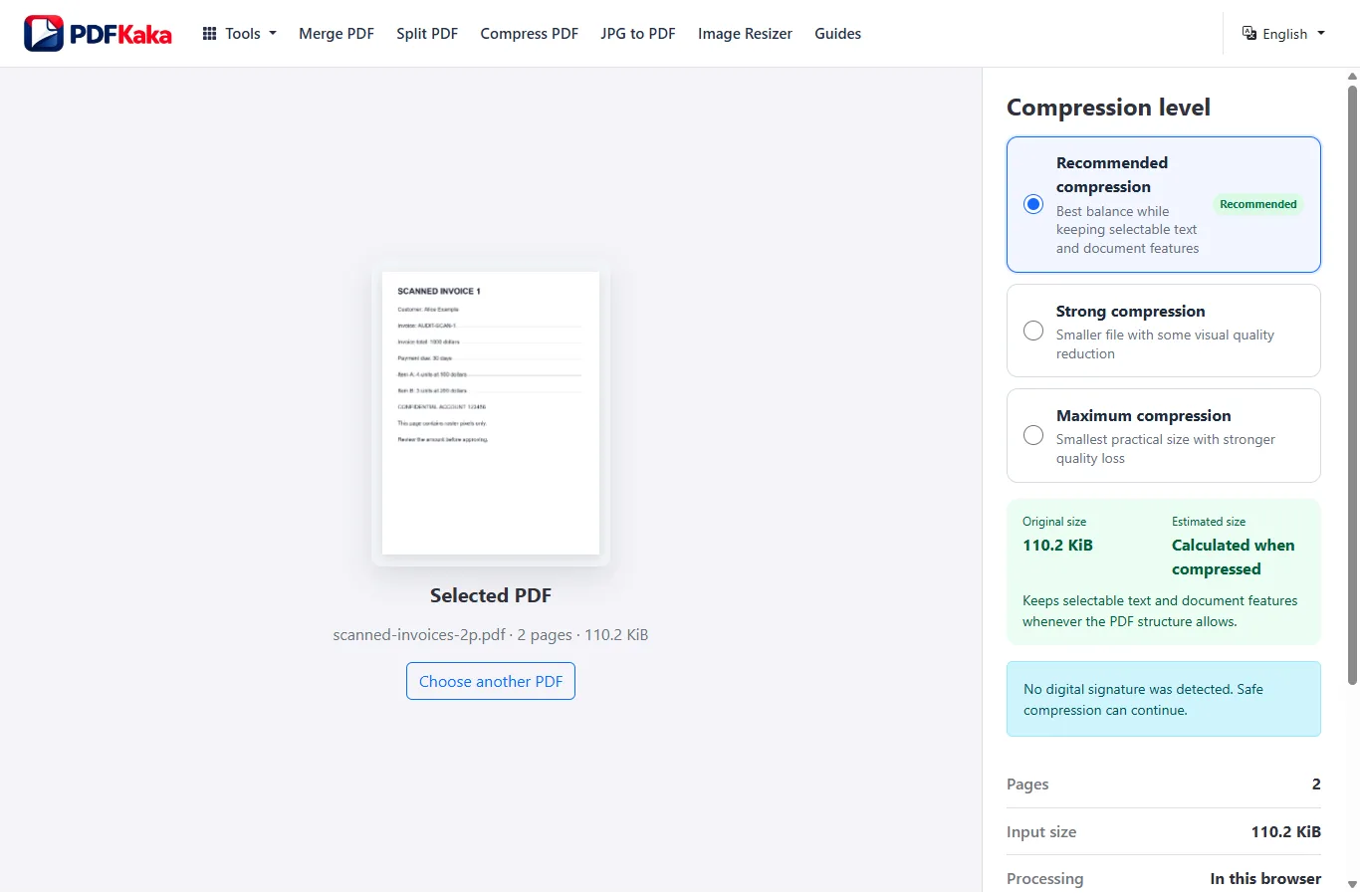
Start with Recommended when preserving PDF features matters. Strong and Maximum make an image-based copy; inspect the actual downloaded result before choosing it for a submission.
Reduce a PDF to a File-Size Limit
Reduce a suitable image-heavy PDF toward a portal limit while treating 100 KB, 200 KB, or 500 KB as a maximum rather than a guaranteed exact result.
Write down the portal’s actual byte maximum, try Recommended compression and measure the downloaded PDF. If a stronger image-based copy is acceptable, test it and inspect readability. No mode guarantees that every PDF will fit every small limit.
Check the entire upload rule
A portal may restrict format, page count and file size at the same time. KB can mean 1,000 bytes, while KiB means 1,024 bytes. Compare the saved file’s actual bytes with the destination’s rule rather than relying on a rounded display.
- Record the maximum bytes and any required page count.
- Choose the original PDF and try Recommended.
- With the intended mode selected, choose Compress PDF and wait for the result before comparing its size.
- Check the resulting bytes; keep it only if it is useful and smaller.
- Try Strong or Maximum only when losing searchable or interactive PDF features is acceptable.
- Inspect small text, names, stamps and signatures before uploading.
A strict maximum can be unrealistic
Many high-detail pages may not fit 100 KB or 200 KB while remaining readable. Remove genuinely unnecessary pages or split the document only if the destination permits separate files. Do not silently omit required pages or accept illegible identity details just to pass a size check.
Avoid repeated lossy passes
Return to the original when changing modes. Strong and Maximum rasterize pages and can lose text, links, fields, annotations, accessibility information and signature validity. Preserve an original copy for search, editing or verification.
FAQ
Which mode has the least effect on PDF structure?
Recommended tries to preserve structure. It may find little or no useful reduction in an already efficient file.
Can I judge quality from file size alone?
No. A small unreadable result is unsuitable. Open the output and inspect the details and features that matter for its purpose.
Is there an exact 100 KB PDF guarantee?
No. The achievable size depends on the source, page count and detail that must remain readable.
Should I split a document to fit?
Only when the recipient allows multiple files. Confirm every required page appears in an accepted output.