Organize PDF guide
How to Fix PDF Page Order and Orientation
Correct the document structure first, then adjust page boundaries and add final numbering after the page order is stable.
On this page
Organize the PDF pages
- Use Crop PDF to change visible page boundaries without rasterizing content.
- Correct the document structure first, then adjust page boundaries and add final numbering after the page order is stable.
- Add page numbers only after the final page order has been confirmed.
Organize the document structure
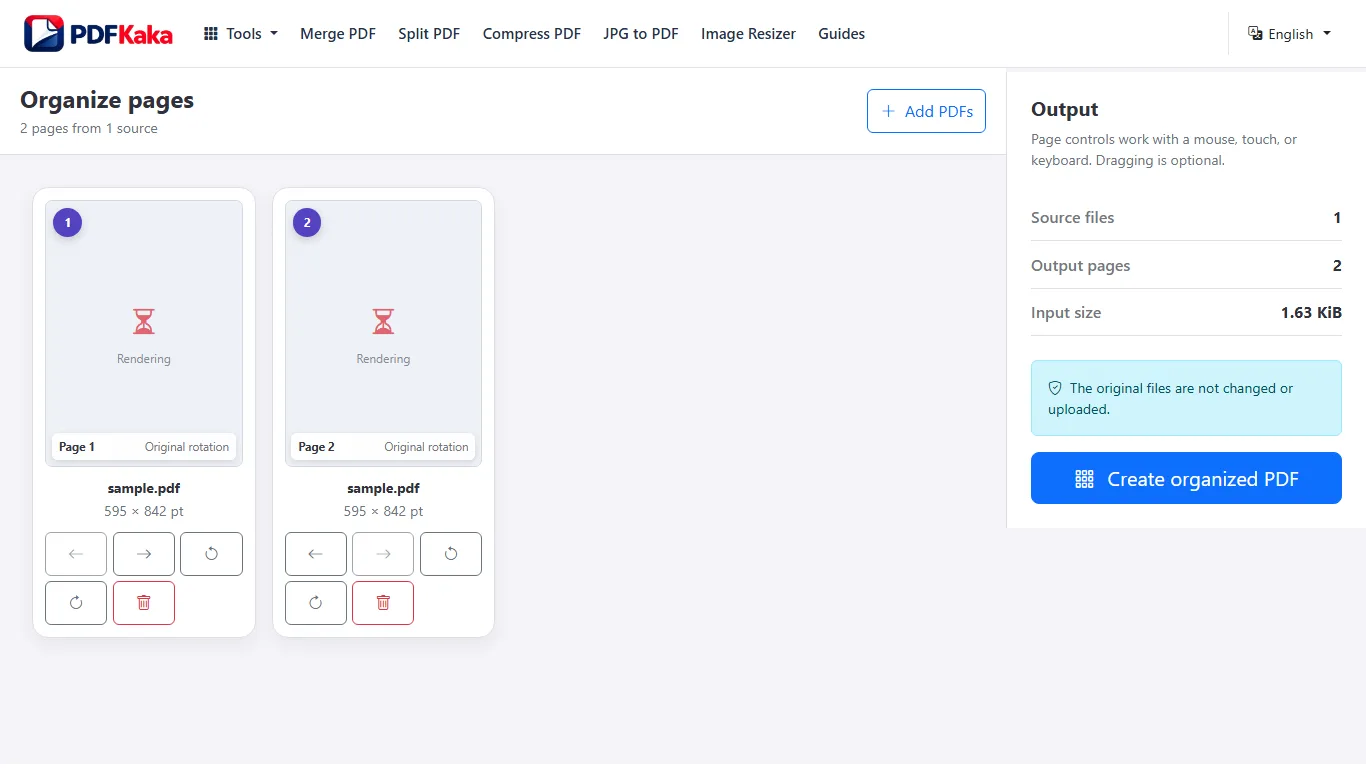
Add all required PDFs to Organize PDF, move pages into sequence, remove duplicates, and rotate obvious sideways scans.
- Add the source PDFs.
- Move, rotate, or remove pages.
- Create and review the organized PDF.
Correct page orientation and margins
Rotate PDF is fastest when only orientation is wrong. Crop PDF changes the visible page area and supports shared or page-specific margins.
- Use Rotate PDF for quarter turns.
- Use Crop PDF for unwanted page edges.
- Check every page with unusual dimensions.
Add final numbering
Once pages are in their final order, use Page Numbers to choose the starting number, label, position, and text size.
- Set the numbering options.
- Open the final organized PDF.
- Download and verify the first and last page numbers.
FAQ
Should I use Organize PDF or Merge PDF?
Use Organize PDF when you need page-level rearrangement. Use Merge PDF when whole source files should stay together and only their file order needs to change.
What is the current input limit for Organize PDF?
PDF; 1–20 PDFs, ≤25 MiB each, ≤100 MiB total, ≤500 pages.
What does Organize PDF create?
copied PDF pages; One PDF ≤150 MiB.