Organize PDF
How to Fix PDF Page Order and Orientation
Correct the document structure first, then adjust page boundaries and add final numbering after the page order is stable.
See a visual example
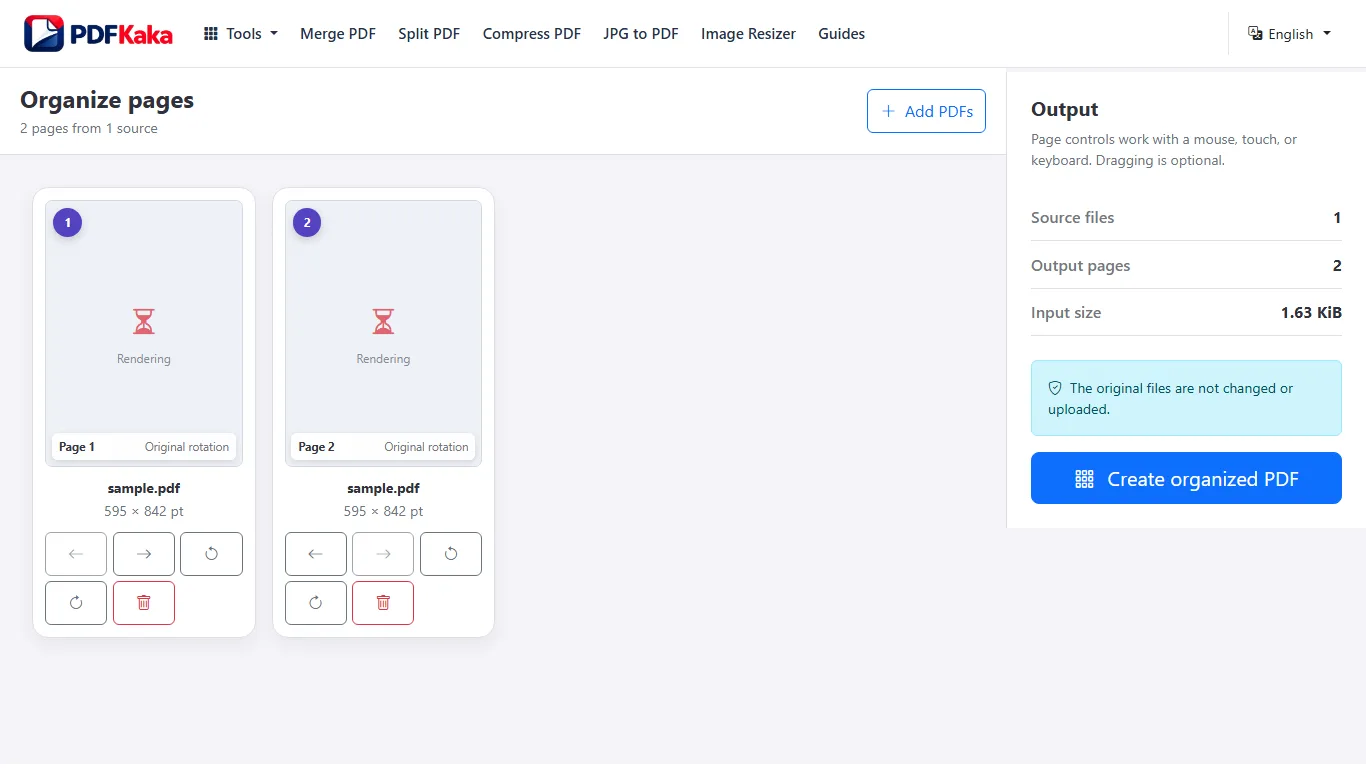
Fix the reading order before numbering
- Add the source PDF or PDFs and identify each page by its content.
- Move pages with Move earlier, Move later or dragging.
- Rotate sideways pages with their page controls.
- Remove duplicates only after confirming that they are unnecessary.
- Create the organized PDF and reopen it to check every transition.
- Add page numbers afterward if the final sequence needs new visible numbers.
Example: a cover and a sideways attachment
Move the cover ahead of the report, then move the attachment after its relevant section. Rotate the attachment itself rather than every page. The PDF positions change when pages move, while any printed numbers already on the pages remain their original artwork.
Keep original references
Organize PDF accepts PDF sources, not loose images. Convert an image to PDF first when needed. Keep originals and check required fields, bookmarks and page labels in the saved result; a rebuilt file is not the original signed document.
FAQ
Must I merge first?
No. The organizer accepts multiple PDFs directly, so you can arrange their individual pages in one workspace.
Can it straighten a slightly tilted scan?
The page controls rotate in 90-degree steps. They do not perform arbitrary-angle deskew.