HTML to PDF guides
How to convert a local HTML file to PDF
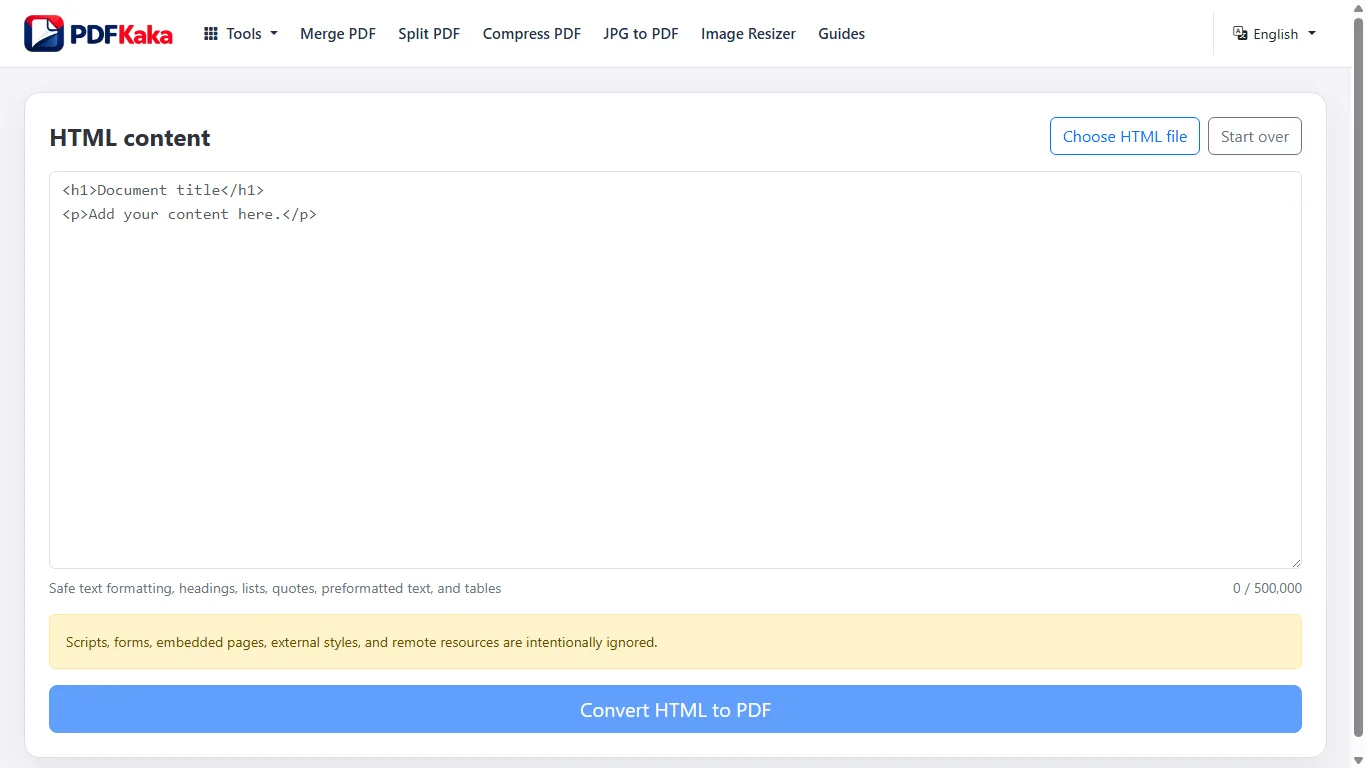
Choose a self-contained HTML file or enter safe HTML text and create a PDF without executing scripts or loading remote resources.
Open HTML to PDFReviewed by PDFKaka ·
What this workflow helps you do
This Guide answers a focused HTML to PDF task and connects the explanation directly to the working browser tool.
Choose a self-contained HTML file or enter safe HTML text and create a PDF without executing scripts or loading remote resources.
Plan the task in HTML to PDF
Create a PDF from self-contained HTML while intentionally ignoring scripts, forms, embedded pages, and remote resources for a safer local conversion.
HTML to PDF turns supported HTML text or a local HTML file into a portable document. It is intentionally designed for safe, self-contained content rather than capturing an arbitrary live website, executing scripts, or downloading remote resources.
- Convert an HTML file or pasted HTML code. Choose a local file or paste supported markup, review the sanitized content, and create a PDF from headings, paragraphs, lists, links, and simple tables.
- Keep remote content out of the conversion. Scripts, forms, embedded pages, remote images, and external styles are ignored. This reduces unexpected network access and makes the conversion behaviour easier to understand.
- Use HTML to PDF for simple documents. Formatted notes, internal instructions, basic reports, and self-contained articles are suitable. Complex responsive layouts and browser-perfect website capture are outside the current tool's scope.
Follow the focused browser workflow
Choose a self-contained HTML file or enter safe HTML text and create a PDF without executing scripts or loading remote resources.
Use HTML to PDF for the supported operation, keep the source unchanged, and make one reviewed output rather than repeatedly processing an already changed copy.
- Prepare a supported source file.
- Choose only the settings needed for the task.
- Download and review the completed result.
Settings and limitations to check
Can I use this HTML to PDF converter online for free? Yes. Convert supported pasted HTML or a local HTML file without registration.
Can I enter a website URL and capture the full page? No. The tool does not fetch arbitrary websites. It converts safe, self-contained HTML supplied by you.
Will JavaScript and external CSS run in the PDF? No. Scripts and remote resources are deliberately excluded, and complex browser layouts may not be reproduced exactly.
- Use only the settings needed for the required result.
- Keep the source file available for comparison.
- Do not rely on an unsupported exact-size, fidelity, or security promise.
Review the completed file
Compare headings, paragraphs, lists, tables, and page flow with the source HTML.
Open the downloaded result in a separate viewer, inspect important pages or details, and repeat the workflow with adjusted settings if the output is not suitable.
- Confirm the expected file type and page count.
- Check important text, images, order, and orientation.
- Share or submit only the reviewed copy.
Tools used in this workflow
Frequently asked questions
What should I prepare before following this workflow?
Choose a self-contained HTML file or enter safe HTML text and create a PDF without executing scripts or loading remote resources.
How should I verify the result?
Compare headings, paragraphs, lists, tables, and page flow with the source HTML.
Can I use this HTML to PDF converter online for free?
Yes. Convert supported pasted HTML or a local HTML file without registration.
Can I enter a website URL and capture the full page?
No. The tool does not fetch arbitrary websites. It converts safe, self-contained HTML supplied by you.
Will JavaScript and external CSS run in the PDF?
No. Scripts and remote resources are deliberately excluded, and complex browser layouts may not be reproduced exactly.
Do I need an account to use HTML to PDF?
No. Current PDFKaka tools work without registration or sign-in.
Are my files uploaded while I use HTML to PDF?
No. This working tool processes the selected files locally in the current browser session.