HTML to PDF
How to convert a local HTML file to PDF
Convert supported local HTML text and structure into a PDF with the semantic converter. This is not a screenshot of an arbitrary web page and does not reproduce every CSS layout, remote resource or browser font.
On this page
- Understand the formatting boundary
- Check text, not just page count
- Convert the HTML file
- What the HTML converter preserves and ignores
- Check a small invoice before a long report
- Check this result before reusing it
- convert an HTML file to PDF on a phone
- Convert the HTML file
- A locally saved booking summary
- Check this result before reusing it
- What Formatting PDFKaka Preserves from HTML
- Content the converter rebuilds
- Formatting that does not carry across
- Prepare HTML for a predictable result
- Compare structure instead of pixel fidelity
- A formatted product sheet
- Check this result before reusing it
- convert HTML safely without scripts or remote content
- Replace script-generated values with visible text
- Check this result before reusing it
Voir un exemple visuel
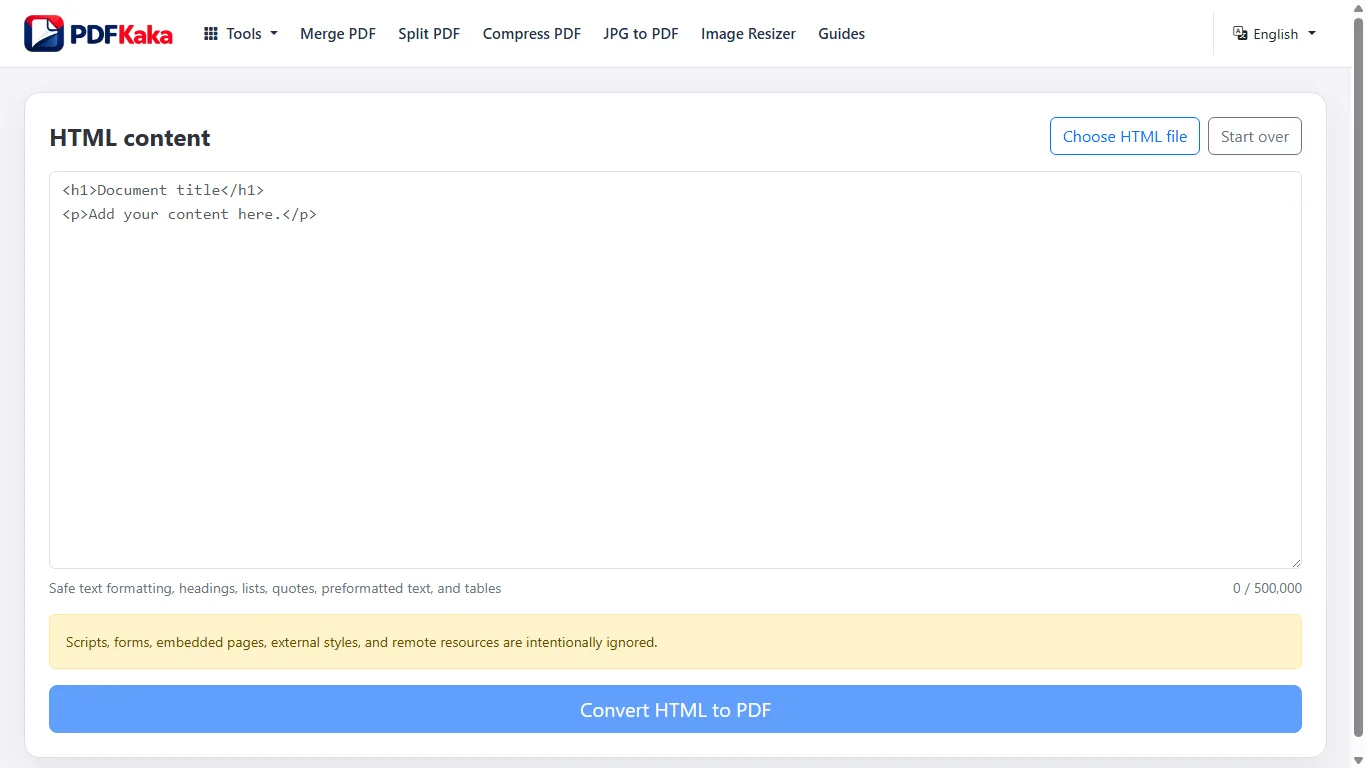
Understand the formatting boundary
A local invoice can contain useful headings, paragraphs and simple structured content without becoming a pixel-identical browser printout. Remote images, scripts and complex styles are outside this converter’s promise. Keep the source and use a proper browser-print workflow when exact web appearance is required.
Check text, not just page count
- Verify names, dates, amounts and text around inline elements.
- Check preformatted text, long words and page boundaries.
- Review unsupported font characters instead of accepting substitution.
- Reopen the saved PDF and inspect the first, middle and final pages.
Convert the HTML file
- Open HTML to PDF and choose a local HTML file, or use the manual-entry action to paste HTML.
- Review the HTML source. Include required wording directly and remove reliance on CSS, scripts, images or external pages.
- Start conversion and resolve any reported unsupported-character or document-limit error.
- Name and download the PDF, then open the saved file to compare content and page boundaries with the HTML.
What the HTML converter preserves and ignores
The converter rebuilds supported Latin text, headings, lists, basic table text and preformatted blocks. CSS, images, scripts, forms and embedded pages are not rendered. Unsupported characters are reported before export; this is not a live website capture.
Check a small invoice before a long report
For an invoice containing an amount in a span and a total in the table footer, verify both values in the saved PDF. Do not check only the large heading: short inline payment instructions and the final total can matter more than appearance.
Check this result before reusing it
- Find the invoice identifier and final amount in the saved PDF.
- Compare table header, body and footer text in source order.
- If a required character is rejected, retain the original wording and choose a workflow with suitable font support instead of silently deleting it.
convert an HTML file to PDF on a phone
Select a local HTML file from phone storage and create a PDF in a mobile browser without loading the original website.
Open HTML to PDF in the phone browser, choose the local file from storage or paste HTML, convert and save the PDF. Open the downloaded file to inspect it; viewing the original website is not part of this workflow.
Convert the HTML file
- Save the self-contained .html or .htm file somewhere the phone file picker can access.
- Open HTML to PDF, choose the file or use manual HTML entry, and review the source text.
- Start conversion and keep the tab active until a PDF is ready.
- Tap Download PDF and use the browser download list or Files app to locate the saved copy.
- Open the PDF on the phone and inspect long lines, totals and the last page.
A locally saved booking summary
A booking summary may contain its address and reference number as text but rely on an online map image for directions. Confirm that the address is written in the HTML itself, because the map image is not rendered. Test the saved PDF in the same phone viewer the recipient will use.
Check this result before reusing it
- Confirm the download is a PDF rather than another saved HTML page.
- Zoom a table and check the rightmost values for wrapping.
- Keep the HTML source so a wording or pagination correction can be regenerated.
What Formatting PDFKaka Preserves from HTML
HTML can contain semantic structure, visual CSS, scripts, and remote assets, but the current PDFKaka converter does not preserve all four categories.
Use semantic headings, paragraphs, lists, simple tables and preformatted text for a predictable content conversion. CSS fonts, colours, layout and images are not reproduced, and unsupported characters produce an error before export.
Content the converter rebuilds
Supported paragraphs, headings, lists, and tables provide the main document structure. Use self-contained HTML whose meaning remains clear without a stylesheet. The resulting PDF is a newly built document rather than a browser print of the original page.
Formatting that does not carry across
Do not rely on CSS for fonts, colours, spacing, positioning, responsive layout, or print-specific page rules. JavaScript does not run, and remote stylesheets or images are not loaded. Forms and embedded pages are also excluded from the safe conversion path.
Prepare HTML for a predictable result
Use headings for hierarchy, paragraphs for prose, lists for sequences, and simple tables for tabular data. Replace information conveyed only by colour, background images, or generated content with visible text. Keep every required item inside the supplied HTML rather than depending on an external URL.
Compare structure instead of pixel fidelity
After conversion, compare the order and wording of headings, paragraphs, list items, and table cells. Review every page boundary and look for missing information that existed only in CSS or a remote asset. If exact web-page appearance is required, the current converter is not the appropriate capture method.
A formatted product sheet
A product sheet might show “Unavailable” only by colouring a cell red. Write the word Unavailable into the HTML so its meaning survives without CSS. A plain-text specification table can carry its values across, but a background illustration, chart image or custom web font needs a different rendering workflow.
Check this result before reusing it
- Compare words and cell values rather than assuming a matching screenshot.
- Check the indentation and line boundaries of any PRE block.
- Retain accented names that the supported font can encode; review the error if another script cannot be represented.
convert HTML safely without scripts or remote content
Use a bounded conversion that excludes JavaScript, forms, embedded pages, and network-loaded assets instead of pretending to reproduce an arbitrary live website.
Supply the required HTML content directly. Conversion treats the source as inert content and does not execute its scripts or load its remote images, styles, fonts or frames.
Replace script-generated values with visible text
An HTML invoice whose amount is filled by JavaScript will not gain that amount during conversion. Put the final approved value into an ordinary text node or table cell before converting, then verify the identifier, amount and payment instruction in the saved PDF.
Check this result before reusing it
- Check that essential wording is present in the supplied source itself.
- Do not expect an iframe, form field or remote chart to become printable content.
- Keep the source and inspect the downloaded PDF before using it as the final record.
FAQ
Does HTML to PDF run scripts or load remote page resources?
No. The current converter rebuilds supported content from the HTML file and ignores scripts, CSS styling, and remote resources. It is not a live web-page capture tool.
What is the current input limit for HTML to PDF?
Typed HTML or one local .html/.htm file, up to 500,000 characters. The current PDF page limit is 100 and the output-byte limit is 150 MiB; use the limits displayed in the tool if they differ.
What does HTML to PDF create?
The converter rebuilds supported Latin text, headings, lists, basic table text and preformatted blocks. CSS, images, scripts, forms and embedded pages are not rendered. Unsupported characters are reported before export; this is not a live website capture.
Will a remote logo or data-URL image appear?
No. The current output rebuilds text and basic structure; images are outside the supported renderer, even when their URL is embedded in the HTML.
Can I paste a website address instead of an HTML file?
No. The tool accepts supplied HTML source; it does not fetch and print an arbitrary URL.
Will the PDF use my CSS fonts, colours, and spacing?
No. CSS styling is ignored in the current conversion path.
Are remote images or stylesheets loaded?
No. Required content must be self-contained because remote resources are not fetched.
What HTML structure is most useful to preserve?
Use supported headings, paragraphs, lists, and simple tables, then check their reading order and page flow in the PDF.
Are PRE blocks treated like ordinary paragraphs?
Preformatted blocks retain line boundaries and internal whitespace, with long lines wrapping to the available page width. They still use the converter’s supported fonts and page layout.
Does excluding scripts make every supplied document trustworthy?
No. The converter avoids executing supplied web code, but you must still review the document’s wording, links and figures. Its content is not independently verified.