Edit PDF guides
How to add text to a PDF online without login
Place new text on a selected PDF page locally without registration while leaving existing text objects unchanged.
Reviewed by PDFKaka ·
What this workflow helps you do
This workflow focuses on completing the task without registration and without sending document contents to PDFKaka. Edit PDF runs in the current browser, but the finished file should still be handled according to its sensitivity.
Place new text on a selected PDF page locally without registration while leaving existing text objects unchanged.
Plan the task in Edit PDF
Add text, images, highlights, drawings, and shapes to PDF pages. Move, resize, rotate, and undo your additions, then download the edited copy. Existing PDF text is not replaced or rewritten.
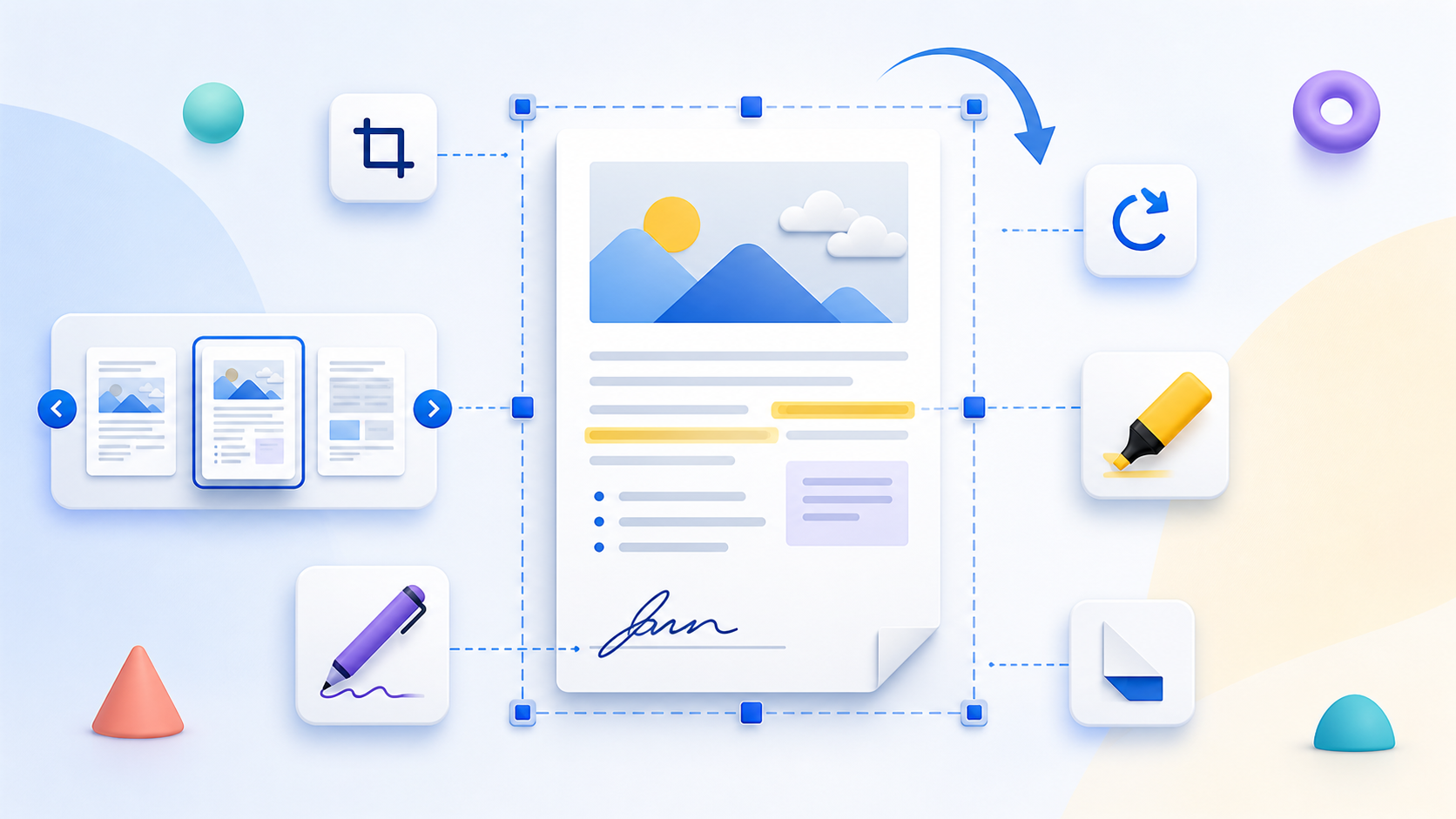
Edit PDF places new content over one or more PDF pages without rewriting the page content already in the document. Add text, JPG or PNG images, highlights, freehand drawings, rectangles, ellipses, and lines; then move, resize, rotate, layer, duplicate, or remove those additions before saving a new copy.
- Add text and images to any required page. Choose a page, place a text box or a JPG or PNG image, and adjust the addition without changing the source PDF. Text controls include standard font families, size, bold, italic, colour, opacity, and rotation; added images can be moved, resized, rotated, layered, duplicated, or deleted.
- Mark up pages with highlights, drawings, and shapes. Place a highlight area, draw a freehand line, or add a rectangle, ellipse, or straight line. Adjust the supported colour, fill, line width, opacity, and rotation settings, then inspect the page preview before saving.
- Review additions across multiple pages. Move between page thumbnails and add more than one item before saving. Use undo and redo while editing, manage overlapping additions with the layer controls, and reopen the downloaded PDF to confirm every item is on the intended page.
Understand the no-login, local-processing boundary
The current Edit PDF workflow uses browser-side processing and does not require an account. PDFKaka does not receive the selected document contents during normal tool use.
The privacy boundary changes after the download if the result is emailed, synchronized, or uploaded elsewhere. A local workflow cannot control a third-party service, shared device, browser extension, or operating-system backup.
- Use a device and browser profile you trust.
- Review where the browser saved the result.
- Handle the downloaded copy according to the document's sensitivity.
Settings and limitations to check
Can I edit existing PDF text online? You can place new text over a PDF page, but the current editor does not select, delete, replace, or reflow text objects already stored in the PDF.
Can I edit more than one PDF page in the same job? Yes. Move between the page thumbnails and add text, images, highlights, drawings, or shapes to the required pages before saving one edited copy.
What happens to an existing digital signature? Saving any edit changes the PDF and invalidates its existing cryptographic signature. The editor warns when it detects a digital signature and cannot preserve that signature.
Are my PDF and added images uploaded? No. The PDF editing and image embedding run in this browser without registration; review the downloaded copy before sharing it.
- Use only the settings needed for the required result.
- Keep the source file available for comparison.
- Do not rely on an unsupported exact-size, fidelity, or security promise.
Review the completed file
Reopen the result and verify the new text, page, position, size, colour, and spelling.
Open the downloaded result in a separate viewer, inspect important pages or details, and repeat the workflow with adjusted settings if the output is not suitable.
- Confirm the expected file type and page count.
- Check important text, images, order, and orientation.
- Share or submit only the reviewed copy.
Tools used in this workflow
Frequently asked questions
What should I prepare before following this workflow?
Place new text on a selected PDF page locally without registration while leaving existing text objects unchanged.
How should I verify the result?
Reopen the result and verify the new text, page, position, size, colour, and spelling.
Can I edit existing PDF text online?
You can place new text over a PDF page, but the current editor does not select, delete, replace, or reflow text objects already stored in the PDF.
Can I edit more than one PDF page in the same job?
Yes. Move between the page thumbnails and add text, images, highlights, drawings, or shapes to the required pages before saving one edited copy.
What happens to an existing digital signature?
Saving any edit changes the PDF and invalidates its existing cryptographic signature. The editor warns when it detects a digital signature and cannot preserve that signature.
Do I need an account to use Edit PDF?
No. Current PDFKaka tools work without registration or sign-in.
Are my files uploaded while I use Edit PDF?
No. This working tool processes the selected files locally in the current browser session.