Sign PDF guides

Visual signature versus certificate-backed digital signature

Distinguish visible signature artwork from cryptographic signing that can authenticate a certificate, signer identity, and later document changes.

Open Sign PDF

Reviewed by PDFKaka ·

Visual signature versus certificate-backed digital signature

What this workflow helps you do

This task can affect what another person sees or trusts in the document. Use Sign PDF only for its stated capability, keep an untouched original, and verify the generated copy before sharing it.

Distinguish visible signature artwork from cryptographic signing that can authenticate a certificate, signer identity, and later document changes.

Plan the task in Sign PDF

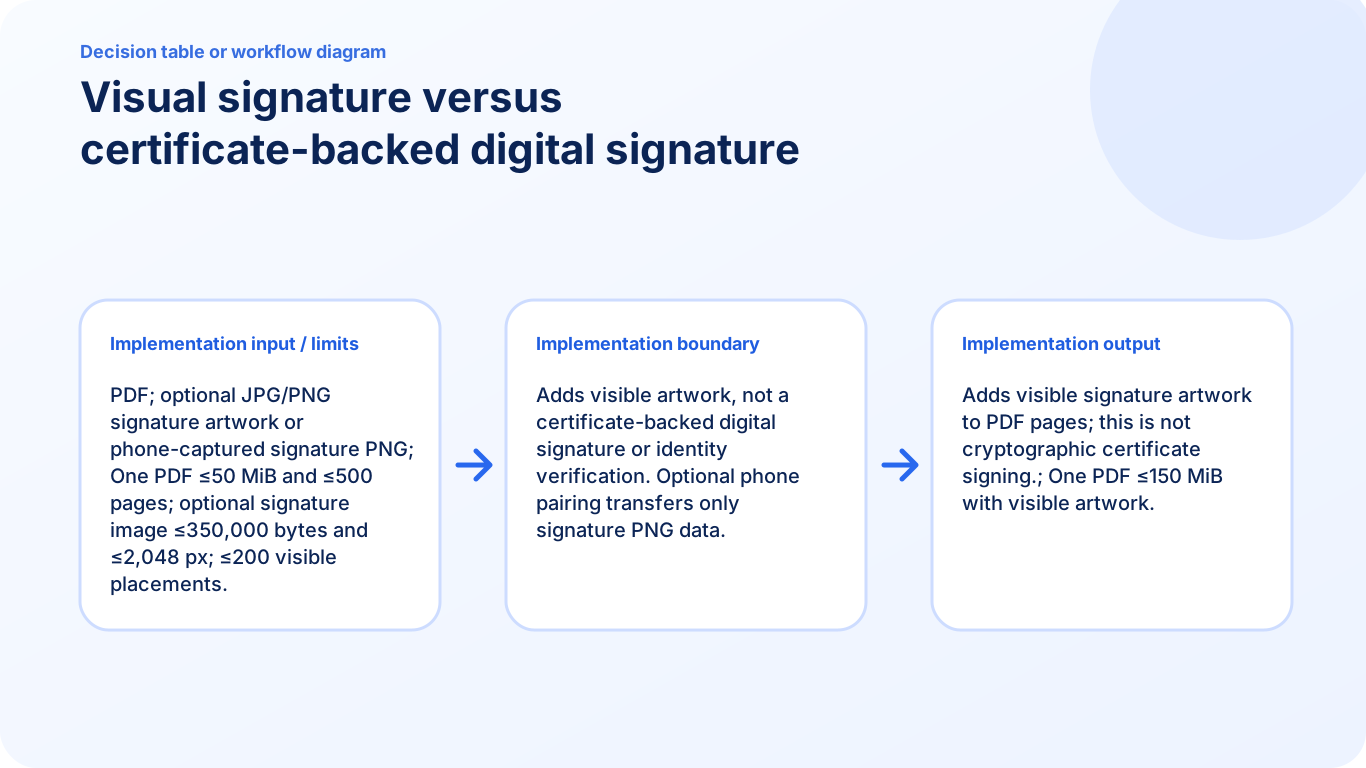
Create and place visible signature artwork on one or more PDF pages. This tool does not create a certificate-backed digital signature or prove signer identity.

Sign PDF lets you draw, type, upload, or temporarily send signature artwork from a phone, then place and resize visible marks on one or more pages. This is an electronic visual-signature workflow, not a certificate-backed digital signature or identity-verification service.

  1. Draw, type, or upload signature artwork. Choose the method that produces a clear mark, then position it carefully inside the correct signature area.
  2. Draw a signature on a phone for a desktop PDF. The optional pairing flow transfers temporary signature artwork to the desktop session. The PDF itself remains on the desktop browser.
  3. Confirm what type of signature is required. Some documents accept a visible electronic mark, while others require a certificate, verified identity, witness, or regulated signing platform. Check before signing.

Keep the document's trust boundary clear

Sign PDF performs a specific visible or structural action; it does not automatically provide identity proof, access control, legal validation, or secure removal beyond that stated capability.

Write down what the recipient or process actually requires. Keep the untouched source separate and verify the output using a second check appropriate to the risk.

  1. Confirm the required security or signature meaning.
  2. Inspect the generated copy independently.
  3. Do not describe the result as stronger than the tool's actual capability.

Settings and limitations to check

Can I sign a PDF online for free with no account? Yes. Add visible signature artwork and download the signed copy without registration.

Is this a digital signature with a certificate? No. The tool adds visible signature artwork and does not issue a cryptographic certificate or prove signer identity.

Is my PDF transferred to the phone? No. The optional phone workflow transfers only temporary signature artwork; the PDF remains in the desktop browser.

  1. Use only the settings needed for the required result.
  2. Keep the source file available for comparison.
  3. Do not rely on an unsupported exact-size, fidelity, or security promise.

Review the completed file

Confirm what the recipient or governing process accepts before relying on a visual signature.

Open the downloaded result in a separate viewer, inspect important pages or details, and repeat the workflow with adjusted settings if the output is not suitable.

  1. Confirm the expected file type and page count.
  2. Check important text, images, order, and orientation.
  3. Share or submit only the reviewed copy.

Tools used in this workflow

Frequently asked questions

What should I prepare before following this workflow?

Distinguish visible signature artwork from cryptographic signing that can authenticate a certificate, signer identity, and later document changes.

How should I verify the result?

Confirm what the recipient or governing process accepts before relying on a visual signature.

Can I sign a PDF online for free with no account?

Yes. Add visible signature artwork and download the signed copy without registration.

Is this a digital signature with a certificate?

No. The tool adds visible signature artwork and does not issue a cryptographic certificate or prove signer identity.

Is my PDF transferred to the phone?

No. The optional phone workflow transfers only temporary signature artwork; the PDF remains in the desktop browser.

Do I need an account to use Sign PDF?

No. Current PDFKaka tools work without registration or sign-in.

Are my files uploaded while I use Sign PDF?

No. This working tool processes the selected files locally in the current browser session.