Scan to PDF guides
How to scan documents to PDF on Android or Samsung
Capture or select clear document photos on Android and combine them as ordered PDF pages.
Reviewed by PDFKaka ·
What this workflow helps you do
A phone browser can run Scan to PDF without a separate desktop program. Device memory, the mobile file picker, camera permissions, and download handling matter more on a phone, so smaller batches are easier to verify.
Capture or select clear document photos on Android and combine them as ordered PDF pages.
Plan the task in Scan to PDF
Capture document pages with your phone camera or add existing images, arrange them in order, and create one PDF.
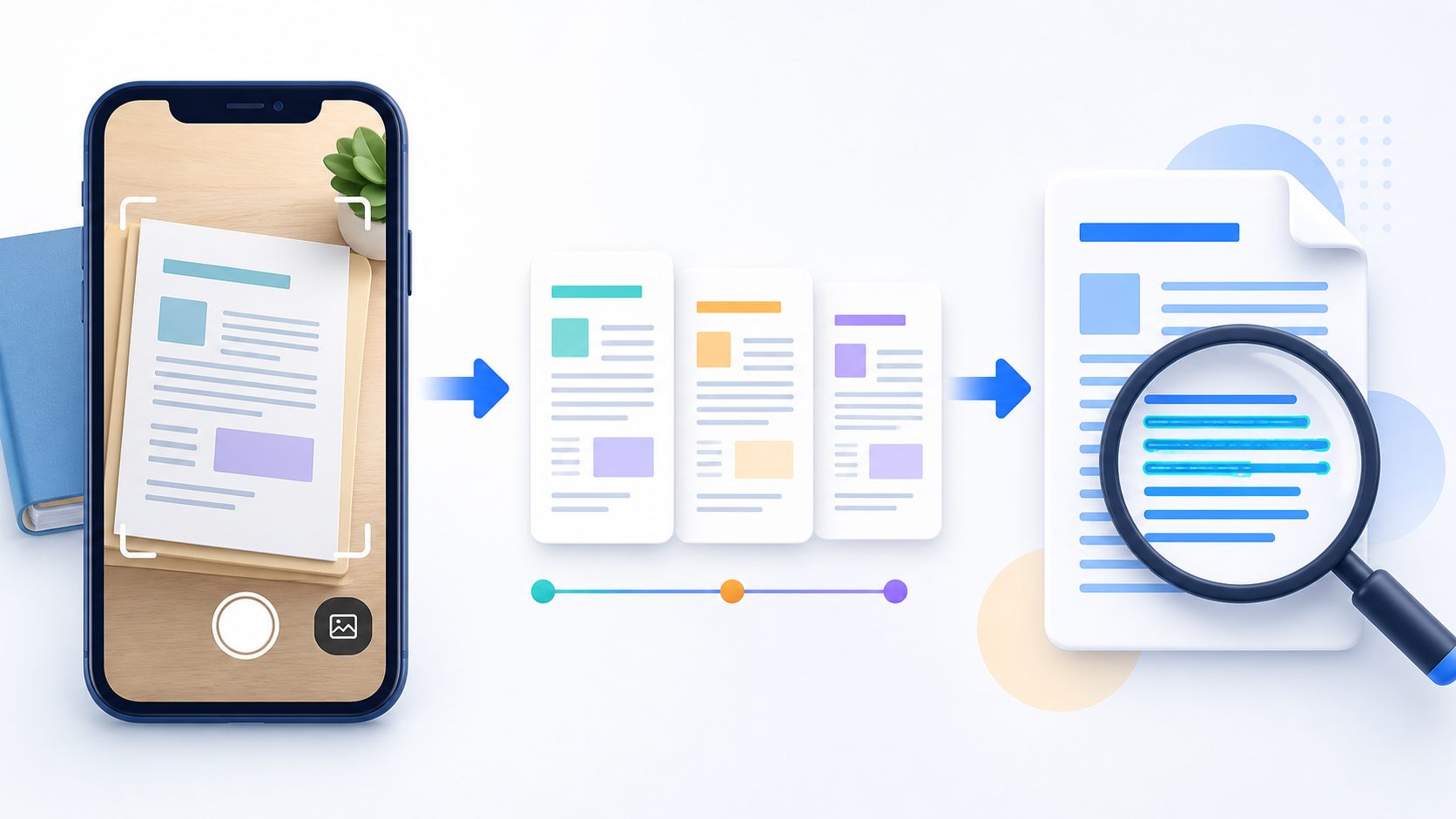
Scan to PDF turns JPG or PNG page images into an ordered document. Capture pages with a phone or choose existing images, place them in reading order, select the page layout, and download one PDF without uploading the photographs.
- Scan multiple pages to one PDF. Add each photographed page to the same workspace and arrange front pages, back pages, receipts, or attachments before conversion.
- Use Scan to PDF on a phone. The file picker can use a supported mobile browser's camera capture option. Clear lighting, a flat page, and steady framing produce a more readable result.
- Review scans before creating the PDF. Check page order and orientation carefully. The current tool does not automatically correct perspective, remove shadows, or crop document edges.
Complete the task reliably on a phone
The mobile file picker may show Photos, Files, Downloads, a camera option, or cloud-provider shortcuts depending on the device. Select only the sources required by Scan to PDF and return to the browser while processing finishes.
Large documents and high-resolution images use device memory. If the browser reloads or becomes unresponsive, keep the originals and retry with a smaller supported batch rather than repeatedly starting the same large job.
- Use a current browser and keep the tab active during processing.
- Save the result to Files or Downloads.
- Reopen the download outside the tool before sharing it.
Settings and limitations to check
Can I scan to PDF online for free? Yes. Capture or choose supported page images, arrange them, and create one PDF without registration.
Can I scan several document pages into one PDF? Yes. Add all page images to the workspace and confirm their order before conversion.
Does PDFKaka upload my document photos? No. The current scan workflow converts the selected page images locally in this browser.
- Use only the settings needed for the required result.
- Keep the source file available for comparison.
- Do not rely on an unsupported exact-size, fidelity, or security promise.
Review the completed file
Review the downloaded document at readable zoom and check every photographed edge.
Open the downloaded result in a separate viewer, inspect important pages or details, and repeat the workflow with adjusted settings if the output is not suitable.
- Confirm the expected file type and page count.
- Check important text, images, order, and orientation.
- Share or submit only the reviewed copy.
Tools used in this workflow
Frequently asked questions
What should I prepare before following this workflow?
Capture or select clear document photos on Android and combine them as ordered PDF pages.
How should I verify the result?
Review the downloaded document at readable zoom and check every photographed edge.
Can I scan to PDF online for free?
Yes. Capture or choose supported page images, arrange them, and create one PDF without registration.
Can I scan several document pages into one PDF?
Yes. Add all page images to the workspace and confirm their order before conversion.
Does PDFKaka upload my document photos?
No. The current scan workflow converts the selected page images locally in this browser.
Do I need an account to use Scan to PDF?
No. Current PDFKaka tools work without registration or sign-in.
Are my files uploaded while I use Scan to PDF?
No. This working tool processes the selected files locally in the current browser session.