Split PDF guides
How to split PDF without uploading or signing in
Separate PDF pages locally without an account while keeping the complete source file on the device.
Reviewed by PDFKaka ·
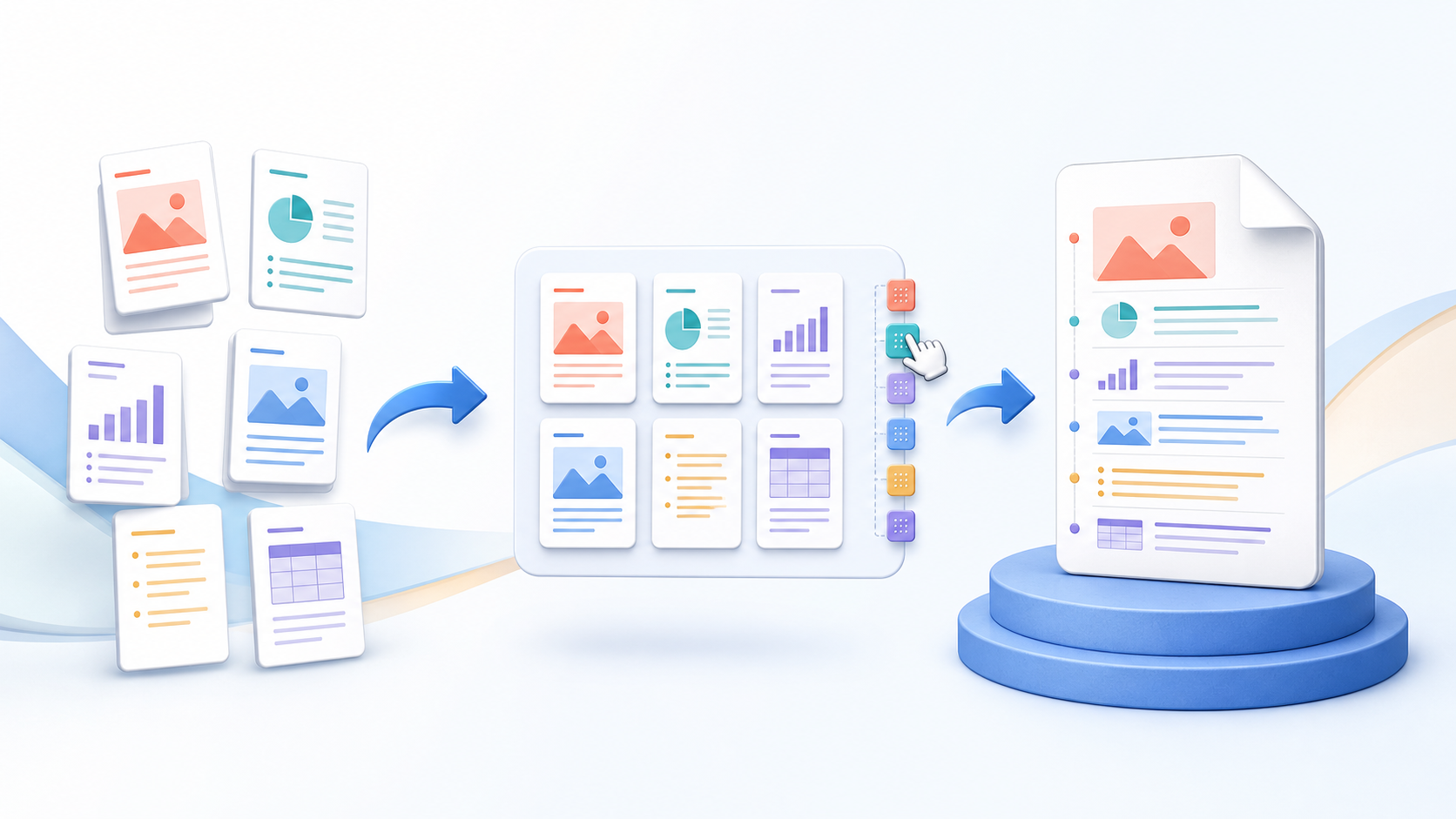
What this workflow helps you do
This workflow focuses on completing the task without registration and without sending document contents to PDFKaka. Split PDF runs in the current browser, but the finished file should still be handled according to its sensitivity.
Separate PDF pages locally without an account while keeping the complete source file on the device.
Plan the task in Split PDF
Choose a fixed number of pages per file or enter the page numbers after which to split. Check the preview of every output range, then download the separate PDFs. Pages are copied without being converted to images; use Extract Pages if you only want a selected subset.
A split PDF workflow creates several documents from one source. Choose the page boundaries or ranges that belong together, check the plan, and generate the smaller PDFs locally. This is useful for dividing reports, assignments, invoices, evidence bundles, or scanned packets.
- Split PDF pages into useful sections. Create page ranges that match real sections such as chapters, forms, appendices, or recipients. Meaningful ranges make the downloaded files easier to identify and share.
- Keep the original PDF unchanged. Splitting produces new documents. It does not delete pages from or overwrite the selected source PDF, so the complete original remains available for comparison.
- Separate pages without turning them into images. Source pages are copied into the split files rather than rendered as pictures. This preserves their page dimensions and avoids an unnecessary visual-quality conversion.
Understand the no-login, local-processing boundary
The current Split PDF workflow uses browser-side processing and does not require an account. PDFKaka does not receive the selected document contents during normal tool use.
The privacy boundary changes after the download if the result is emailed, synchronized, or uploaded elsewhere. A local workflow cannot control a third-party service, shared device, browser extension, or operating-system backup.
- Use a device and browser profile you trust.
- Review where the browser saved the result.
- Handle the downloaded copy according to the document's sensitivity.
Settings and limitations to check
Can I split PDF pages online for free? Yes. Select a PDF, define the required page ranges, and download the resulting files without registering.
Can I split every PDF page into a separate file? Create one-page ranges for the pages that need individual documents. Review every range before processing so no page is omitted.
What is the difference between splitting and extracting PDF pages? Splitting creates several outputs from one source. Extract Pages creates one new PDF containing only the pages you select.
- Use only the settings needed for the required result.
- Keep the source file available for comparison.
- Do not rely on an unsupported exact-size, fidelity, or security promise.
Review the completed file
Review the downloaded parts locally before sending any of them to another service.
Open the downloaded result in a separate viewer, inspect important pages or details, and repeat the workflow with adjusted settings if the output is not suitable.
- Confirm the expected file type and page count.
- Check important text, images, order, and orientation.
- Share or submit only the reviewed copy.
Tools used in this workflow
Frequently asked questions
What should I prepare before following this workflow?
Separate PDF pages locally without an account while keeping the complete source file on the device.
How should I verify the result?
Review the downloaded parts locally before sending any of them to another service.
Can I split PDF pages online for free?
Yes. Select a PDF, define the required page ranges, and download the resulting files without registering.
Can I split every PDF page into a separate file?
Create one-page ranges for the pages that need individual documents. Review every range before processing so no page is omitted.
What is the difference between splitting and extracting PDF pages?
Splitting creates several outputs from one source. Extract Pages creates one new PDF containing only the pages you select.
Do I need an account to use Split PDF?
No. Current PDFKaka tools work without registration or sign-in.
Are my files uploaded while I use Split PDF?
No. This working tool processes the selected files locally in the current browser session.