
Split PDF guides

How to split a PDF on iPhone or Android

Choose a PDF from phone storage, define page ranges, and save the smaller documents from a mobile browser.
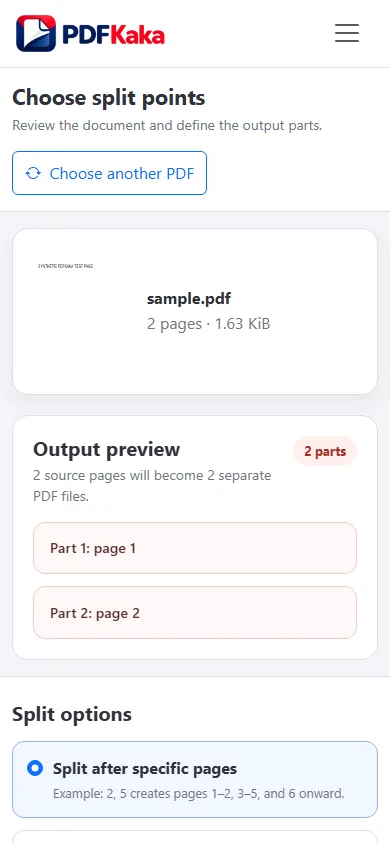
Open Split PDF

Reviewed by PDFKaka ·

How to split a PDF on iPhone or Android

What this workflow helps you do

A phone browser can run Split PDF without a separate desktop program. Device memory, the mobile file picker, camera permissions, and download handling matter more on a phone, so smaller batches are easier to verify.

Choose a PDF from phone storage, define page ranges, and save the smaller documents from a mobile browser.

Plan the task in Split PDF

Separate a long PDF into smaller files using the page boundaries you choose. Source pages are copied into the new documents without being converted to images.

A split PDF workflow creates several documents from one source. Choose the page boundaries or ranges that belong together, check the plan, and generate the smaller PDFs locally. This is useful for dividing reports, assignments, invoices, evidence bundles, or scanned packets.

  1. Split PDF pages into useful sections. Create page ranges that match real sections such as chapters, forms, appendices, or recipients. Meaningful ranges make the downloaded files easier to identify and share.
  2. Keep the original PDF unchanged. Splitting produces new documents. It does not delete pages from or overwrite the selected source PDF, so the complete original remains available for comparison.
  3. Separate pages without turning them into images. Source pages are copied into the split files rather than rendered as pictures. This preserves their page dimensions and avoids an unnecessary visual-quality conversion.

Complete the task reliably on a phone

The mobile file picker may show Photos, Files, Downloads, a camera option, or cloud-provider shortcuts depending on the device. Select only the sources required by Split PDF and return to the browser while processing finishes.

Large documents and high-resolution images use device memory. If the browser reloads or becomes unresponsive, keep the originals and retry with a smaller supported batch rather than repeatedly starting the same large job.

  1. Use a current browser and keep the tab active during processing.
  2. Save the result to Files or Downloads.
  3. Reopen the download outside the tool before sharing it.

Settings and limitations to check

Can I split PDF pages online for free? Yes. Select a PDF, define the required page ranges, and download the resulting files without registering.

Can I split every PDF page into a separate file? Create one-page ranges for the pages that need individual documents. Review every range before processing so no page is omitted.

What is the difference between splitting and extracting PDF pages? Splitting creates several outputs from one source. Extract Pages creates one new PDF containing only the pages you select.

  1. Use only the settings needed for the required result.
  2. Keep the source file available for comparison.
  3. Do not rely on an unsupported exact-size, fidelity, or security promise.

Review the completed file

Use the phone's download manager to verify that every expected part was saved.

Open the downloaded result in a separate viewer, inspect important pages or details, and repeat the workflow with adjusted settings if the output is not suitable.

  1. Confirm the expected file type and page count.
  2. Check important text, images, order, and orientation.
  3. Share or submit only the reviewed copy.

Tools used in this workflow

Frequently asked questions

What should I prepare before following this workflow?

Choose a PDF from phone storage, define page ranges, and save the smaller documents from a mobile browser.

How should I verify the result?

Use the phone's download manager to verify that every expected part was saved.

Can I split PDF pages online for free?

Yes. Select a PDF, define the required page ranges, and download the resulting files without registering.

Can I split every PDF page into a separate file?

Create one-page ranges for the pages that need individual documents. Review every range before processing so no page is omitted.

What is the difference between splitting and extracting PDF pages?

Splitting creates several outputs from one source. Extract Pages creates one new PDF containing only the pages you select.

Do I need an account to use Split PDF?

No. Current PDFKaka tools work without registration or sign-in.

Are my files uploaded while I use Split PDF?

No. This working tool processes the selected files locally in the current browser session.