Rotate PDF guides
How to rotate several PDF pages at once
When several PDF pages have the wrong orientation, select the affected pages, rotate them together, and download the corrected PDF. Pages that are already correct should remain unchanged.
Reviewed by PDFKaka ·
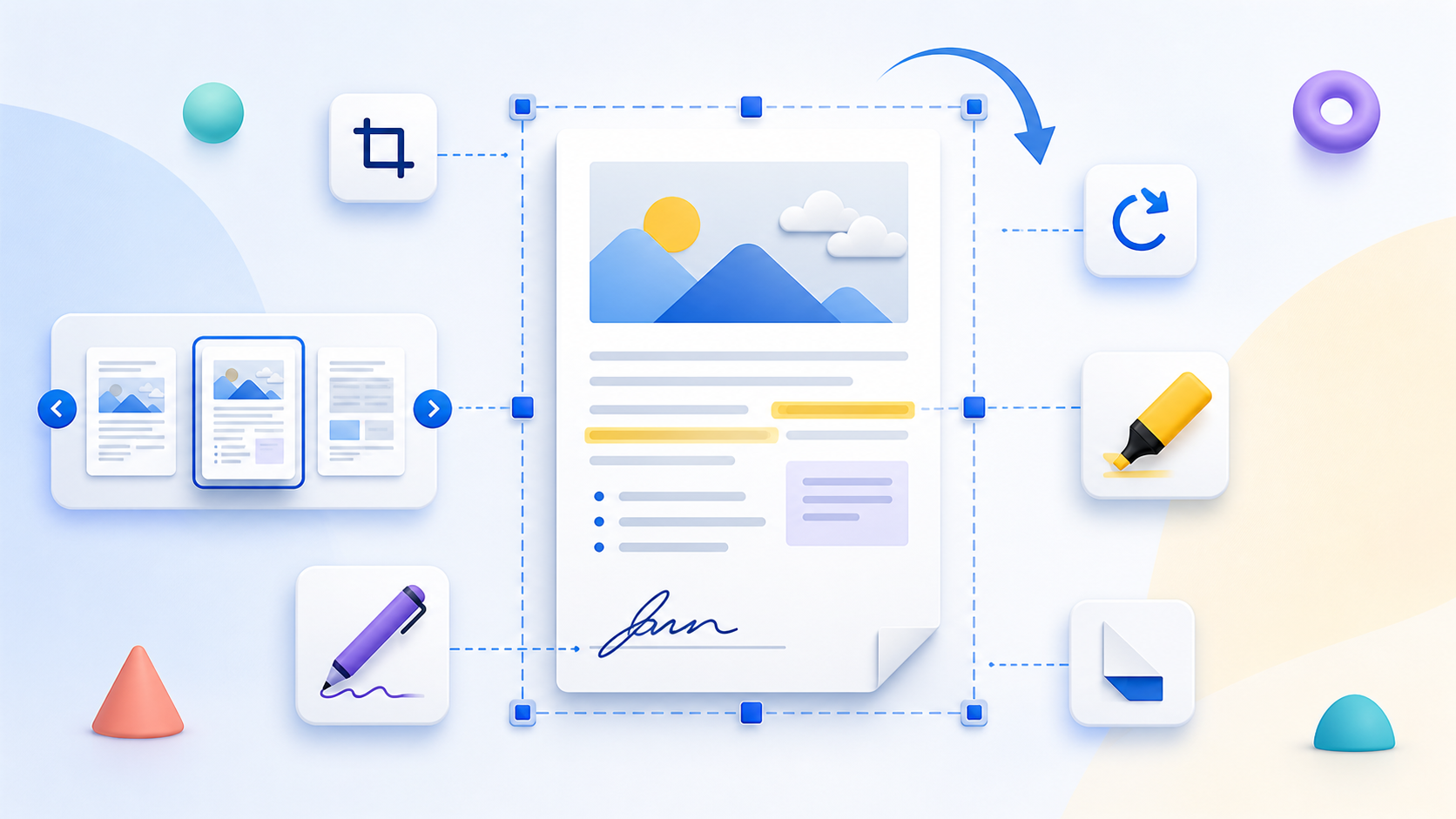
What this workflow helps you do
This workflow is for a task involving several files or pages. Plan the order and intended outputs before opening Rotate PDF, because a quick thumbnail review prevents missing, duplicated, or misplaced content.
Select the pages sharing one orientation problem and apply the same saved rotation efficiently.
Plan the task in Rotate PDF
Rotate one or more PDF pages and download a new PDF with the selected orientation saved. Unlike a reader's temporary view rotation, this changes the downloaded document. Reopen the saved copy to confirm every sideways or upside-down page is corrected.
Use Rotate PDF when scanned or exported pages are sideways or upside down. Choose individual pages or the complete document, apply left or right quarter-turns, preview the orientation, and save a corrected PDF without rendering the page content as images.
- Rotate PDF pages one by one. Apply different rotations to individual thumbnails when only some pages are incorrect. This is common in mixed portrait-and-landscape scans.
- Rotate every page together. Use the complete-document controls when the entire PDF was scanned or exported in the wrong orientation.
- Save the corrected orientation. The rotation is written into a new PDF. This differs from temporarily turning a page inside a reader, which changes only the current view.
Plan the files, pages, and output order
For this Rotate PDF task, decide what belongs in the result before processing. File names are useful clues, but page thumbnails and the intended reading sequence are the final check.
Select the pages sharing one orientation problem and apply the same saved rotation efficiently.
- Count the required source files or pages.
- Put them into the intended sequence and remove duplicates.
- Compare the expected count with the completed output.
Settings and limitations to check
Can I rotate PDF pages online for free? Yes. Rotate selected pages or the complete document and download the corrected PDF without registration.
Can different pages use different rotations? Yes. Rotate individual pages left or right until every thumbnail has the required orientation.
Does rotating reduce PDF quality? No. The page content is not rasterized or recompressed; saved quarter-turn rotations are applied to the PDF pages.
- Use only the settings needed for the required result.
- Keep the source file available for comparison.
- Do not rely on an unsupported exact-size, fidelity, or security promise.
Review the completed file
Confirm that unselected pages stayed unchanged and every selected page faces the intended direction.
Open the downloaded result in a separate viewer, inspect important pages or details, and repeat the workflow with adjusted settings if the output is not suitable.
- Confirm the expected file type and page count.
- Check important text, images, order, and orientation.
- Share or submit only the reviewed copy.
Tools used in this workflow
Frequently asked questions
How do I rotate all pages in a PDF?
Select all page thumbnails, apply the required left or right rotation, and download the saved PDF copy.
Can I rotate several PDF pages at once?
Yes. Select the pages that share the same orientation problem and rotate them together while leaving the other pages unchanged.
What should I prepare before following this workflow?
Select the pages sharing one orientation problem and apply the same saved rotation efficiently.
How should I verify the result?
Confirm that unselected pages stayed unchanged and every selected page faces the intended direction.
Can I rotate PDF pages online for free?
Yes. Rotate selected pages or the complete document and download the corrected PDF without registration.
Can different pages use different rotations?
Yes. Rotate individual pages left or right until every thumbnail has the required orientation.
Does rotating reduce PDF quality?
No. The page content is not rasterized or recompressed; saved quarter-turn rotations are applied to the PDF pages.
Do I need an account to use Rotate PDF?
No. Current PDFKaka tools work without registration or sign-in.
Are my files uploaded while I use Rotate PDF?
No. This working tool processes the selected files locally in the current browser session.