PDF reader guide
PDF Reader, Edit, Annotate, Watermark, or Compare: Which Tool Should You Use?
Begin by identifying whether the task changes the document, adds visible material, or only reviews differences.
On this page
How these workflows differ
- PDF Reader is read-only and does not save view changes.
- Edit PDF adds text, images, highlights, drawings, and shapes across PDF pages; it does not rewrite existing PDF text.
- Compare PDF checks rendered appearance rather than legal or semantic equivalence.
Review the source before changing it
Use PDF Reader to navigate thumbnails, zoom into details, and check page orientation. Keep the original open for comparison when making important changes.
- Open the PDF in PDF Reader.
- Decide which focused editing task is actually required.
- Review every relevant page.
Choose the right tool for visible additions
- Choose Edit PDF for several positioned objects or pages.
- Choose Annotate PDF for one focused highlight and note, or Watermark PDF for repeated text.
- Preview every affected page and review the downloaded copy.
Compare document versions
Compare PDF renders both documents and reports visual page differences. It can reveal changed appearance but cannot decide whether two documents have the same legal meaning.
- Choose the earlier and later PDFs.
- Run the visual comparison.
- Inspect every reported difference in context.
FAQ
PDF Reader, Edit, Annotate, Watermark, or Compare: Which Tool Should You Use?
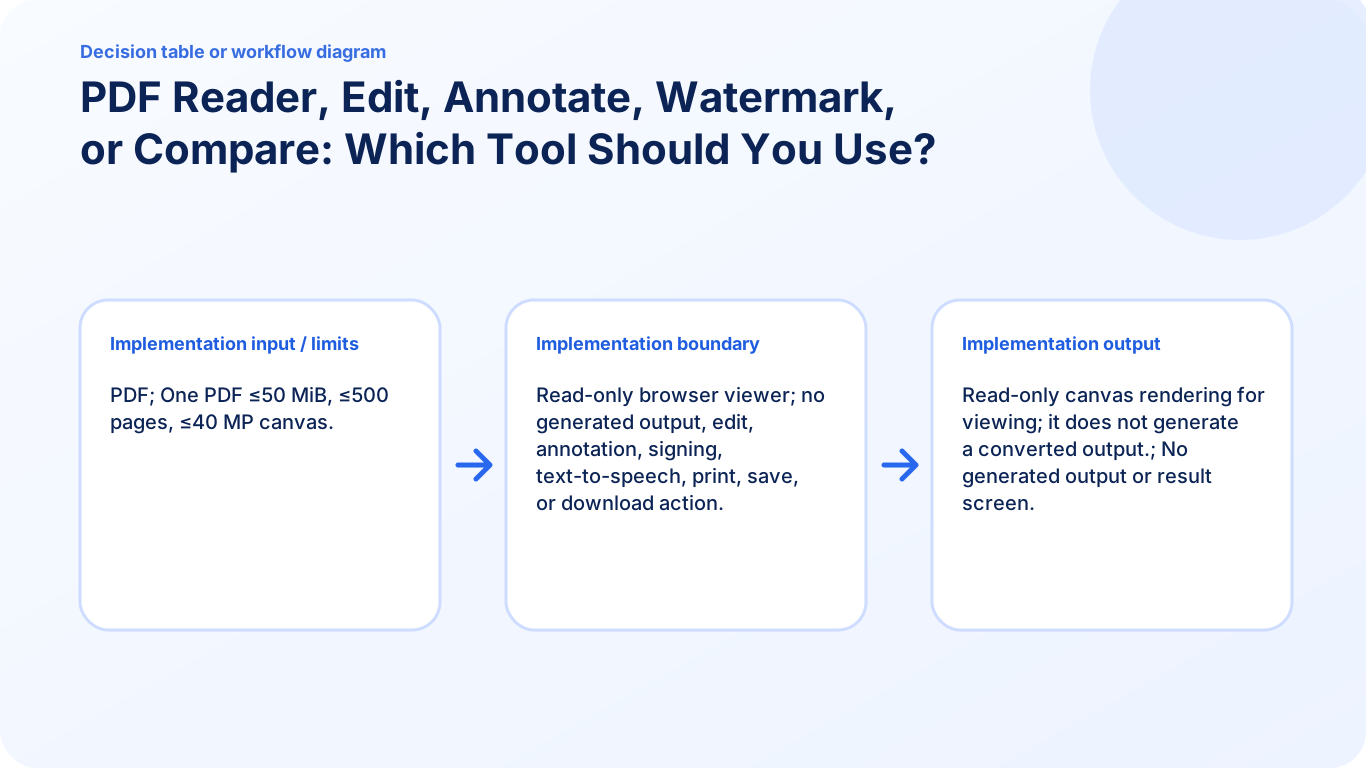
Begin by identifying whether the task changes the document, adds visible material, or only reviews differences. Read-only browser viewer; no generated output, edit, annotation, signing, text-to-speech, print, save, or download action.
Does opening a PDF in the reader edit the source file?
No editing is required to view the document. Use an editing or annotation tool only when you need to add or change visible content.
What is the current input limit for PDF Reader?
PDF; One PDF ≤50 MiB, ≤500 pages, ≤40 MP canvas.