Redact PDF guide
How to redact and review a PDF before sharing
Safe redaction requires more than drawing a black shape. The sensitive content must be removed or permanently covered in the generated result and then checked carefully.
On this page
Apply the supported text redactions
- Safe redaction requires more than drawing a black shape. The sensitive content must be removed or permanently covered in the generated result and then checked carefully.
- Scanned pages may need OCR, but recognition errors can still miss sensitive details.
- Review the final pages visually and search for the original sensitive terms before sharing.
Prepare the document
Keep an untouched original. Identify names, account numbers, addresses, signatures, and other sensitive content that must not appear in the shared copy.
- Save the original separately.
- List every sensitive value to check.
- Confirm whether the PDF text is selectable.
Run exact-text redaction
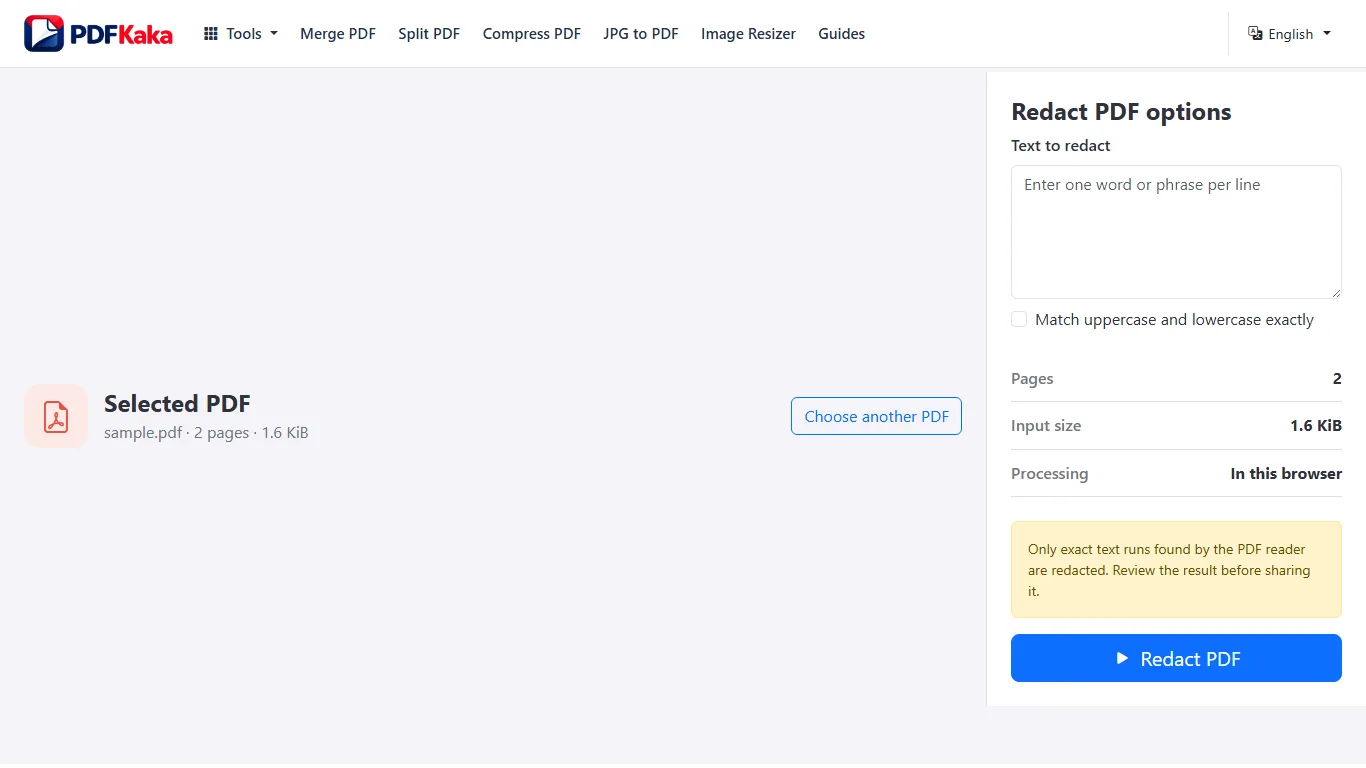
Redact PDF finds exact text runs reported by the PDF reader and rebuilds pages with matching content covered. Spelling, spacing, text segmentation, and image-only scans can affect matching.
- Enter one exact sensitive text value.
- Create the redacted copy.
- Repeat or adjust the search when expected matches are absent.
FAQ
Can Redact PDF find text inside a scanned image?
No. The current Redact PDF workflow does not perform OCR. A scan must first contain suitable selectable text for text-based matching to work.
What is the current input limit for Redact PDF?
PDF; One PDF ≤50 MiB, ≤100 pages, render cap 20 MP/page.
What does Redact PDF create?
matched pages are rebuilt as images, so selectable text/features can be lost; One PDF ≤150 MiB.