Merge PDF guide
How to Merge PDF Files in the Correct Order
When several PDFs belong in one document, the most important step is deciding the source-file order before processing. Merge PDF keeps the pages inside each source PDF together, so review the file sequence and page transitions before creating the final document.

On this page
Understand what can be reordered
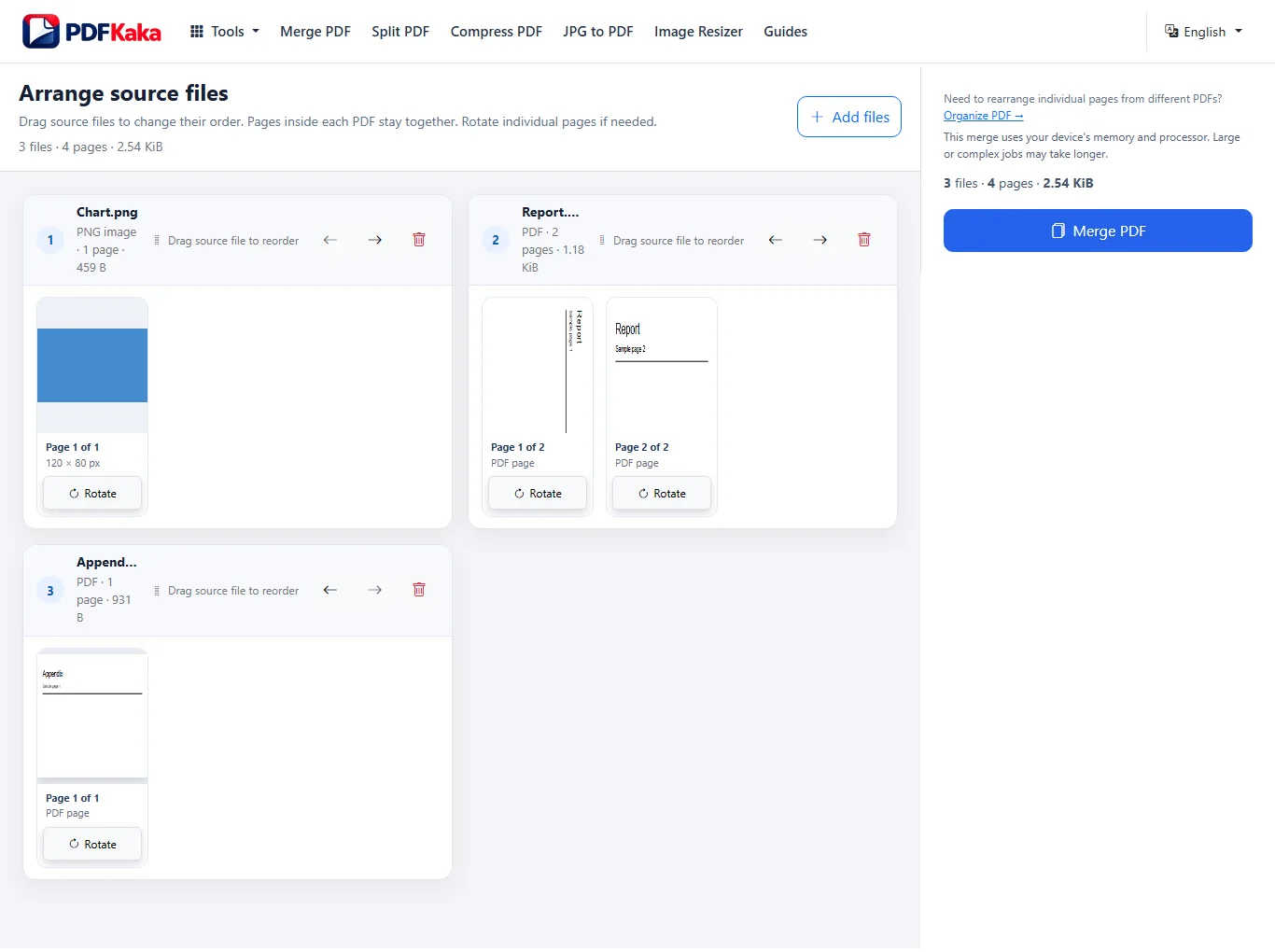
Merge PDF reorders source files.
It does not move individual PDF pages freely between source documents.
If File A contains pages 1–4 and File B contains pages 5–7, moving File B ahead of File A moves the complete File B document before File A.
For individual page-level rearranging, use Organize PDF.
How to arrange files before merging
- Rotate any sideways page.
- Add all required PDFs and supported images.
- Drag complete source files into the intended reading order.
- Check the first and last page of each source document.
- Merge the files and open the result before sharing it.
- Check the source file names and previews.
Screenshot
Check document boundaries
Most merge-order mistakes happen where one source document ends and the next begins.
Before processing, check:
- the last page of each source document;
- the first page of the next document;
- duplicate files;
- missing source files;
- page orientation;
- whether a cover page belongs at the beginning.
When Merge PDF is not enough
Use Merge PDF when complete documents are already correct internally.
Use Organize PDF when you need to:
- move one page from the middle of a PDF;
- delete selected pages;
- interleave pages from different PDFs;
- change page-level order across document boundaries.
Open Organize PDF →
Context links
Verify the merged result
After downloading the result, reopen it in a separate PDF viewer.
Confirm:
- the expected page count;
- the first and last page of each source;
- important page transitions;
- page orientation;
- any image pages added during the merge.
FAQ
Can I drag individual PDF pages into a different order in Merge PDF?
No. Merge PDF changes source-file order while pages inside each PDF stay together.
Can I rotate an individual page?
Yes. Pages may be rotated in 90-degree steps before merging.
Should I use Merge PDF or Organize PDF?
Use Merge PDF for complete source documents. Use Organize PDF for individual page-level changes.