Image size
How to resize an image to 50KB online
Use the 50KB preset to create a JPEG at or below the limit while balancing pixel dimensions and visible quality.
Reviewed by PDFKaka ·
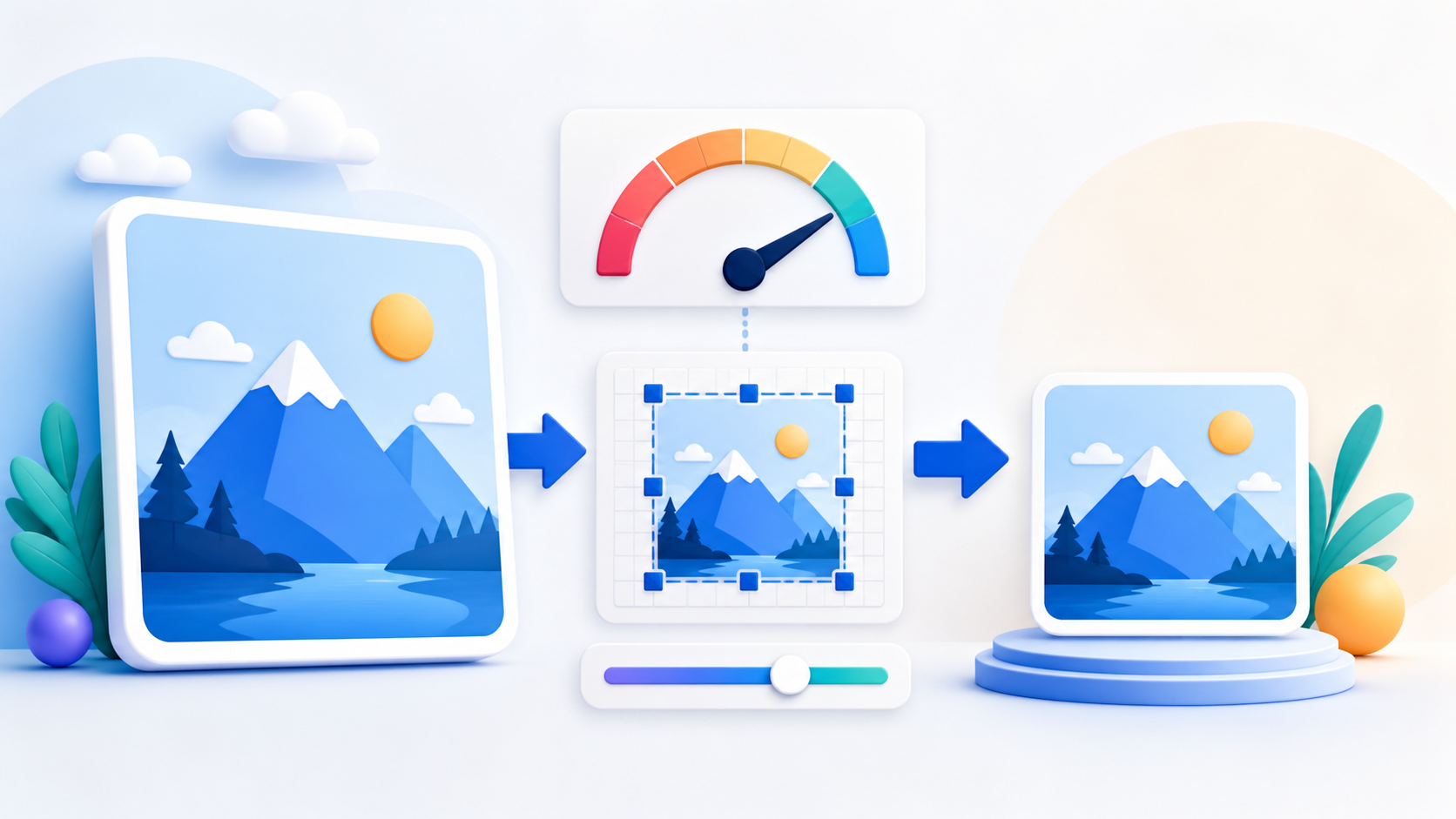
Check every upload requirement
A portal may specify 50KB together with width, height, aspect ratio, DPI, and file format. Meeting the KB limit alone can still produce a rejected image when another requirement is missed.
- Record the accepted format.
- Record the width and height if supplied.
- Keep the original image unchanged.
Use the preselected 50KB target
Open the dedicated 50KB resizer, choose a JPG or PNG, and process it locally. PDFKaka first searches for a usable JPEG quality and reduces dimensions only when the target cannot otherwise be reached.
- Select the source image.
- Confirm that Target KB shows 50.
- Resize and review the reported dimensions and file size.
Review quality before submitting
Strong compression can blur small writing or produce blocks around sharp edges. A portal may accept the bytes while a human reviewer rejects an unreadable photograph, signature, or document image.
- Download the resized JPEG.
- Open it at full size and inspect important detail.
- Use a larger permitted target when the result is unclear.
Tools used in this workflow
Frequently asked questions
Will the output be exactly 50KB?
It will be 50KB or less. Exact byte equality is not guaranteed or normally required by upload forms.
Why did the image dimensions become smaller?
When JPEG quality alone cannot reach 50KB, fewer pixels are required to meet the limit.
Can a transparent PNG stay transparent?
No. The current resized output is JPEG, so transparent areas are flattened.