JPG to PDF guide
Create a PDF from Images, Text, or HTML: Which Tool Should You Use?
Images, plain text, and HTML need different conversion controls because they carry different kinds of source information.
On this page
Choose JPG to PDF for page images
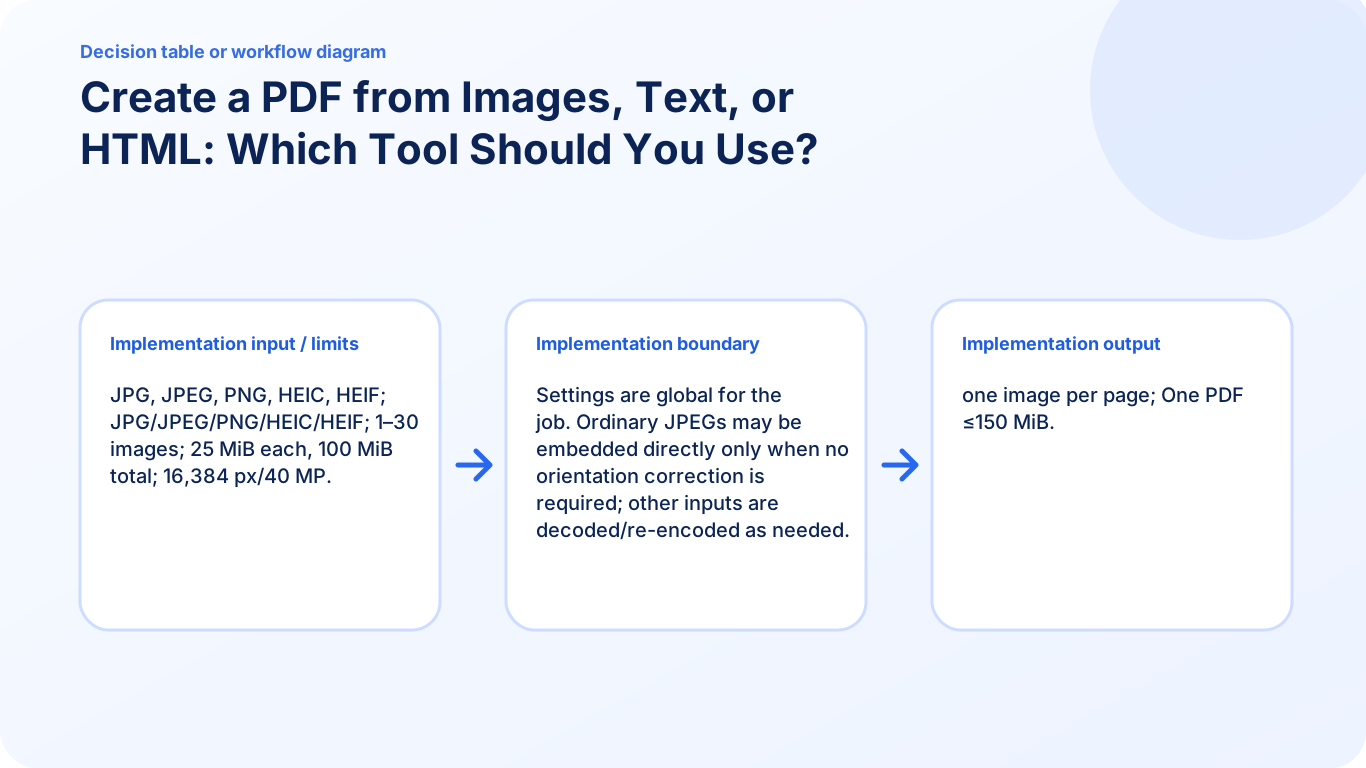
Use JPG to PDF for photographs, receipts, screenshots, and scanned pages. Arrange the images, then choose page size, orientation, margins, and fit. Each source image becomes a PDF page.
Choose TXT to PDF for plain text
Use TXT to PDF when the source is a text file and readable pagination matters more than rich formatting. Set font, spacing, margins, and page options, then inspect line and page breaks.
Choose HTML to PDF for self-contained markup
Use HTML to PDF for supported local markup. Scripts, forms, embedded pages, remote styles, and external resources are intentionally excluded, so required content must be self-contained.
Decide by what the source actually contains
An image does not become editable text merely because it is placed in a PDF. Plain text does not carry Word-style formatting. HTML can describe structure and styling, but only within the converter's safe supported subset.
FAQ
Can JPG to PDF convert a TXT or HTML file?
No. Use TXT to PDF for plain text and HTML to PDF for supported self-contained markup.
Which tool should I use for photographed documents?
Use JPG to PDF or Scan to PDF for page images; run OCR later only if searchable printed text is needed.
Will HTML to PDF load remote images and styles?
No. Remote resources and scripts are intentionally excluded from the safe conversion workflow.