
PDF to text guides

How to copy PDF text on a phone without login

Extract selectable PDF text into a downloadable TXT file from a phone browser without registering.
Open PDF to text

Reviewed by PDFKaka ·

How to copy PDF text on a phone without login

What this workflow helps you do

A phone browser can run PDF to text without a separate desktop program. Device memory, the mobile file picker, camera permissions, and download handling matter more on a phone, so smaller batches are easier to verify.

Extract selectable PDF text into a downloadable TXT file from a phone browser without registering.

Plan the task in PDF to text

Recover text objects already stored in a PDF and save them as plain text, with optional page headings for easier multipage review.

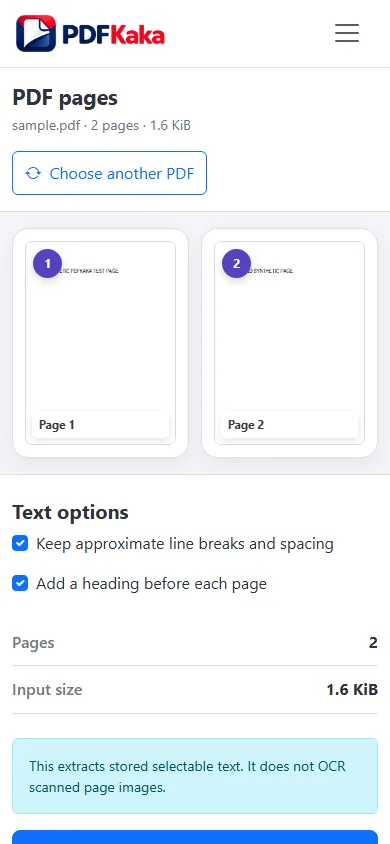
PDF to Text reads the text objects already stored in a digital PDF and writes them into a lightweight UTF-8 text file. It is useful for notes, searching, simple reuse, or checking which pages contain extractable text, but it does not preserve the original design.

  1. Extract text from digital PDF pages. Choose the document and create a plain-text copy with optional page headings to keep multipage output easier to follow.
  2. Use OCR for image-only PDF pages. If text cannot be selected in a PDF viewer, the page probably contains an image rather than text objects. OCR is needed before useful extraction.
  3. Review reading order after extraction. Columns, tables, headers, footers, and positioned text can appear in a different order because plain TXT does not contain page-layout instructions.

Complete the task reliably on a phone

The mobile file picker may show Photos, Files, Downloads, a camera option, or cloud-provider shortcuts depending on the device. Select only the sources required by PDF to text and return to the browser while processing finishes.

Large documents and high-resolution images use device memory. If the browser reloads or becomes unresponsive, keep the originals and retry with a smaller supported batch rather than repeatedly starting the same large job.

  1. Use a current browser and keep the tab active during processing.
  2. Save the result to Files or Downloads.
  3. Reopen the download outside the tool before sharing it.

Settings and limitations to check

Can I use the PDF to text converter online for free? Yes. Extract available selectable text and download a TXT file without registration.

Why is the extracted text empty? The PDF may contain scanned page images rather than selectable text. Use OCR PDF first.

Does PDF to Text keep fonts, images, and formatting? No. TXT stores plain characters and line breaks, not the PDF's visual page design.

  1. Use only the settings needed for the required result.
  2. Keep the source file available for comparison.
  3. Do not rely on an unsupported exact-size, fidelity, or security promise.

Review the completed file

Open the text file on the phone and verify Unicode characters, line order, and the final page.

Open the downloaded result in a separate viewer, inspect important pages or details, and repeat the workflow with adjusted settings if the output is not suitable.

  1. Confirm the expected file type and page count.
  2. Check important text, images, order, and orientation.
  3. Share or submit only the reviewed copy.

Tools used in this workflow

Frequently asked questions

What should I prepare before following this workflow?

Extract selectable PDF text into a downloadable TXT file from a phone browser without registering.

How should I verify the result?

Open the text file on the phone and verify Unicode characters, line order, and the final page.

Can I use the PDF to text converter online for free?

Yes. Extract available selectable text and download a TXT file without registration.

Why is the extracted text empty?

The PDF may contain scanned page images rather than selectable text. Use OCR PDF first.

Does PDF to Text keep fonts, images, and formatting?

No. TXT stores plain characters and line breaks, not the PDF's visual page design.

Do I need an account to use PDF to text?

No. Current PDFKaka tools work without registration or sign-in.

Are my files uploaded while I use PDF to text?

No. This working tool processes the selected files locally in the current browser session.