PDF to text guides
How to convert a scanned PDF to text with OCR
Use OCR on image-only pages before extracting the recognized text into a plain TXT file.
Open PDF to textReviewed by PDFKaka ·
What this workflow helps you do
A scanned PDF normally contains page images rather than ordinary selectable text. This workflow explains where PDF to text fits and when OCR or a separate image step is required.
Use OCR on image-only pages before extracting the recognized text into a plain TXT file.
Plan the task in PDF to text
Recover text objects already stored in a PDF and save them as plain text, with optional page headings for easier multipage review.
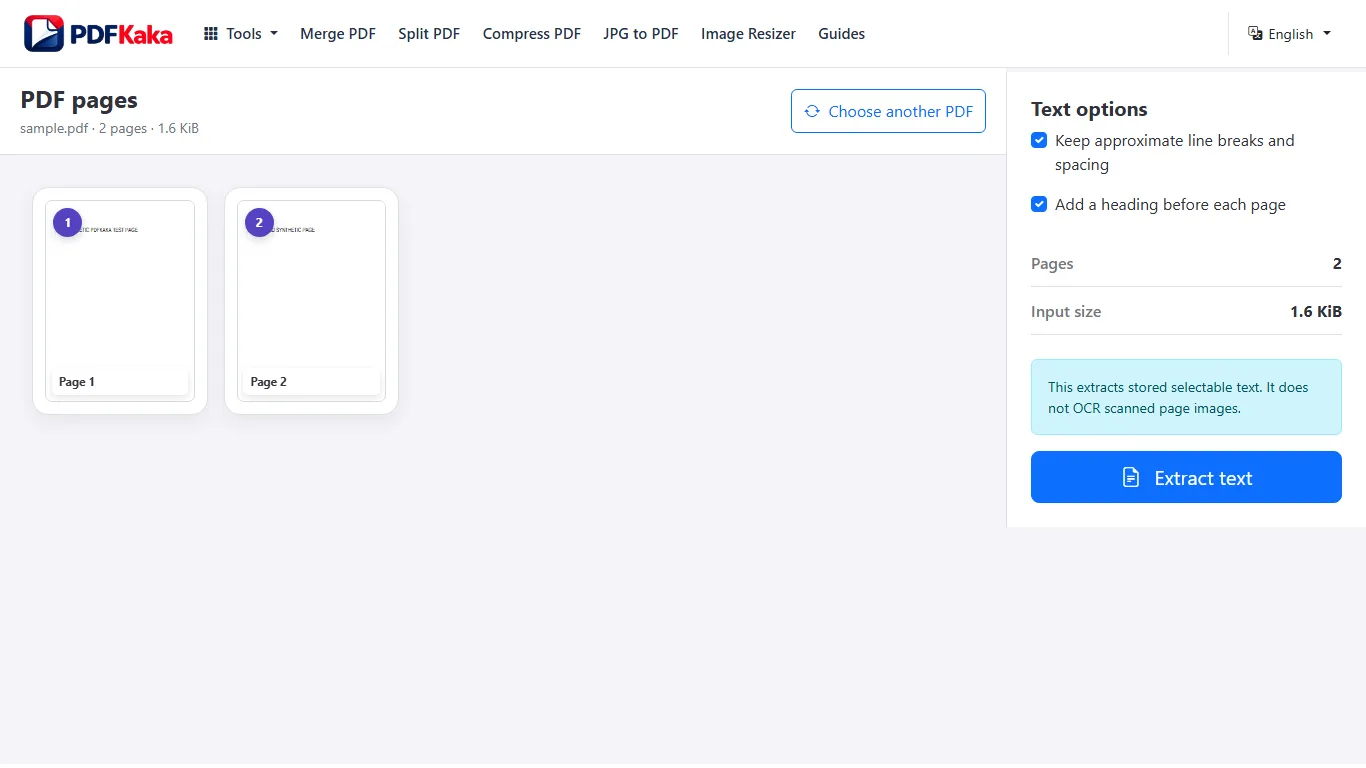
PDF to Text reads the text objects already stored in a digital PDF and writes them into a lightweight UTF-8 text file. It is useful for notes, searching, simple reuse, or checking which pages contain extractable text, but it does not preserve the original design.
- Extract text from digital PDF pages. Choose the document and create a plain-text copy with optional page headings to keep multipage output easier to follow.
- Use OCR for image-only PDF pages. If text cannot be selected in a PDF viewer, the page probably contains an image rather than text objects. OCR is needed before useful extraction.
- Review reading order after extraction. Columns, tables, headers, footers, and positioned text can appear in a different order because plain TXT does not contain page-layout instructions.
Identify image-only pages before choosing the next step
A scan can look like an ordinary PDF while storing each page as one image. PDF to text may still handle the page visually, but text search, extraction, editing, and exact-text operations need real text objects or a reviewed OCR layer.
Try selecting a sentence in a reader. If the whole page behaves like one image, plan for OCR where supported and expect to verify recognition errors manually.
- Check whether text is selectable on several pages.
- Inspect scan focus, contrast, skew, shadows, and cropped edges.
- Verify OCR names, dates, numbers, and reading order when OCR is used.
Settings and limitations to check
Can I use the PDF to text converter online for free? Yes. Extract available selectable text and download a TXT file without registration.
Why is the extracted text empty? The PDF may contain scanned page images rather than selectable text. Use OCR PDF first.
Does PDF to Text keep fonts, images, and formatting? No. TXT stores plain characters and line breaks, not the PDF's visual page design.
- Use only the settings needed for the required result.
- Keep the source file available for comparison.
- Do not rely on an unsupported exact-size, fidelity, or security promise.
Review the completed file
Verify recognized names, dates, amounts, and reading order against the scan.
Open the downloaded result in a separate viewer, inspect important pages or details, and repeat the workflow with adjusted settings if the output is not suitable.
- Confirm the expected file type and page count.
- Check important text, images, order, and orientation.
- Share or submit only the reviewed copy.
Tools used in this workflow
Frequently asked questions
What should I prepare before following this workflow?
Use OCR on image-only pages before extracting the recognized text into a plain TXT file.
How should I verify the result?
Verify recognized names, dates, amounts, and reading order against the scan.
Can I use the PDF to text converter online for free?
Yes. Extract available selectable text and download a TXT file without registration.
Why is the extracted text empty?
The PDF may contain scanned page images rather than selectable text. Use OCR PDF first.
Does PDF to Text keep fonts, images, and formatting?
No. TXT stores plain characters and line breaks, not the PDF's visual page design.
Do I need an account to use PDF to text?
No. Current PDFKaka tools work without registration or sign-in.
Are my files uploaded while I use PDF to text?
No. This working tool processes the selected files locally in the current browser session.