Crop Image guides
How to crop an image to a square
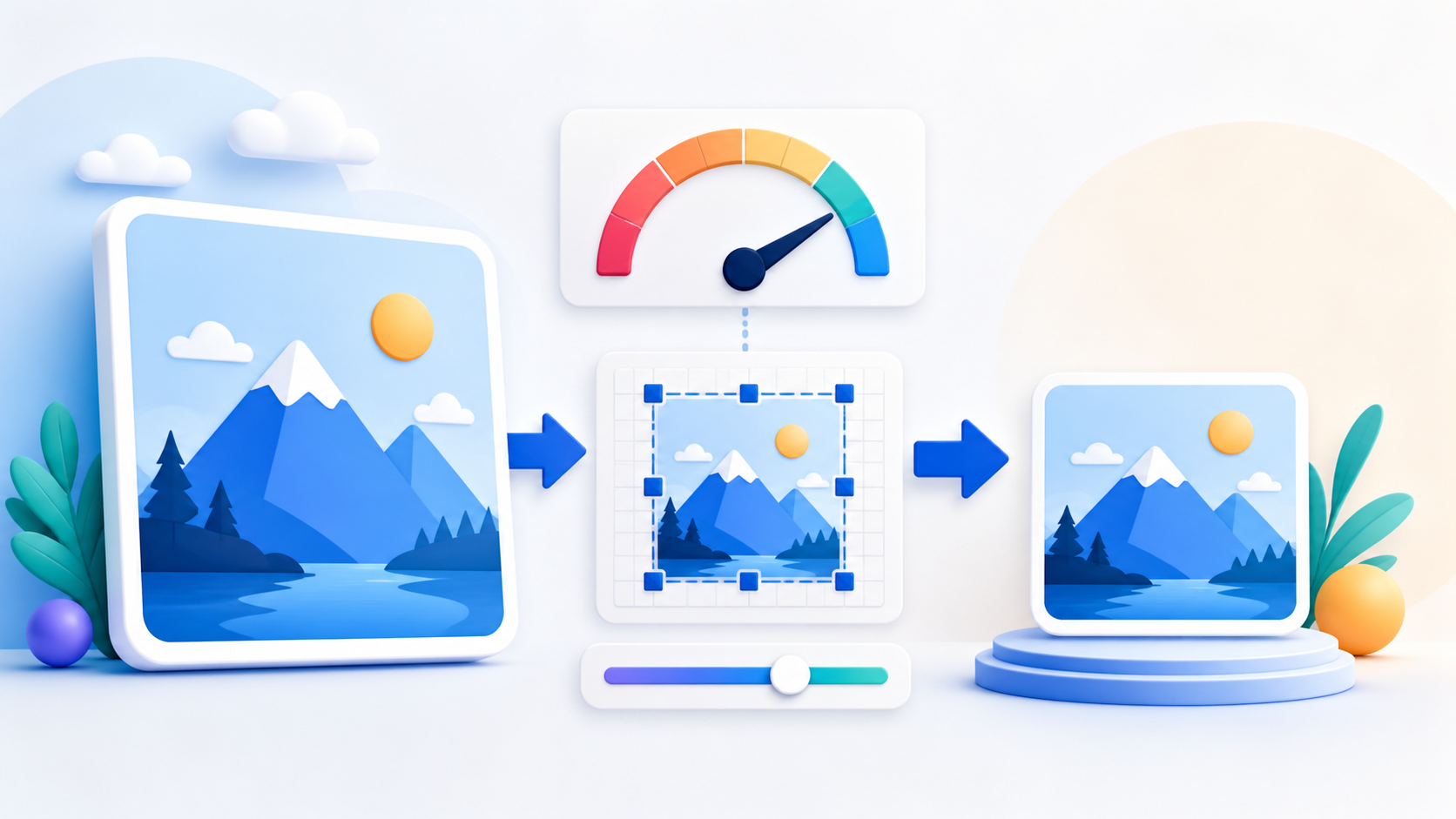
Choose the 1:1 aspect ratio, move or resize the square crop box, and keep the important subject inside its boundaries.
Reviewed by PDFKaka ·
What this workflow helps you do
This Guide answers a focused Crop Image task and connects the explanation directly to the working browser tool.
Choose the 1:1 aspect ratio, move or resize the square crop box, and keep the important subject inside its boundaries.
Plan the task in Crop Image
Select the exact rectangle to keep, enter pixel dimensions, or lock the crop to a common or custom aspect ratio before downloading a JPG or PNG.
Use Crop Image when you need to remove unwanted edges, make a square picture, match a required aspect ratio, or keep an exact number of pixels. The visual selection and numeric fields stay synchronized, and processing happens locally in the browser.
- Choose an exact crop area in pixels. Enter X and Y coordinates with width and height, or drag and resize the crop box. The downloaded image uses the crop width and height as its output dimensions.
- Lock the crop to a useful aspect ratio. Choose Original, 1:1, 4:3, 3:2, 16:9, 9:16, or a custom ratio. The selection remains inside the source image while you move or resize it.
- Download JPG or PNG with clear format behavior. Keep the source format or choose JPG or PNG. PNG preserves transparent pixels; JPG offers a quality setting and places transparent areas on white.
Follow the focused browser workflow
Choose the 1:1 aspect ratio, move or resize the square crop box, and keep the important subject inside its boundaries.
Use Crop Image for the supported operation, keep the source unchanged, and make one reviewed output rather than repeatedly processing an already changed copy.
- Prepare a supported source file.
- Choose only the settings needed for the task.
- Download and review the completed result.
Settings and limitations to check
Can I crop an image to an exact size? Yes. Set the crop width and height in whole pixels. The tool crops that area without enlarging it, so the result has those exact pixel dimensions.
Can I crop an image into a circle? No. This tool creates rectangular crops, including square crops. It does not claim to create circular masks.
Is my photo uploaded? No. Image decoding, crop preview, encoding, validation, and download stay in this browser.
- Use only the settings needed for the required result.
- Keep the source file available for comparison.
- Do not rely on an unsupported exact-size, fidelity, or security promise.
Review the completed file
Check that the downloaded width and height are equal and that no important edge was cut off.
Open the downloaded result in a separate viewer, inspect important pages or details, and repeat the workflow with adjusted settings if the output is not suitable.
- Confirm the expected file type and page count.
- Check important text, images, order, and orientation.
- Share or submit only the reviewed copy.
Tools used in this workflow
Frequently asked questions
What should I prepare before following this workflow?
Choose the 1:1 aspect ratio, move or resize the square crop box, and keep the important subject inside its boundaries.
How should I verify the result?
Check that the downloaded width and height are equal and that no important edge was cut off.
Can I crop an image to an exact size?
Yes. Set the crop width and height in whole pixels. The tool crops that area without enlarging it, so the result has those exact pixel dimensions.
Can I crop an image into a circle?
No. This tool creates rectangular crops, including square crops. It does not claim to create circular masks.
Is my photo uploaded?
No. Image decoding, crop preview, encoding, validation, and download stay in this browser.
Do I need an account to use Crop Image?
No. Current PDFKaka tools work without registration or sign-in.
Are my files uploaded while I use Crop Image?
No. This working tool processes the selected files locally in the current browser session.