
Crop Image guides

How to crop a photo without losing quality

Crop from the original photo, avoid repeated re-encoding, and use PNG or a high JPG quality when small file size is not the main requirement.
Reviewed by PDFKaka ·

How to crop a photo without losing quality

What this workflow helps you do

Quality depends on whether the task copies existing PDF objects or renders and rebuilds page images. The Guide identifies what Crop Image changes so the result can be checked instead of relying on a vague quality promise.

Crop from the original photo, avoid repeated re-encoding, and use PNG or a high JPG quality when small file size is not the main requirement.

Plan the task in Crop Image

Select the exact rectangle to keep, enter pixel dimensions, or lock the crop to a common or custom aspect ratio before downloading a JPG or PNG.

Use Crop Image when you need to remove unwanted edges, make a square picture, match a required aspect ratio, or keep an exact number of pixels. The visual selection and numeric fields stay synchronized, and processing happens locally in the browser.

  1. Choose an exact crop area in pixels. Enter X and Y coordinates with width and height, or drag and resize the crop box. The downloaded image uses the crop width and height as its output dimensions.
  2. Lock the crop to a useful aspect ratio. Choose Original, 1:1, 4:3, 3:2, 16:9, 9:16, or a custom ratio. The selection remains inside the source image while you move or resize it.
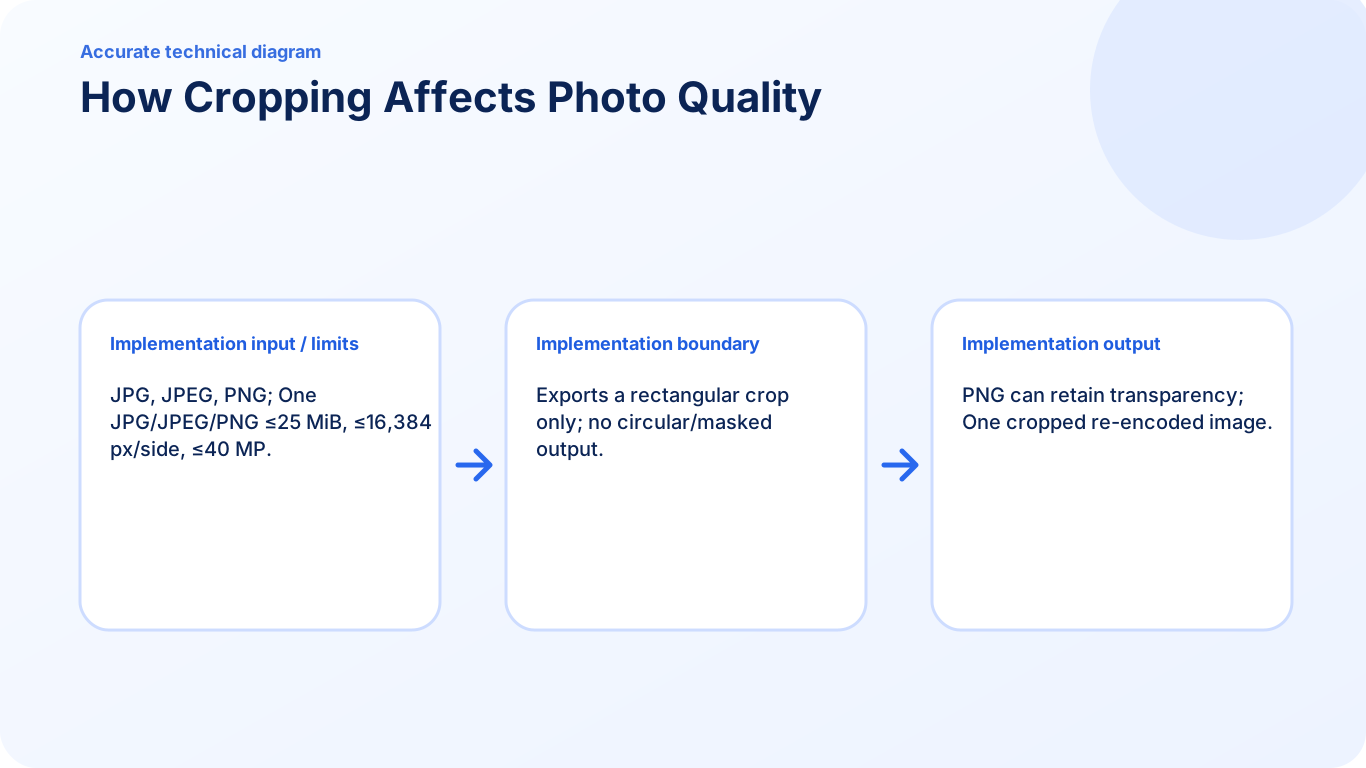
  3. Download JPG or PNG with clear format behavior. Keep the source format or choose JPG or PNG. PNG preserves transparent pixels; JPG offers a quality setting and places transparent areas on white.

Protect useful quality instead of trusting a label

Quality has to be checked in the actual Crop Image output. Text, line art, photographs, signatures, stamps, and small numbers reveal different problems, so one preview or file-size value is not enough.

Keep the source unchanged and compare representative pages at a realistic viewing or printing size. If a setting produces an unacceptable result, return to the source instead of processing the degraded copy again.

  1. Inspect the smallest important text and details.
  2. Compare a representative output with the source.
  3. Keep the clearest version that satisfies the real requirement.

Settings and limitations to check

Can I crop an image to an exact size? Yes. Set the crop width and height in whole pixels. The tool crops that area without enlarging it, so the result has those exact pixel dimensions.

Can I crop an image into a circle? No. This tool creates rectangular crops, including square crops. It does not claim to create circular masks.

Is my photo uploaded? No. Image decoding, crop preview, encoding, validation, and download stay in this browser.

  1. Use only the settings needed for the required result.
  2. Keep the source file available for comparison.
  3. Do not rely on an unsupported exact-size, fidelity, or security promise.

Review the completed file

Compare the downloaded crop with the original at full size, especially around text, faces, and sharp edges.

Open the downloaded result in a separate viewer, inspect important pages or details, and repeat the workflow with adjusted settings if the output is not suitable.

  1. Confirm the expected file type and page count.
  2. Check important text, images, order, and orientation.
  3. Share or submit only the reviewed copy.

Tools used in this workflow

Frequently asked questions

What should I prepare before following this workflow?

Crop from the original photo, avoid repeated re-encoding, and use PNG or a high JPG quality when small file size is not the main requirement.

How should I verify the result?

Compare the downloaded crop with the original at full size, especially around text, faces, and sharp edges.

Can I crop an image to an exact size?

Yes. Set the crop width and height in whole pixels. The tool crops that area without enlarging it, so the result has those exact pixel dimensions.

Can I crop an image into a circle?

No. This tool creates rectangular crops, including square crops. It does not claim to create circular masks.

Is my photo uploaded?

No. Image decoding, crop preview, encoding, validation, and download stay in this browser.

Do I need an account to use Crop Image?

No. Current PDFKaka tools work without registration or sign-in.

Are my files uploaded while I use Crop Image?

No. This working tool processes the selected files locally in the current browser session.