Convert to PDF
How to convert JPG to PDF online
Build one PDF from images while controlling the page order and layout and keeping the files in your browser.
Reviewed by PDFKaka ·
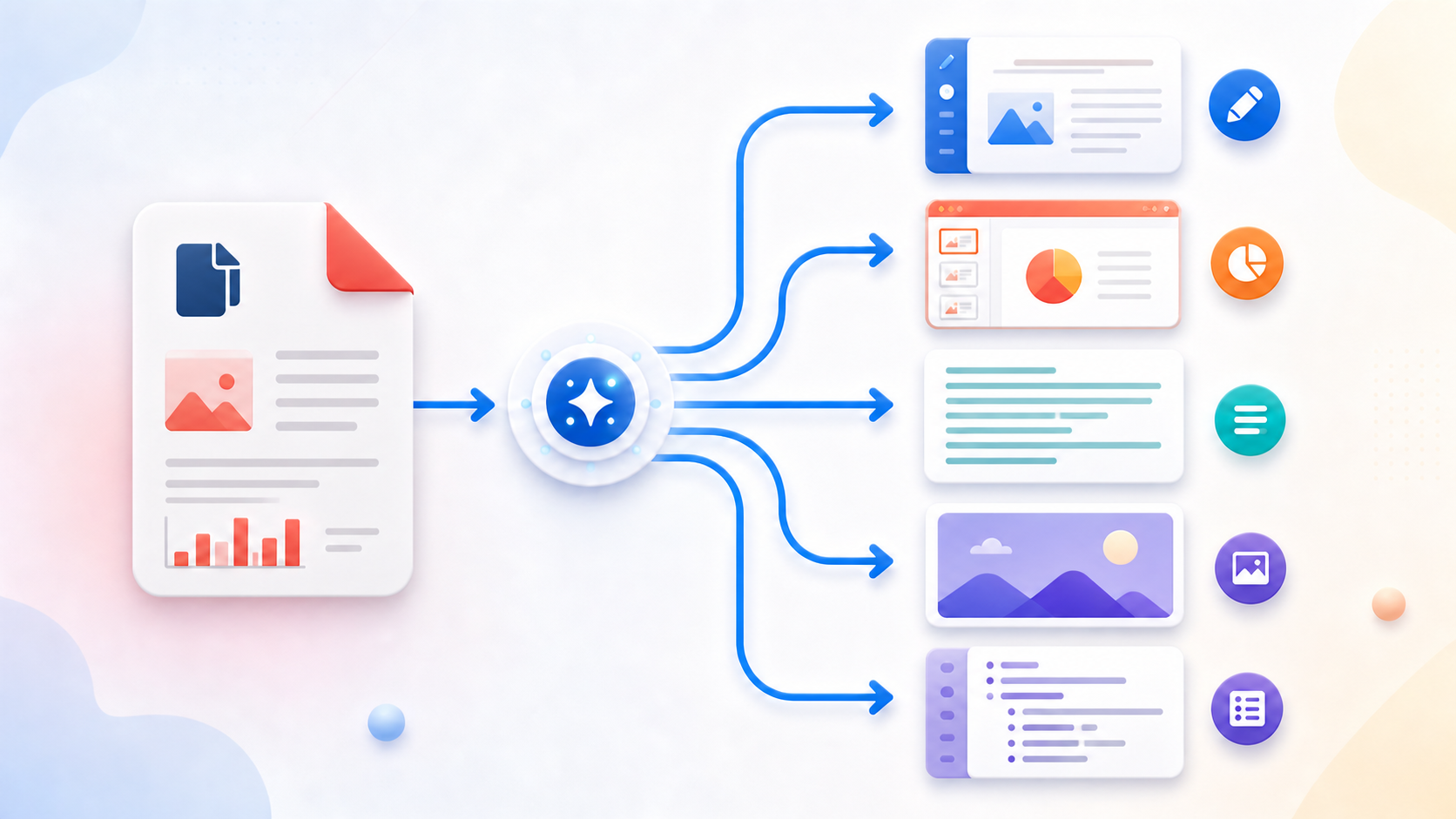
Prepare the image pages
Use clear, correctly oriented JPG, JPEG, or PNG images. Rename them meaningfully or review their thumbnails so receipts, assignment pages, photographs, and front-and-back documents enter the correct order.
- Collect the source images.
- Correct obvious orientation problems.
- Keep the originals until the PDF is checked.
Choose the PDF page layout
Add the images in JPG to PDF, reorder them, and select the available paper size, orientation, fit, and margins. Standard paper sizes help printing, while image-fit pages can reduce empty space.
- Select the images.
- Arrange the page order.
- Choose page settings and create the PDF.
Review the output size and page quality
Open the result and check image cropping, margins, orientation, and order. If an upload portal imposes a PDF-size limit, use Compress PDF afterward and verify that text and details remain readable.
- Open the downloaded PDF.
- Check every page.
- Compress a separate copy only when necessary.
Tools used in this workflow
Frequently asked questions
Can several JPG files become one PDF?
Yes. Add and arrange multiple JPG, JPEG, or PNG images before creating the multipage PDF.
Can the output be exactly 100KB or 200KB?
No exact final size is promised. The image data and page settings determine the PDF size.
Are the images uploaded?
No. The current conversion runs locally in this browser.