Optimize PDF
How to compress a PDF toward 200KB or 500KB
Use adjustable page-image quality, check the resulting file size, and protect readability instead of trusting an impossible exact-size promise.
Reviewed by PDFKaka ·
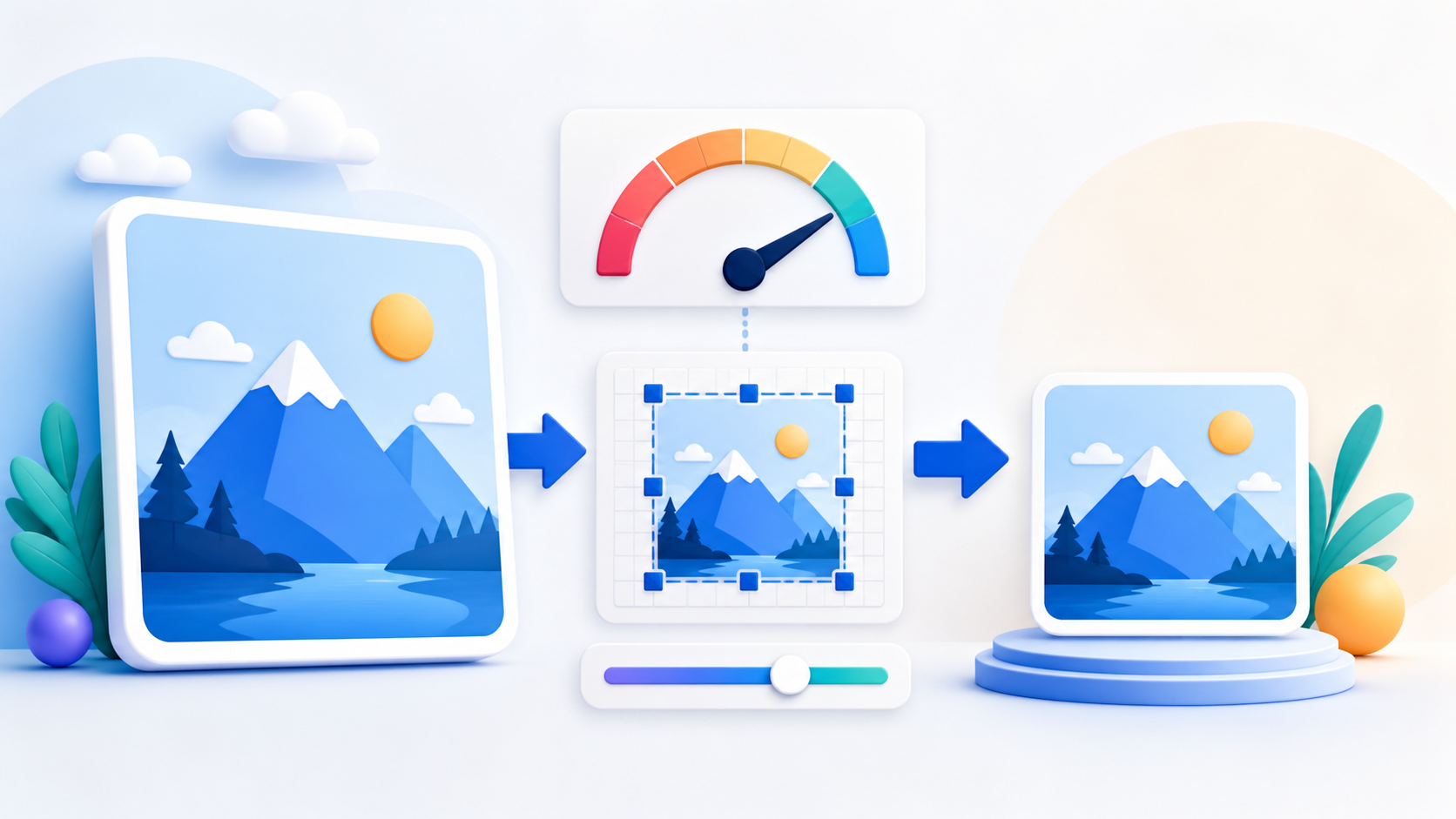
Decide whether the PDF is suitable for this compression
Scanned and photo-heavy PDFs usually provide the largest reductions. Already compact digital text PDFs may not shrink significantly, and long documents can be impossible to fit under a very small limit without unreadable pages.
- Record the portal's maximum size.
- Keep the original PDF.
- Check whether selectable text, fields, links, or signatures must survive.
Try a readable quality level first
Open Compress PDF and create a copy at a moderate setting. Check the reported size, then lower quality only if the file is still above the required maximum.
- Select the PDF.
- Choose an initial quality level.
- Download and compare the result size.
Inspect what was lost during compression
Pages are rebuilt as images, so selectable text, links, forms, and digital signatures are not preserved. Zoom into fine print, faces, stamps, and diagrams before submitting the smaller copy.
- Open the compressed PDF.
- Check every important page at useful zoom.
- Use a larger permitted limit when readability fails.
Tools used in this workflow
Frequently asked questions
Can PDFKaka guarantee exactly 200KB or 500KB?
No. It can reduce suitable PDFs, but content and page count determine the achievable size.
Why is the compressed PDF still too large?
The document may contain many pages, require readable detail, or already be compact.
Will searchable text and forms remain?
No. This compression method rebuilds pages as images.