Compress PDF guides
How to compress PDF without making text unreadable
Start with a moderate image-quality setting and lower it only when the result remains above the required limit.
Reviewed by PDFKaka ·
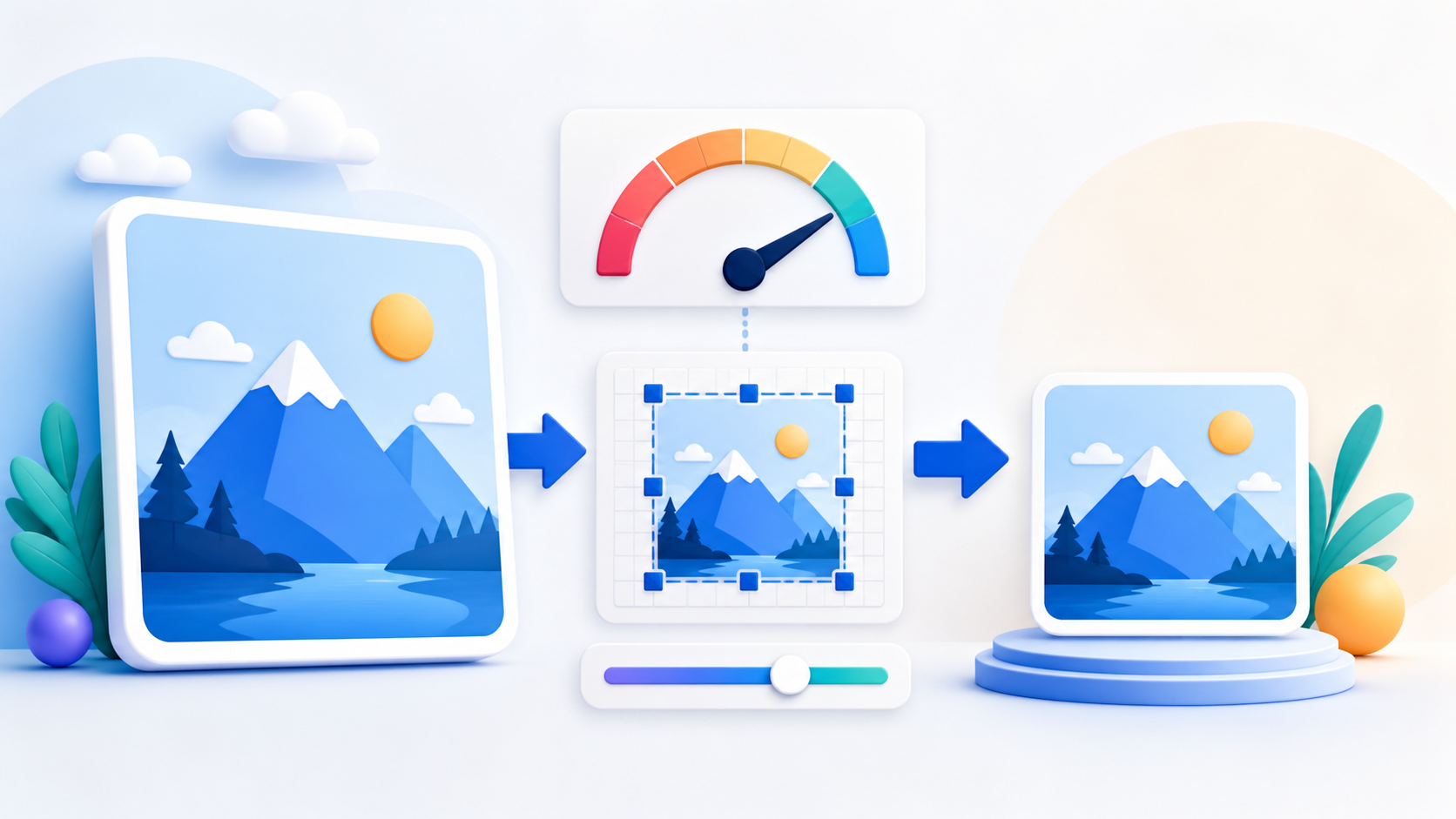
What this workflow helps you do
Quality depends on whether the task copies existing PDF objects or renders and rebuilds page images. The Guide identifies what Compress PDF changes so the result can be checked instead of relying on a vague quality promise.
Start with a moderate image-quality setting and lower it only when the result remains above the required limit.
Plan the task in Compress PDF
Reduce PDF file size in your browser, choose an appropriate compression level, and review the size-versus-quality result before downloading the new copy.
PDFKaka first offers structure-preserving compression for documents where selectable text and interactive features matter. Stronger image-based modes are available for scanned or image-heavy files, but no mode promises an exact final size. The result depends on page count, dimensions, colours, and source content.
- Start with structure-preserving compression. Recommended compression safely rewrites the document structure without intentionally turning every page into an image. It publishes a result only when the output is meaningfully smaller.
- Use stronger compression for image-heavy files. Strong and Maximum modes render pages as compressed images. They can reduce scans more substantially, but fine print, signatures, diagrams, and identification details may become harder to read.
- Understand what compression changes. Recommended mode keeps selectable text and document features where possible. Stronger image-based modes do not retain selectable text, links, forms, accessibility data, or signatures, so keep the original PDF.
Protect useful quality instead of trusting a label
Quality has to be checked in the actual Compress PDF output. Text, line art, photographs, signatures, stamps, and small numbers reveal different problems, so one preview or file-size value is not enough.
Keep the source unchanged and compare representative pages at a realistic viewing or printing size. If a setting produces an unacceptable result, return to the source instead of processing the degraded copy again.
- Inspect the smallest important text and details.
- Compare a representative output with the source.
- Keep the clearest version that satisfies the real requirement.
Settings and limitations to check
Can PDFKaka compress a PDF to exactly 100KB? Standard compression reduces file size but does not guarantee an exact final byte size. Check the downloaded result against the upload limit.
Why did my text-only PDF not become much smaller? Digitally created text PDFs can already be compact. Recommended compression will not publish a larger or negligibly smaller copy just to claim success.
Are my PDF files uploaded to a server? No. Compression is processed in your browser.
- Use only the settings needed for the required result.
- Keep the source file available for comparison.
- Do not rely on an unsupported exact-size, fidelity, or security promise.
Review the completed file
Inspect fine print, diagrams, faces, signatures, and stamps at a useful zoom.
Open the downloaded result in a separate viewer, inspect important pages or details, and repeat the workflow with adjusted settings if the output is not suitable.
- Confirm the expected file type and page count.
- Check important text, images, order, and orientation.
- Share or submit only the reviewed copy.
Tools used in this workflow
Frequently asked questions
What should I prepare before following this workflow?
Start with a moderate image-quality setting and lower it only when the result remains above the required limit.
How should I verify the result?
Inspect fine print, diagrams, faces, signatures, and stamps at a useful zoom.
Can PDFKaka compress a PDF to exactly 100KB?
Standard compression reduces file size but does not guarantee an exact final byte size. Check the downloaded result against the upload limit.
Why did my text-only PDF not become much smaller?
Digitally created text PDFs can already be compact. Recommended compression will not publish a larger or negligibly smaller copy just to claim success.
Are my PDF files uploaded to a server?
No. Compression is processed in your browser.
Do I need an account to use Compress PDF?
No. Current PDFKaka tools work without registration or sign-in.
Are my files uploaded while I use Compress PDF?
No. This working tool processes the selected files locally in the current browser session.